Connect with 360dialog
Connect a WhatsApp number to Convrs through 360dialog, a WhatsApp Business Solution Provider.
360dialog hosts the number on Meta's Cloud API and bills you for it. You sign up with 360dialog from inside Convrs and give Convrs permission to use the number. Then you create a chatbot for it. A 360dialog number runs flows, chatbots and campaigns at full volume.
To connect a number to Meta without a Solution Provider, see Connect with Cloud API. To compare the three ways to connect, see Connect a WhatsApp Number.
Before You Start
- An email address on your company's domain for your 360dialog account. 360dialog doesn't accept free email services, or an address that already has a 360dialog account.
- A phone number your business owns that can receive an international call or SMS. It can be a mobile or a landline.
- The number must not be in use on WhatsApp or the WhatsApp Business app. Delete any WhatsApp account on it first.
- A Meta business portfolio with its Business Info complete: legal name, address, website and business phone number.
- The Integration360Dialog permission to sign up, and BotsCreate to create the chatbot. See Roles and Permissions.
If you don't see 360Dialog under Integrations, or the WhatsApp cards on Create new Chatbot, your plan doesn't include WhatsApp. Contact Convrs Support.
Connect the Number
Connecting takes two steps. You sign up with 360dialog, which tells Convrs the number is ready. Then you create a chatbot for the number in Convrs.
Sign Up with 360dialog
Create your 360dialog account, register the number with Meta, and give Convrs permission to use it.
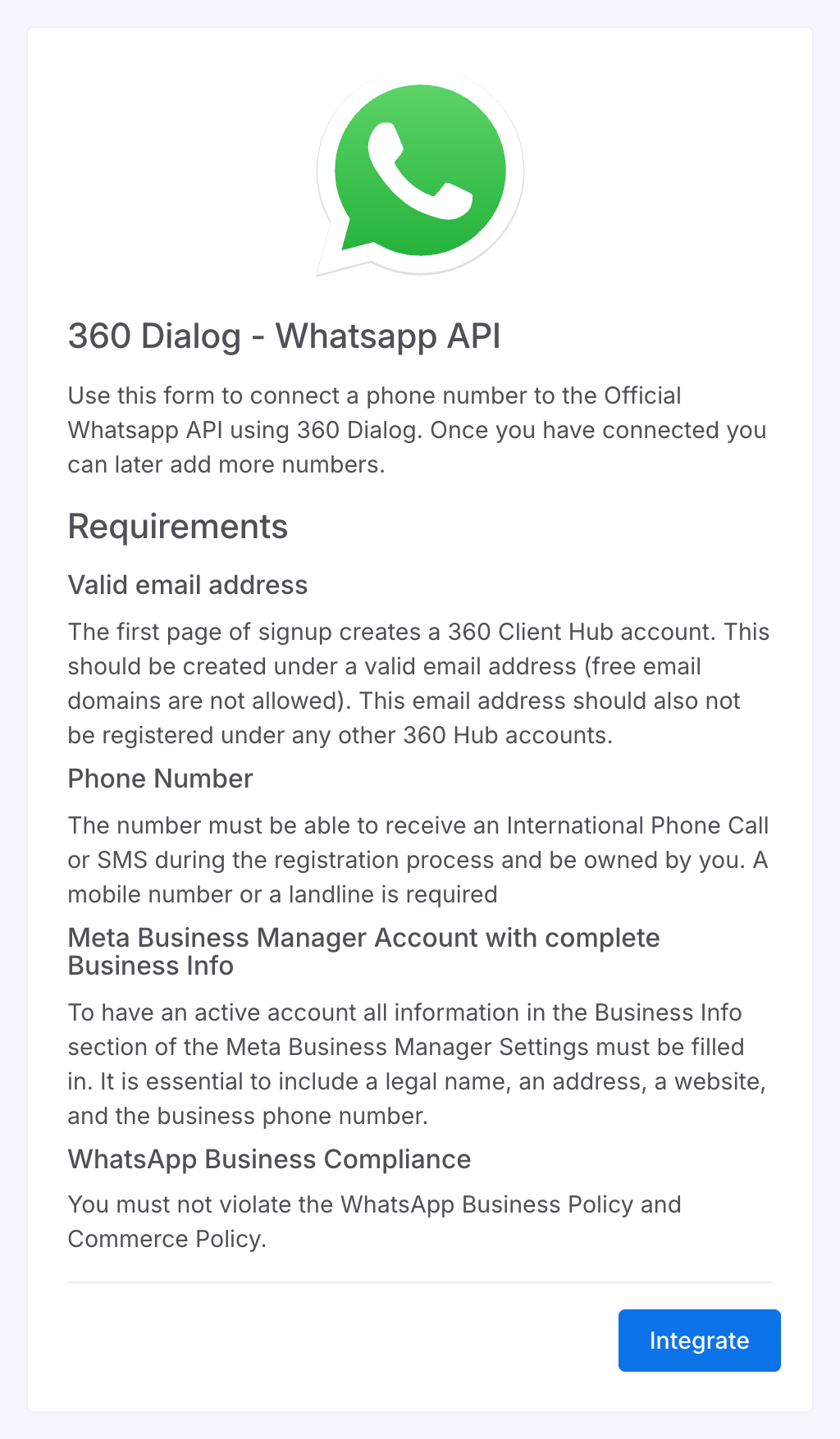
Steps:
- Go to Integrations > 360Dialog.
- Check the requirements on the card and click Integrate. A 360dialog window opens.
- Create your 360dialog account and confirm your email address.
- Sign in with Facebook and choose your Meta business portfolio. Choose an existing WhatsApp Business Account, or create one.
- Add the phone number, and enter the code Meta sends to it by SMS or voice call.
- Choose the number to share with Convrs and finish. The window then says you can close it.
Result: 360dialog tells Convrs that the number is ready, and the number appears in the list when you create the chatbot.
- 360dialog bills you for the number and for Meta's message charges. Set up payment in the 360dialog Client Hub before you send. See Pricing and Billing.
- To add another number later, click Integrate again and sign in with the same 360dialog account. See Adding A New Number.
Create the Chatbot
Create the chatbot that sends and receives the number's messages in Convrs.
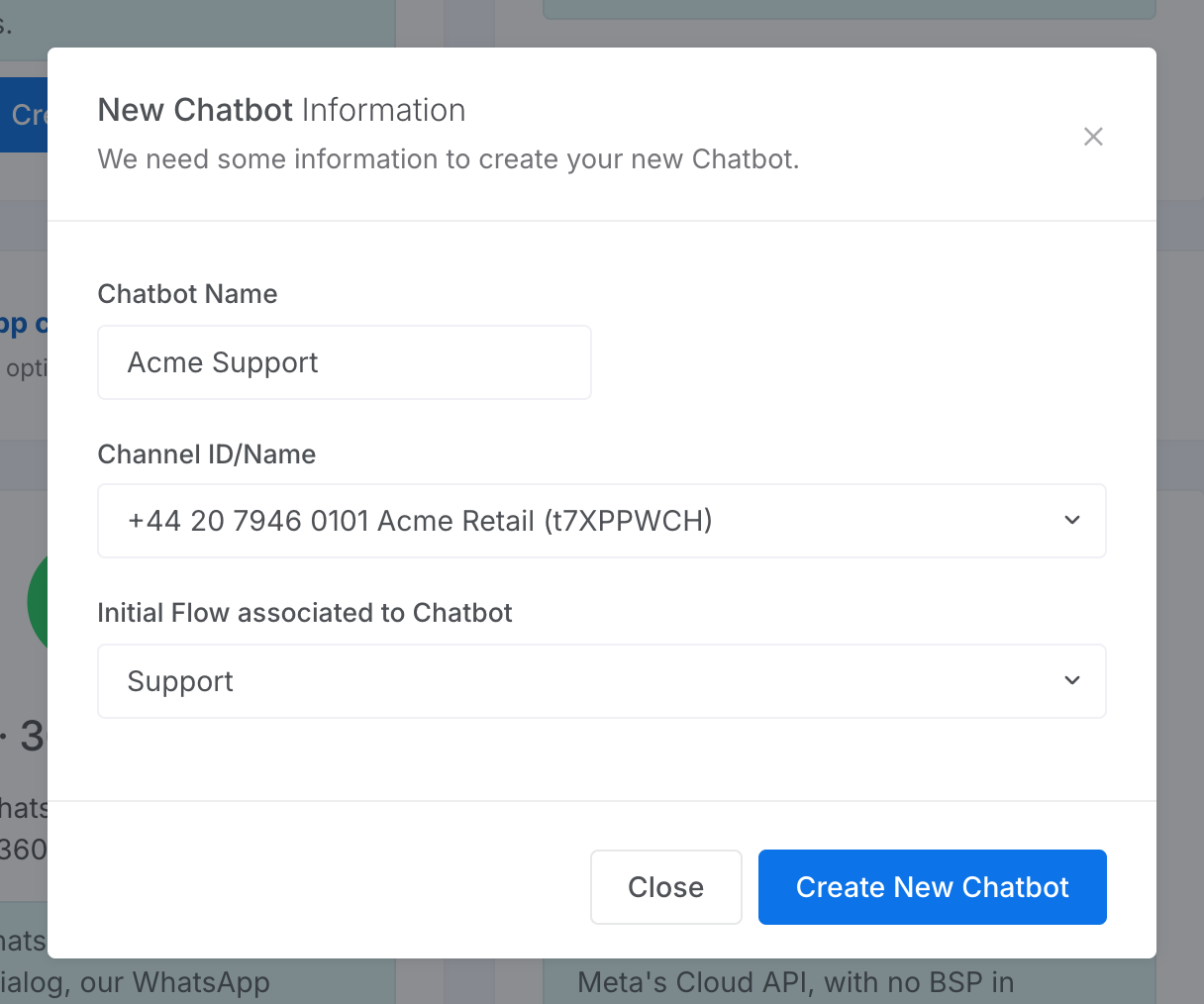
Steps:
- Go to Chatbots > Create new Chatbot.
- Click Create New on the WhatsApp · 360dialog (BSP) card.
- Enter a Chatbot Name.
- Choose the number from the Channel ID/Name list. Each entry shows the number, its name and 360dialog's ID for it.
- Choose the flow that answers new conversations from Initial Flow associated to Chatbot.
- Click Create New Chatbot.
Result: The form says Your Chatbot has been created. Convrs sets up the number's webhook with 360dialog for you, so customers' messages start arriving straight away. The chatbot appears in Manage Chatbots.
Troubleshooting
| What you see | What it means | What to do |
|---|---|---|
| The form says there are no WhatsApp channels for your organisation. | 360dialog hasn't given Convrs permission for any number yet. | Finish the signup in Integrations > 360Dialog. If you have finished it, check in the 360dialog Client Hub that Convrs has permission for the number. Then open the form again. |
| A bot already exists with this Channel ID | The number already has a chatbot. | Use the existing chatbot in Manage Chatbots. |
| Unable to find this channel ID | The list is out of date. | Close the form and open it again. |
| Unable to create bot, followed by an error | 360dialog refused the request. | Contact Convrs Support with the error. |
| Meta's code doesn't arrive. | The number can't take the call or SMS. | Check that the number accepts international calls and SMS. A landline behind a phone menu can't take Meta's call. If you have just deleted a WhatsApp account on the number, wait a few minutes and try again. |
After You Connect
- Templates: create the templates you need to message customers first. See Manage Templates.
- Profile: change the number's profile photo and About text in the 360dialog Client Hub. Convrs doesn't edit them.
- Limits and quality: Manage Chatbots shows the number's messaging limit and quality rating. See Messaging Limits and Quality.
- Stopping: archiving the chatbot in Convrs doesn't cancel the number with 360dialog. Cancel it in the 360dialog Client Hub to stop its billing.