Create WhatsApp Templates
Build a WhatsApp message template, check it against WhatsApp's rules as you type, and submit it for approval.
The editor opens from the Add Template button in Manage Templates. The same window opens an existing template for viewing, editing, duplicating or copying to another language. The form is on the left, and a phone on the right shows the message as the customer will see it, updating as you type.
About WhatsApp Templates
WhatsApp only lets a business start a conversation with a message it has approved in advance. That message is a template: fixed text, with numbered variables for the parts that change, such as a name or an order number. This section covers when a template is needed, what the categories mean, and how WhatsApp polices them. The rules quoted here come from Meta's Template fundamentals page and the pages it links to.
Why a Template Is Needed
When a customer messages your WhatsApp number, a customer service window opens for 24 hours. Inside it your agents can reply with anything: typed text, pictures, files. Each new message from the customer restarts the 24 hours. Once the window closes, a template message is the only kind WhatsApp will deliver from your number. So a template is needed for every conversation you start: a delivery update, an appointment reminder, a promotion, or a reply to a customer who last wrote two days ago.
Two rules apply to every template message. The customer must have opted in to hear from you, in a way that names your business and says what you will send. That is a requirement of the WhatsApp Business Messaging Policy, and Meta's Get opt-in page shows what counts. And Meta charges for each template message delivered, at a rate set by the template's category and the customer's country. Meta revises its price list from time to time, including what it charges for replies inside the window, so check its Pricing page for the current rates.
Template Categories
Every template has a category. It sets the price of each message and the rules Meta reviews the content against. Choose it for what the message does. A cheaper rate is not a reason. Meta's Template categorization page has the full guidelines with examples.
| Category | Meta's definition | Typical use |
|---|---|---|
| Marketing | Templates that "enable businesses to achieve a wide range of goals, from generating awareness to driving sales and retargeting customers". | Offers, sale announcements, new products, invitations, and any message that promotes something. When in doubt, a message is marketing. |
| Utility | Templates that "enable businesses to follow up on user actions or requests", because "these messages are typically triggered by user actions". | Order and delivery updates, appointment reminders, payment notices, account changes: a message about a specific transaction or request the customer already made. |
| Authentication | Templates that "enable businesses to verify a user's identity". | One-time passcodes. These follow a fixed layout that WhatsApp defines, so this editor does not build them. |
A message that mixes categories is marketing. A utility template that also promotes something is rejected at review or, if it was approved, moved to the marketing category later with notice from Meta, and charged at the marketing rate from then on.
Approval and Quality
Every new template, and every edit to one, goes through Meta's template review: automated checks and human review against the WhatsApp Business and Commerce policies. A decision takes up to 24 hours. The template comes back Approved, or Rejected with a reason. The common reasons are:
- Variables out of sequence, or at the very start or end of the text.
- Sample values missing for the variables or the media.
- Content that reads as spam or a scam, or that threatens the customer, for example with legal action.
- A request for sensitive data such as a full card number.
- A category that does not match the content.
Approval is the first check of several. Once a template is in use, Meta gives it a quality rating from the customers who receive it: High (green), Medium (yellow) or Low (red), shown as a coloured dot in Manage Templates. Medium and low come from "negative feedback from multiple WhatsApp users, or low read-rates". A template that reaches low quality is paused automatically: for three hours the first time, six hours the second, and it is disabled the third time.
To WhatsApp, spam is any message the customer did not ask for and does not want. Approval does not protect you here. Review checks the wording, and the customers decide the rest. When people block your number, report it, or stop reading, Meta acts on those signals within days, and the consequences are automatic.
- Templates pause. A paused template cannot be sent by anyone, agents included, until the pause ends or Meta approves an edited version.
- The number's quality rating drops. Meta rates each phone number High, Medium or Low on the last seven days of blocks, reports and the reasons customers give when they block. At Low, the number's status changes from Connected to Flagged. A flagged number cannot move up a messaging tier. If the rating has not recovered after seven days, the number returns to Connected with its messaging limit lowered one tier.
- The messaging limit caps your reach. The limit is how many customers a number can message outside a customer service window in 24 hours. It starts at 250 for a new business and rises through 2,000, 10,000 and 100,000 to unlimited, earned by sending well-received messages at volume. A number that reaches its limit is Restricted for the rest of the 24 hours. It can still reply to customers who write in.
- Repeat violations restrict the account. Meta's policy and spam enforcement page sets out the ladder: a warning, then blocks on sending for 1, 3, 5, 7 or 30 days, then an account lock, and permanent disabling for the worst cases. Not every spam violation can be appealed.
The way to stay clear of all this is the one Meta describes. Message only people who opted in. Send what they signed up for, no more often than they expect, and make opting out easy. Read the quality dots in Manage Templates as the customers' verdict: a yellow dot is a request to send that template less, or to rewrite it, before Meta pauses it. Full detail is on Meta's phone number quality rating and messaging limits pages.
The Editor Window
- Form: the template's name, category and language, then its header, body, footer and buttons. It scrolls when there is more than fits.
- Live preview: the message on a phone, with your sample values in place of the variables.
- Footer bar: on the left, why the template cannot be submitted yet, or a green tick when it can. On the right, AI Assistant, Cancel and Submit for approval.
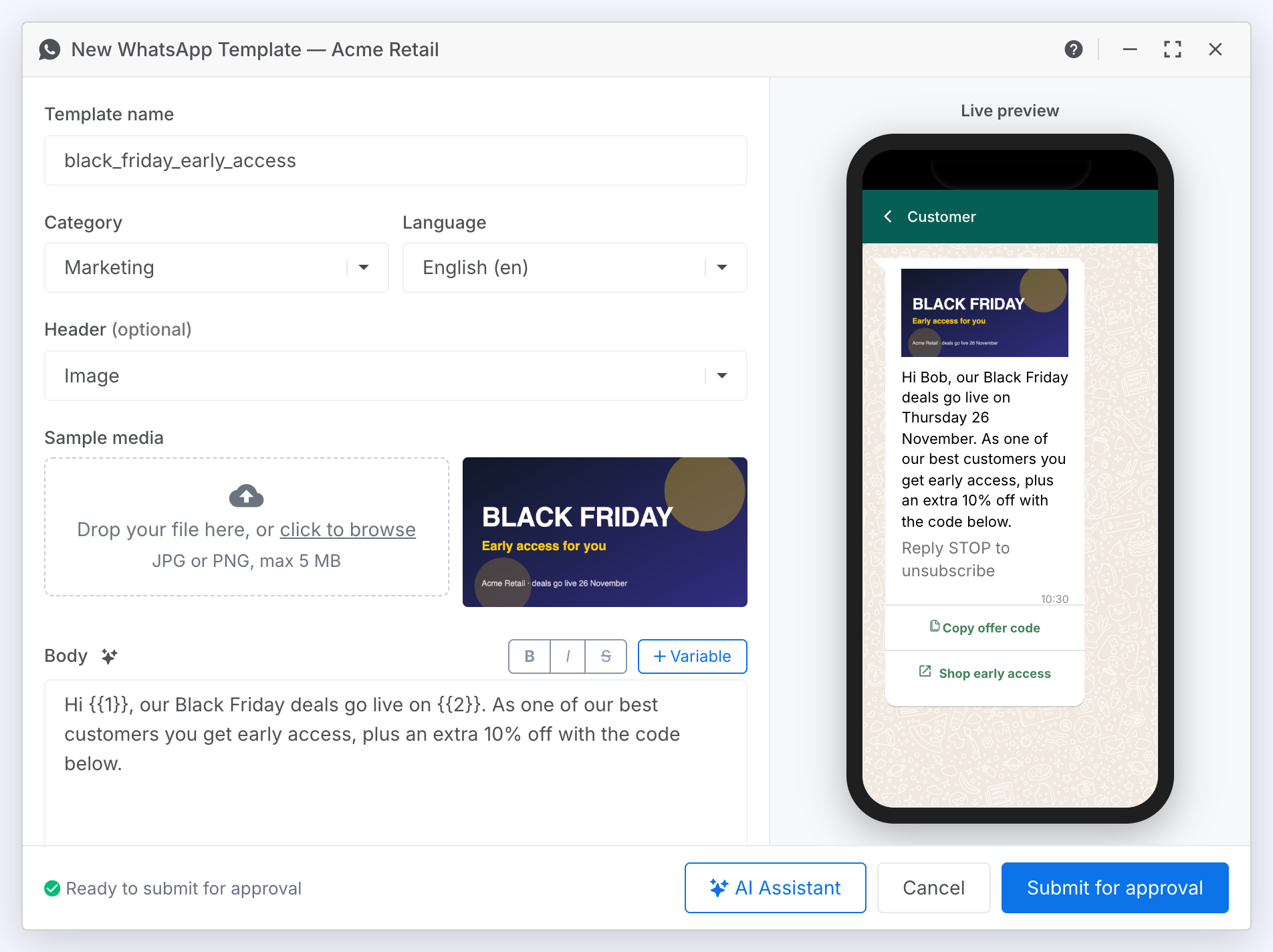
Name the template
Choose the name, category and language.
| Field | Description |
|---|---|
| Template name | Lowercase letters, numbers and underscores only. Spaces become underscores as you type. Customers never see the name. Agents pick templates by it, so make it say what the message is for, such as order_shipped. |
| Category | Marketing for promotions and offers. Utility for updates about an order, appointment or account. WhatsApp checks that the content matches the category. |
| Language | The language the text is written in. WhatsApp reviews the text against it, and the template picker matches it to the customer's language. |
Header
A header is optional. It sits above the body as a line of bold text, or as a picture, video or document.
Add a text header
A bold line of up to 60 characters above the message.
Steps:
- Choose Text from the Header dropdown.
- Type the header. A counter shows how many of the 60 characters you have used.
- To include a value that changes per message, type {{1}} where it goes. A Sample for {{1}} field appears. Fill it in.
Add a picture, video or document header
A sample file that WhatsApp reviews with the template.
Steps:
- Choose Image, Video or Document from the Header dropdown.
- Drop a file on the Sample media box, or click the box to browse. The file uploads straight away and a preview appears beside the box.
Result: The sample shows in the preview and is the example WhatsApp reviews. When an agent sends the template, they attach the actual file for that customer.
| Header | Accepted file |
|---|---|
| Image | JPG or PNG, up to 5 MB |
| Video | MP4, up to 16 MB |
| Document | PDF, up to 30 MB |
Body
The body is the message itself, up to 1,024 characters. It is the one part every template must have.
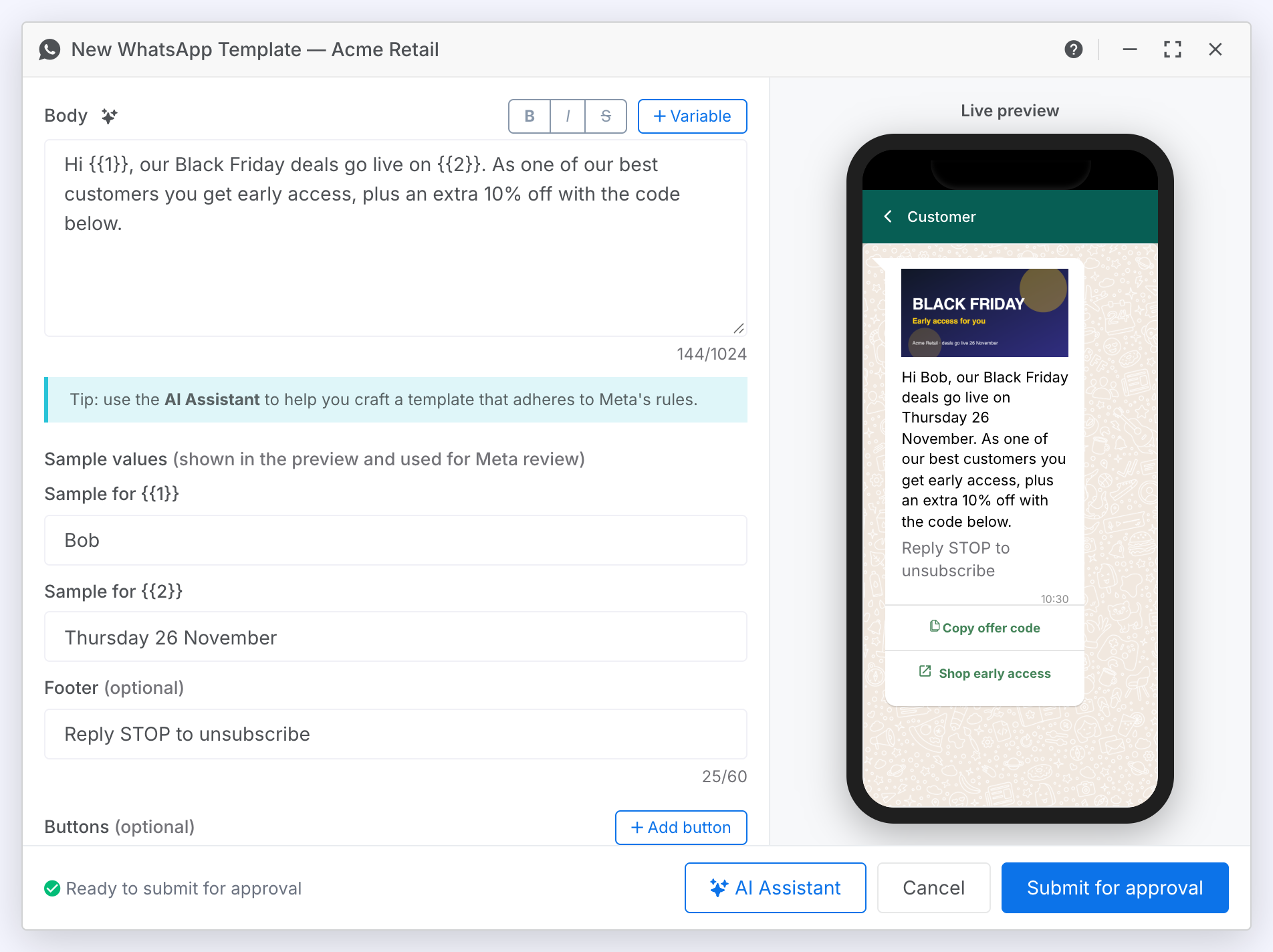
Write the body
Type the message and format it.
Steps:
- Type in the Body field. The counter under it shows the length.
- Select a word and click B, I or S to make it bold, italic or struck through. The buttons wrap the selection in WhatsApp's own marks:
*bold*,_italic_and~strikethrough~. - Click the sparkle beside the Body label to rewrite the text with the AI Writing Assistant.
Insert variables and samples
Mark the parts of the message that change per customer.
Steps:
- Put the cursor where the value goes and click + Variable. The next number is inserted, such as {{1}} or {{2}}. You can also type the braces yourself.
- Fill in the Sample for {{n}} field that appears for each variable, with a realistic value such as a name or a date.
Result: The preview shows the samples in place of the variables. WhatsApp reads the samples when it reviews the template, and agents replace them with real values when they send it.
Footer and Buttons
Both are optional. The footer is a short grey line under the body, often an opt-out instruction. Buttons sit under the message and give the customer something to tap.
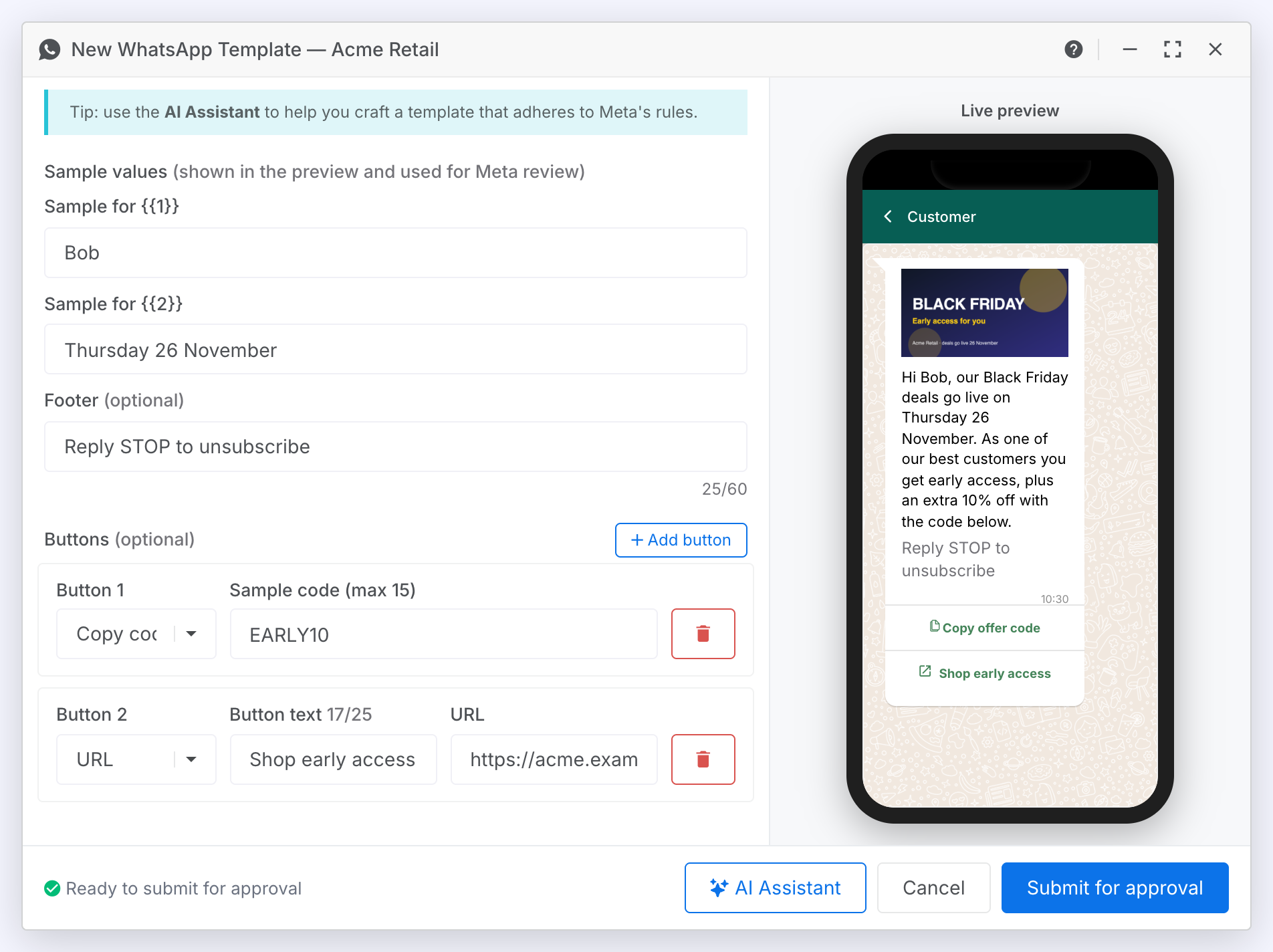
Add a footer
A line of up to 60 characters under the body.
Steps:
- Type in the Footer field.
- Marketing templates need a way to opt out. A footer such as Reply STOP to unsubscribe is the usual place for it.
Add buttons
Up to ten buttons under the message.
Steps:
- Click Add button.
- Choose the type from the dropdown and fill in its fields.
- Click the bin beside a button to remove it.
| Type | What it does | Fields |
|---|---|---|
| Quick reply | Sends the button text back as the customer's reply. | Button text, up to 25 characters. |
| URL | Opens a web page. | Button text and the URL. End the URL with {{1}} to add a value per message, such as an order number, and fill in the sample URL that appears. Up to two URL buttons. |
| Phone | Starts a call. | Button text and the phone number with its country code, such as +447700900123. One phone button. |
| Copy code | Copies an offer code to the customer's clipboard. | A sample code of up to 15 characters. The real code is set when the template is sent. One copy-code button. |
The AI Assistant
The AI Assistant button in the footer bar opens a chat pane beside the preview. The assistant can read the template you have open and change it for you, and it knows WhatsApp's template rules.
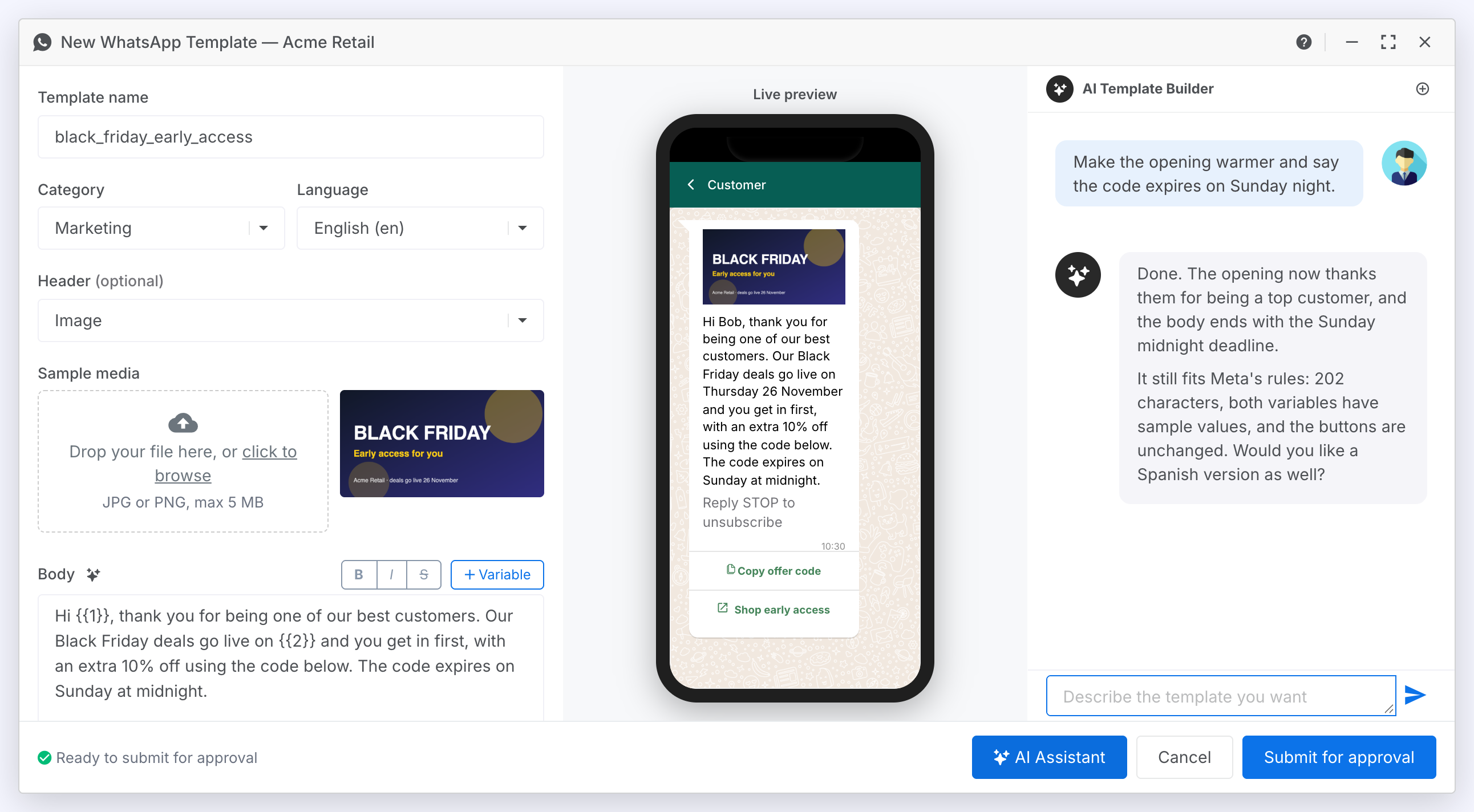
Build or improve a template with AI
Describe what you want, or ask for changes to what you have.
Steps:
- Click AI Assistant in the footer bar. The window widens to make room for the pane.
- Click one of the suggested prompts, or type your own, and press Enter. You can start from nothing ("write a template inviting customers to our autumn sale") or ask for a change ("make the opening warmer").
- Watch the form. When the assistant applies a change, the fields and the preview update, and its reply says what it did.
- Click AI Assistant again to close the pane.
Result: The assistant edits the form. Nothing goes to WhatsApp until you click Submit for approval, so you can review and adjust its work by hand first.
- Ask it to validate and improve a template before you submit. It checks the text against WhatsApp's rules and suggests wording that is less likely to be rejected.
- The assistant cannot upload a file. If it sets a picture, video or document header, add the sample file yourself.
- The + at the top of the pane starts a fresh conversation.
Submitting
The message at the left of the footer bar checks the template against WhatsApp's structural rules as you type. While something is missing it names the first problem, and Submit for approval stays disabled. When the template is complete it shows a green tick and Ready to submit for approval.

Submit the template
Send the template to WhatsApp for review.
Steps:
- Check the preview.
- Click Submit for approval. If a header file is still uploading, the submit waits for it to finish.
Result: The window closes and the template appears in the list as Pending. WhatsApp's review can take up to 24 hours. Once the template is Approved, agents can pick it and campaigns can send it. If WhatsApp rejects it, the reason appears in the list. Open the template, fix it and submit it again.
- Click Cancel or close the window to discard a draft. Nothing is saved until it is submitted.
- One template per chatbot can be submitting at a time. If you have two editors open on the same chatbot, wait for the first to finish.