Tasks
Tasks are the work that comes out of conversations: a promise to call someone back, a refund to chase, a reminder to reply in the morning. Tickets are support requests that can wait in a queue until someone picks them up. The Tasks page is where you see what is assigned to you, what you are following, everything your organisation is working on, and each queue's backlog. It is also where new tasks and tickets are raised.
Two kinds of work
- Task: work for one person. It always has an assignee, and its status is Open or Done.
- Ticket: a support request about a user. It is raised into a Business Unit's queue, and only members of that queue can take it. It carries a category, and has four statuses: Open, Waiting, Resolved and Closed.
Every row opens in The Task Window, where the work itself happens. Tasks can also be raised without leaving a chat (see Tasks from a Conversation) and drafted by the AI Task Assistant.
The Tasks Page
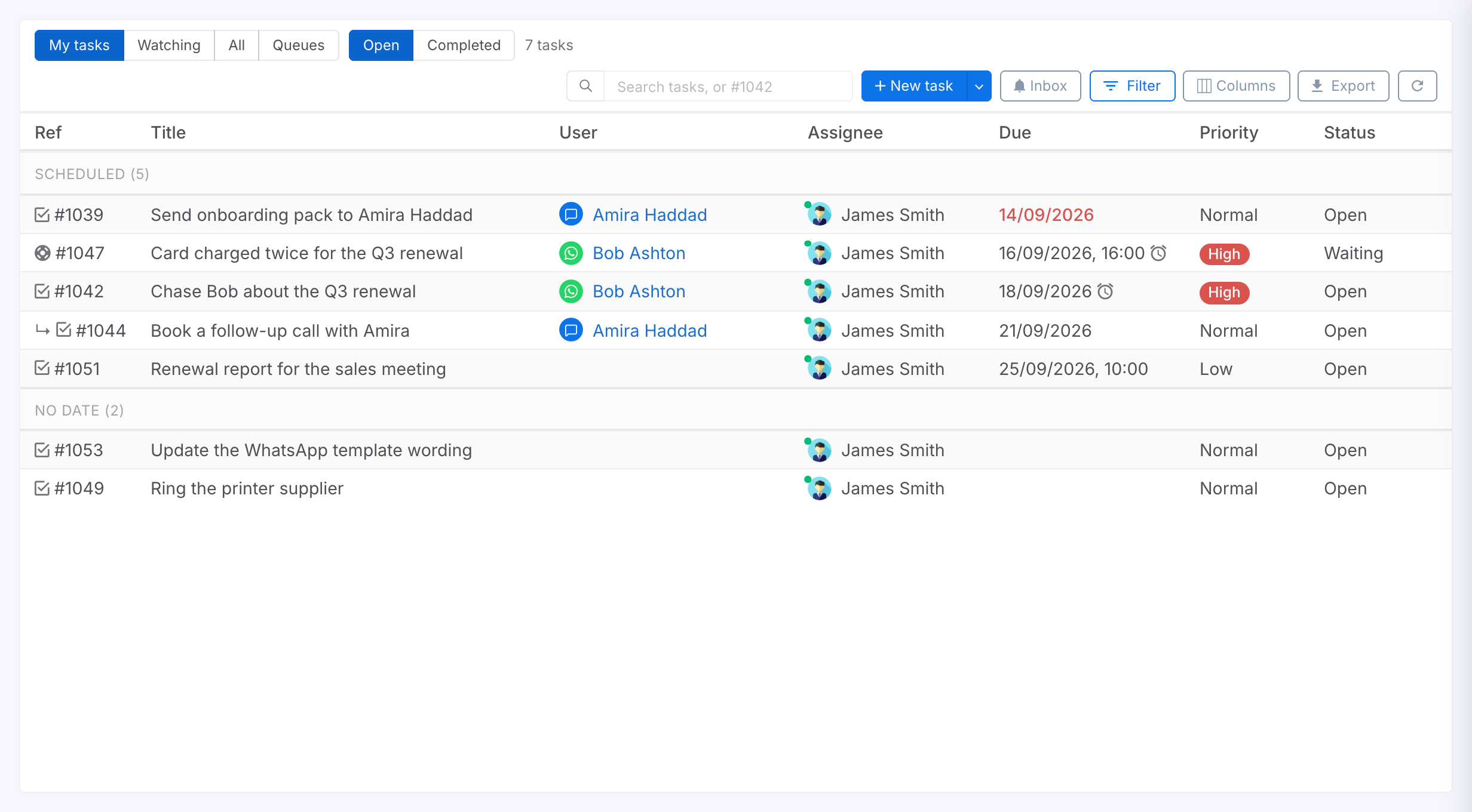
One table, with a toolbar above it. On the left, the view you are on and whether it shows Open or Completed work, with a count of what is listed. On the right, the search box, the New task button, the Tasks assistant button, the Inbox of your notifications, and the Filter, Columns, Export and refresh controls.
Click anywhere on a row to open the task. Click the name in the User column to open that user instead, or an assignee's avatar to see the agent.
Choose a View
The four views divide the organisation's work by your relationship to it. Open and Completed decide whether finished work is shown.
Result: Open shows work still to do. Completed shows what has been done, resolved or closed. Switching either refetches the list.
| View | What it lists |
|---|---|
| My tasks | Everything assigned to you. |
| Watching | Tasks you follow but are not doing: ones you created for someone else, commented on, were mentioned in, or chose to watch. Anything you have been pulled into has a home here after its notification is read. |
| All | Every task and ticket in the organisation you are allowed to see. |
| Queues | One Business Unit's ticket backlog, oldest first. See Tickets and Queues below. |
Read the List
The order, and a few marks worth knowing.
| Mark | Meaning |
|---|---|
| Arrow on a heading | The column the list is sorted by, and which way it runs. The list loads 25 at a time. Click Load more at its foot for the next page. The count in the toolbar gains a + while there is more. |
| Scheduled / No date | Shown when the list is sorted by Due. Tasks with a due date come first, then tasks without one, newest first. Each part loads on its own. |
| Checkbox / ticket glyph | A task, or a ticket. Hover over it to see which. |
| ↳ before the number | A subtask of another task. Open it to see its parent. |
| Link glyph after the number | Copies a link to the task. See Copy a Link to a Task below. |
| Red due date | Overdue. A whole-day date turns red once its day has ended, in your time zone. |
| Alarm glyph after the date | The task has a reminder set. |
| High pill | Priority High. Normal and Low are written plainly so High stands out. |
| Status | Open or Done for a task. Open, Waiting, Resolved or Closed for a ticket. |
Sort the List
Put the list in the order you need.
Steps:
- Click the Ref or Due heading, or Created once you have turned that column on under Columns. An arrow beside it shows which way the list now runs.
- Click the same heading again to reverse it.
Result: My tasks, Watching and All open with the newest task first. Ref and Created give the same order, because tasks are numbered as they are created. Sorting by Due puts the soonest first and splits the list into Scheduled and No date. Each view keeps its order until you reload the app.
Copy a Link to a Task
Send a colleague to a task without telling them where to find it.

Steps:
- Find the row you want and click the link glyph after its number in the Ref column.
- Paste the link into an email or a message.
Result: The link is copied and a message confirms it. The task stays closed, because the glyph copies the link instead of opening the row.
- The task window has a link button on the right of its title bar, beside the eye, so you can copy the link while you are working on it.
Choose Columns
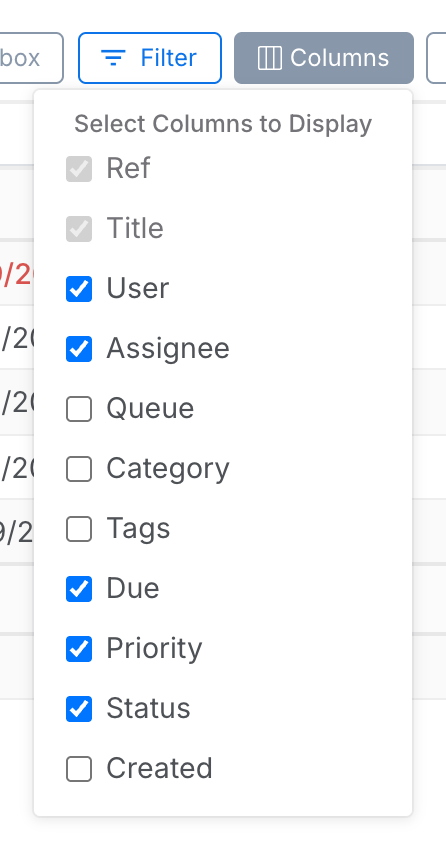
Show the columns that matter to what you are doing.
Steps:
- Click Columns and tick or untick a column.
Result: Ref and Title are always shown. Queue, Category, Tags, Created and Created by are off by default. They help when triaging a queue or reviewing what you have handed out, and are noise on a personal list. Your choice is remembered on this browser.
Export the List
Click Export to download the rows on screen as Tasks.csv, with the columns as shown and in the order shown. Load more first if you want the whole list.
Tickets and Queues
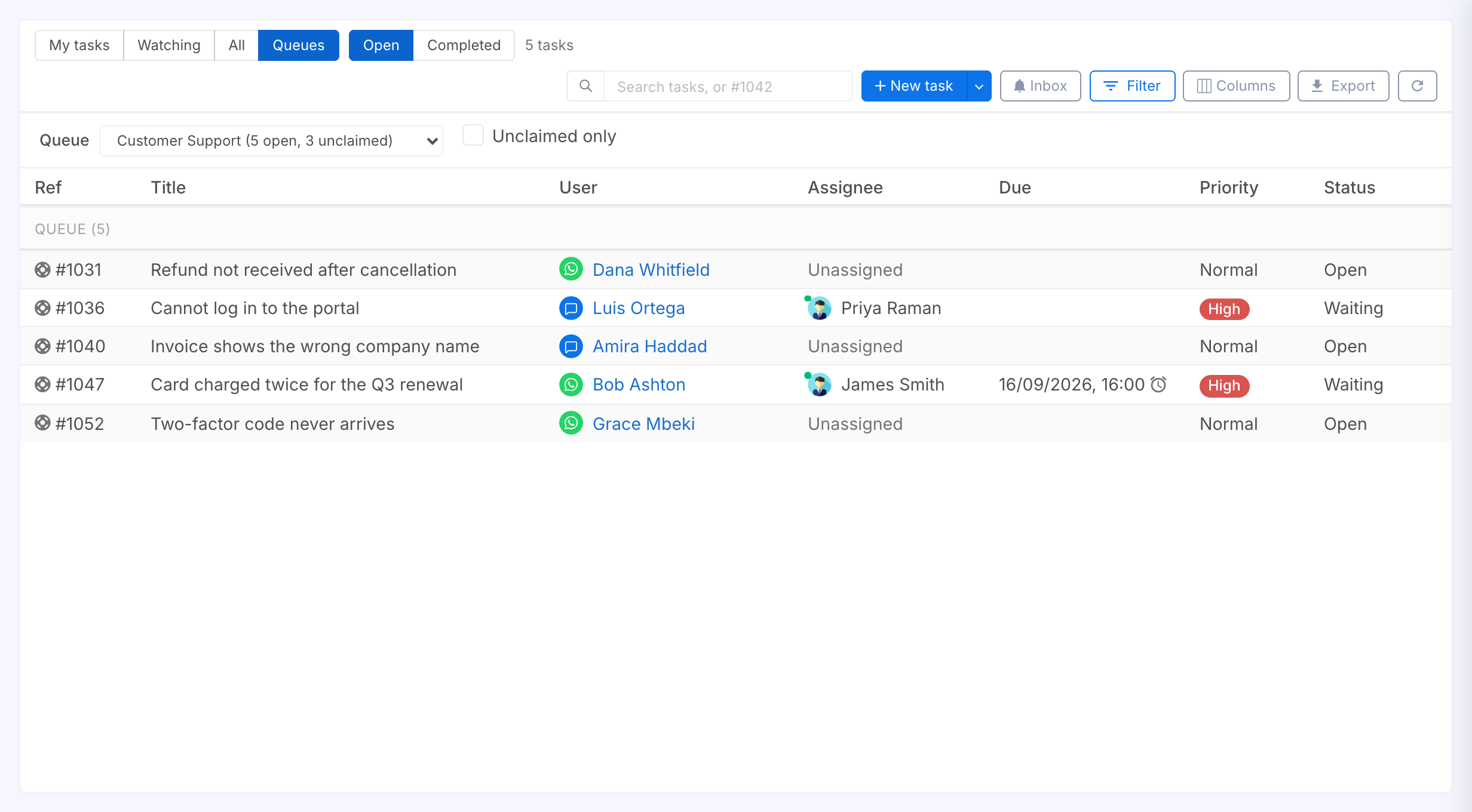
A ticket is raised about a user's request and put in a queue, one of your organisation's Business Units that is marked for tickets, where it waits unassigned for someone in that team to claim it. The Queues view is that backlog, ordered by how long each ticket has been waiting, oldest at the top. Each unclaimed ticket shows how long it has waited, such as Unassigned · 4h 15m, and the bar above the list shows the oldest. Hover a time to see when the ticket joined the queue. A queued ticket is visible to the whole organisation, so you can look at any team's queue as well as your own. Only members of a queue can claim its tickets.
Some queues hand their tickets out instead. An administrator sets a queue to Round robin or Fewest open on the Business Unit page, and a new ticket in it then goes straight to an agent in the team. You are notified when one comes to you, and told why. The Queues view shows the queue's setting beside the picker. When tickets are waiting that nobody can take, it says why, such as everyone being at their limit or away.
Tickets have four statuses. Open is being worked. Waiting is parked on the customer. Resolved is done. Closed is finished without resolving it, with a reason such as Duplicate or No reply recorded in the ticket's activity. Categories such as Billing and Technical issue are set by an administrator in Ticket Categories.
Raise a Ticket
A ticket can be raised from here, from a chat, or from a user's card.
Steps:
- Open the arrow beside New task and choose Raise a ticket. The window opens as a ticket, unassigned, in your own Business Unit's queue.
- Give it a title and a category, add the details under Description, then click Create.
Work a Queue
Claim what is waiting and move it along.
Steps:
- Open the Queues view and pick a queue. Each entry shows how many tickets are open and how many are unclaimed.
- Tick Unclaimed only to see just the tickets nobody has taken.
- Click Claim beside a ticket to take it. The list stays open, so you can claim several in a row. Or click Next ticket to claim the one that has waited longest and open it. Both are only available in queues you are a member of.
- Set the status to Waiting while the customer owes you a reply, and Resolved or Closed when it is finished.
Result: A claimed ticket appears in your My tasks and stays in the queue's list, now with your name. Take yourself off it in the window to hand it back to the queue. It joins the back of the queue, and its waiting time starts again. In a queue that hands out its tickets, it then goes to someone else. To pass it to a colleague instead, choose them under Assignee. Only members of the queue are listed.
Filters and Search
Filters narrow the view you are on. Search looks across everything you can see (task titles, descriptions and comments) and opens the result in its window.
Filter the List
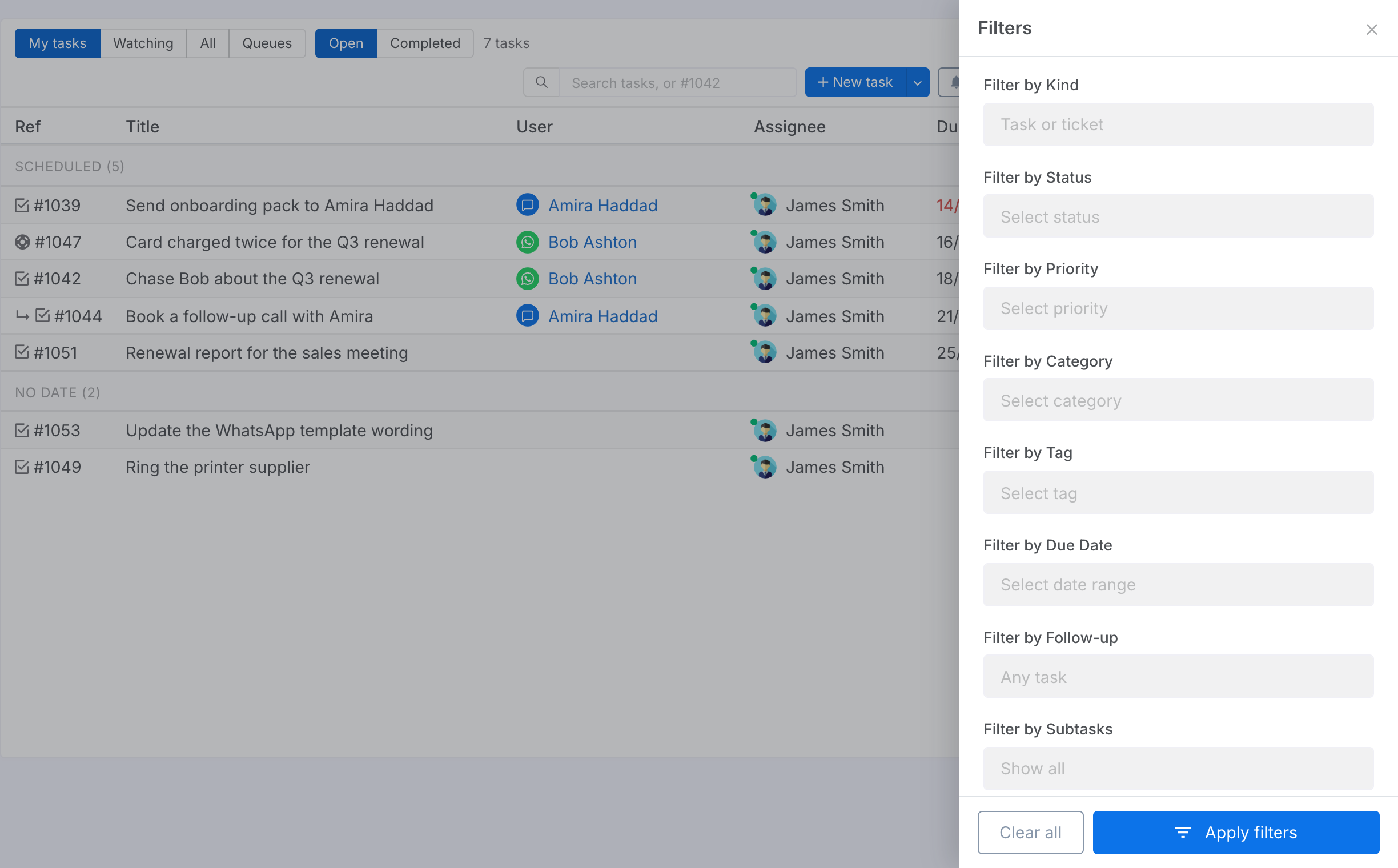
Narrow by kind, status, priority, assignee, category, tag, due date, follow-ups, subtasks or who created it.
Steps:
- Click Filter. The panel slides in over the list. Its first line says which tasks the filters apply to. That is set by the tab you are on.
- Pick values in as many filters as you need. Several values in one filter mean any of them.
- Click Apply filters.
| Filter | Notes |
|---|---|
| Kind, Status, Priority, Category, Tag | The values a task carries. Status offers the ticket vocabulary, with Resolved / Done covering both kinds. A retired category is still offered, marked, so the tickets that carry it stay findable. |
| Assignee | Not offered on My tasks, or on a queue with Unclaimed only ticked. Those views have already decided whose work is listed. |
| Due Date | A date range. Tasks without a due date cannot fall inside one, so they drop out of the list, and the No date section is hidden while a range is set. |
| Follow-up | Only the follow-ups that close themselves when the customer replies. |
| Subtasks | Hide subtasks lists top-level work only. Subtasks are otherwise listed as rows of their own, marked ↳. |
| Created by | Who raised the task. Pick yourself on All to see what you have handed to others. |
See and Clear Active Filters
The filters in force are shown as chips above the list, and the Filter button counts them.
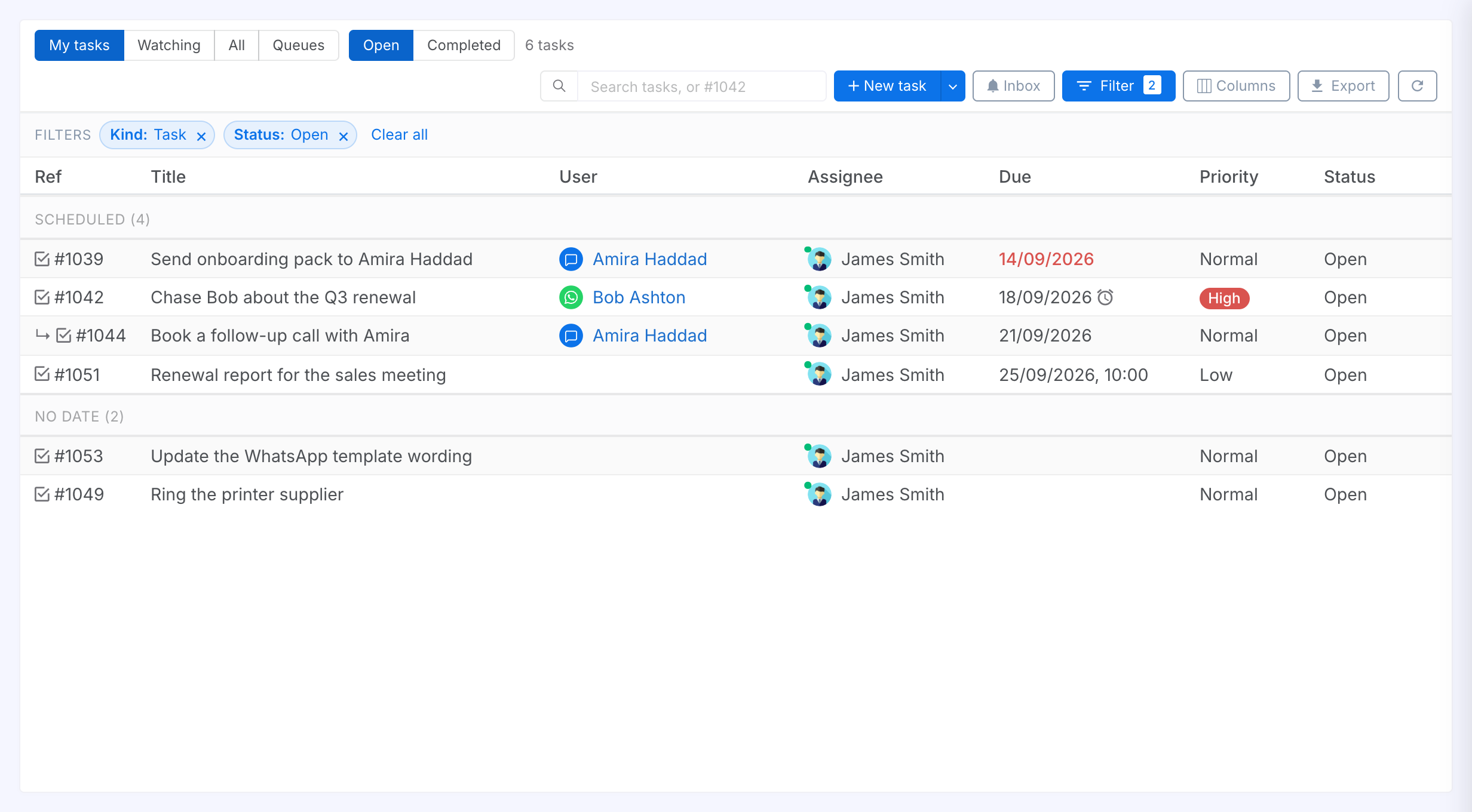
Steps:
- Click the × on a chip to drop that one filter, or Clear all to drop them all.
Result: The list refetches at once. When nothing matches, the list says No tasks match your filters.
Search Tasks and Comments
Find a task by what it says, or a comment by what was said in it.
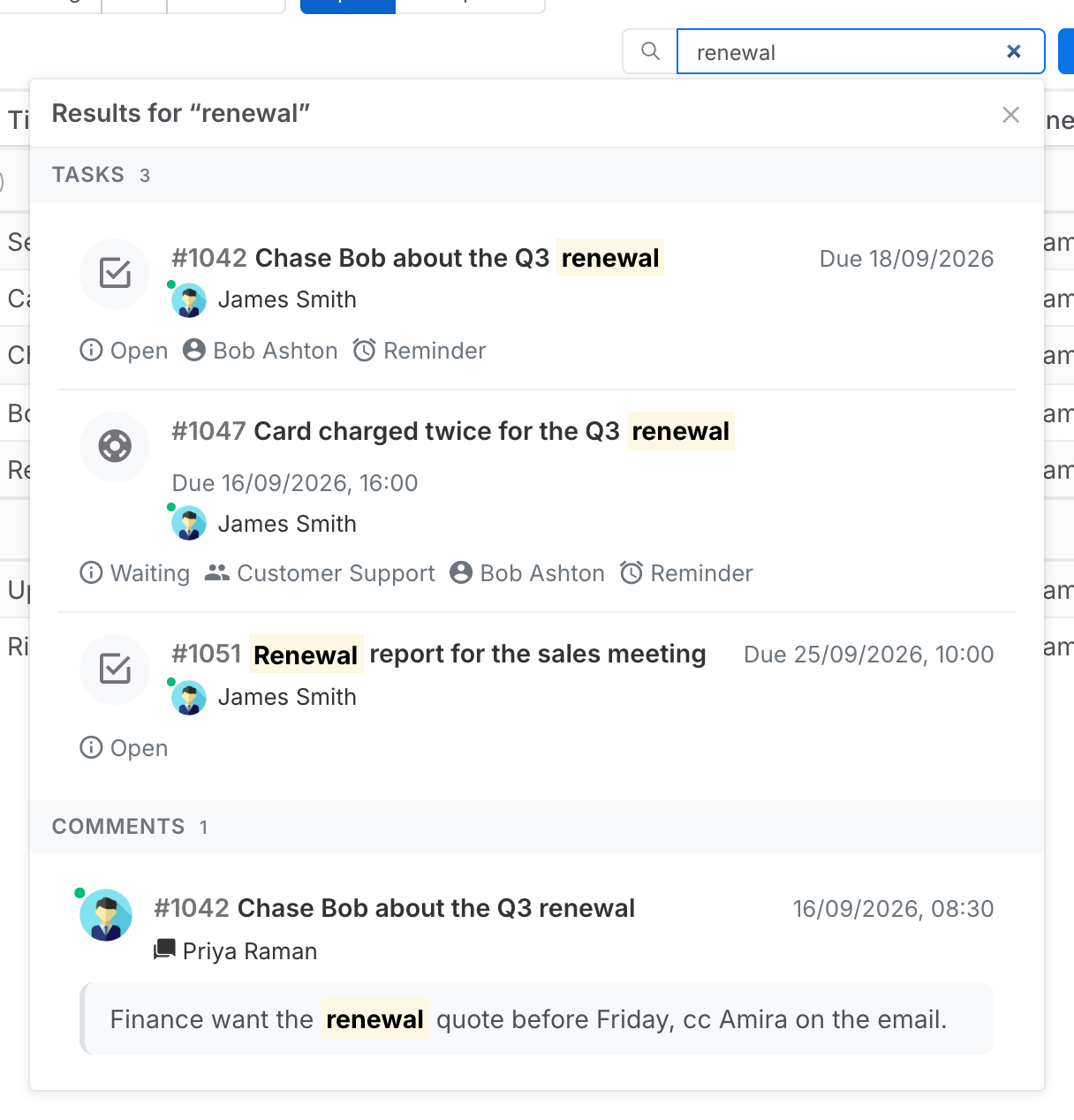
Steps:
- Type in the search box and press Enter. The results drop down under the box, in two groups: Tasks matched on their title or description, and Comments.
- Click a task to open it, or a comment to open its task with the thread on that comment. Load more at the foot of a group fetches the next page.
- Press Esc, clear the box, or click the × on the panel to close it. The list behind is untouched throughout.
- Type a task's number, such as #1042, and press Enter to open it straight away.
- Search covers everything you can see, whatever view or filters are on. The same search is available from the Search window's Tasks tab. See Searching.
Create a Task
The New task button opens a blank task in The Task Window, assigned to you. Its arrow raises a ticket instead.
The New Task Button
One button, two ways to start.
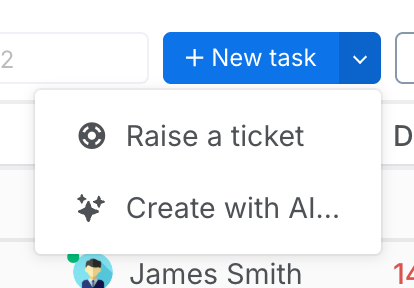
| Entry | What opens |
|---|---|
| New task | A task, assigned to you, with nothing else filled in. |
| Raise a ticket | A ticket, unassigned, in your Business Unit's queue. |