Tasks from a Conversation
Most tasks start in a conversation: a customer asks for something, and you need to remember to do it, to chase them later, or to hand the request to someone else. You can do all of that without leaving the chat: from a message's menu, from the conversation's own menu, from the user's card, or by dragging a message into a task. A task raised this way is linked to the user and the conversation, quotes the message it came from, and leaves a card in the transcript so anyone reading it later can see what was done.
Where this worksThe task entries in the message menu are the same in Agent Chat, in a supervised chat, and in User View, and so is the Tasks entry in the conversation's own menu. Reply, reactions and translation are in Agent Chat only. The user's card is the panel on the right of Agent Chat and User View. Whispers and notes cannot be turned into tasks. The customer's messages, your replies and the bot's messages can.
From a Message
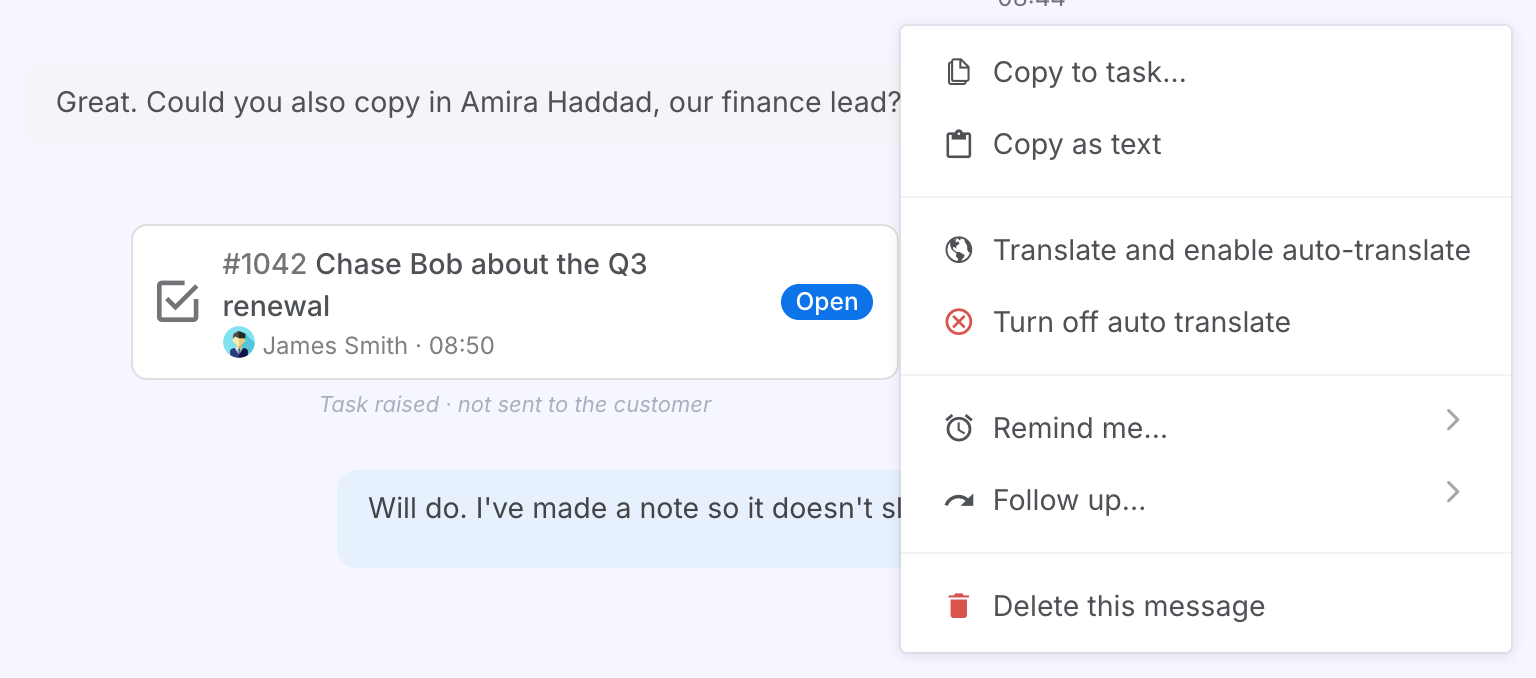
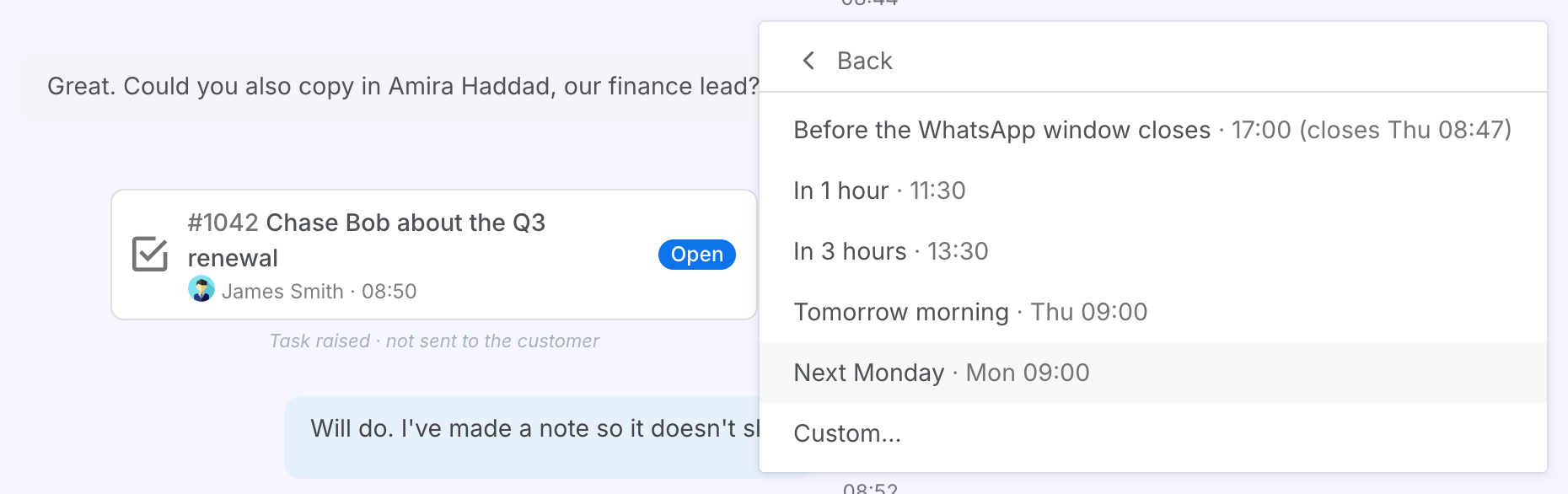
Hover a message and the quick bar appears above it. Its ⋯ opens the full menu. Copy to task… is at the top, beside Copy as text. Remind me… and Follow up… sit together further down, and each opens a second level of presets. Every preset says exactly when it means, such as Tomorrow morning · Thu 09:00, worked out as the menu opens from your own working hours.
The Quick Bar
What the bar over a message offers, left to right.
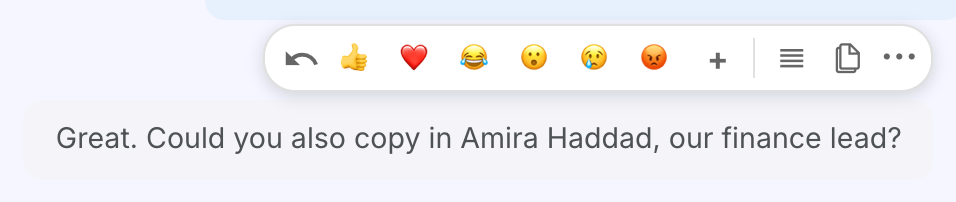
| Control | Does |
|---|---|
| Reply | Quote the message in your reply to the customer. |
| Reactions | React to a WhatsApp or Telegram message, with the six quick ones or + for the full picker. |
| Grip | Drag the message onto an open task window to quote it there. See Drag a Message into a Task. |
| Copy to task | The same as the menu's Copy to task…. |
| ⋯ | The full menu. |
Remind Me
A reminder to come back to this message at a particular moment.
Steps:
- Open the message's menu and choose Remind me….
- Pick In 1 hour, In 3 hours, Tomorrow morning or Next Monday. Or choose Custom… to open the task window with everything filled in but the time.
Result: A preset creates the task straight away and shows a toast: Reminder set for Thu 09:00. Click to open task #1055. The task is yours, titled Reminder: and the message's first line, due at that moment, with an in-app reminder at that time. No email is sent, because an email about "in 1 hour" is noise. If the moment falls inside your quiet hours the toast says so, and the reminder waits in your bell.
Follow Up
A follow-up with the customer on a later day, that cancels itself if they get there first.
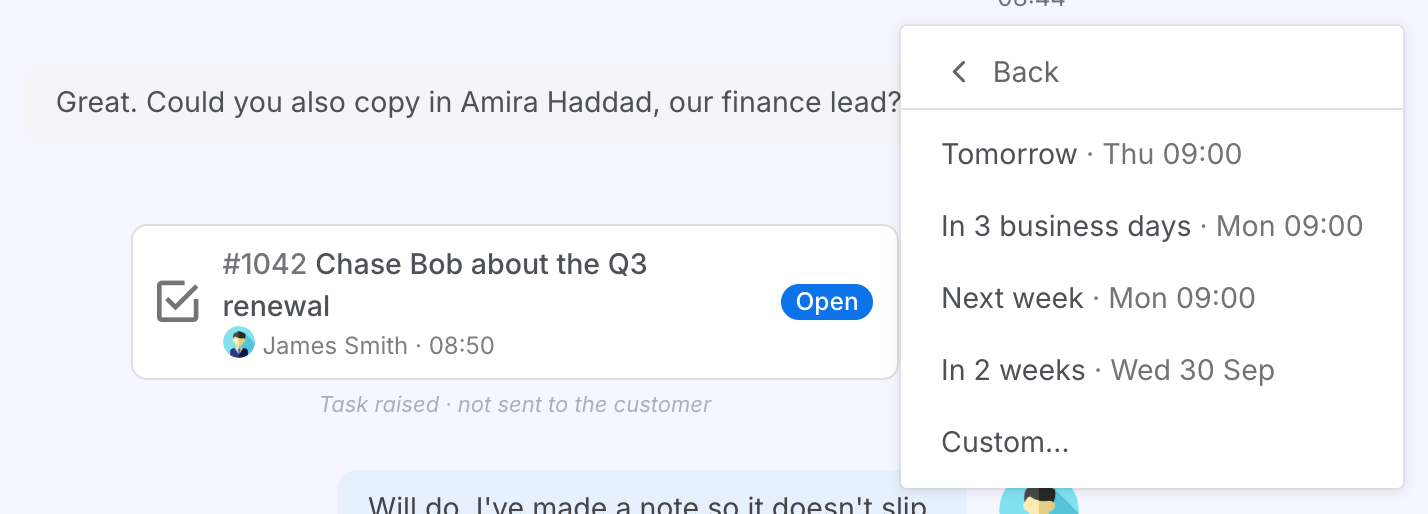
Steps:
- Open the message's menu and choose Follow up….
- Pick Tomorrow, In 3 business days, Next week or In 2 weeks, or Custom… for the task window.
Result: A whole-day task on that day, titled Follow up with the user's name and the message's first line, with a reminder at your morning hour in the app and by email. It is set to Only if they haven't replied: if the user has written back by the time the reminder is due, the task closes itself and you are told instead of reminded. Weekends are skipped, so "Tomorrow" on a Friday is Monday.
Copy a Message to a Task
Put the customer's own words into a task, new or existing.
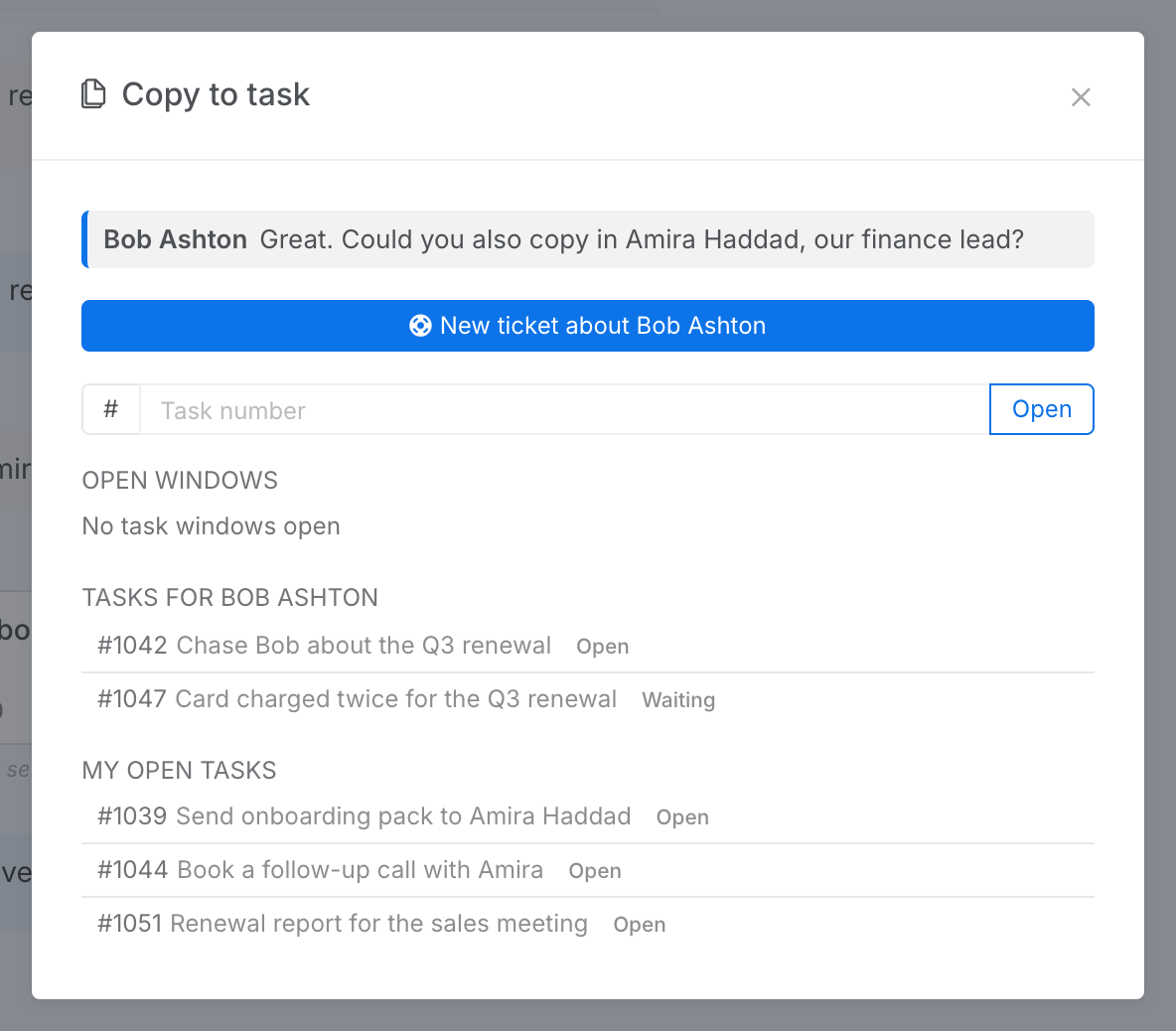
Steps:
- Choose Copy to task… from the message's menu, or click the copy icon on the bar.
- Choose where it goes: New task or New ticket about the user, a task by its number, one of the task windows already open, one of the user's own open tasks, or one of yours. Each task shows its status and when it is due, then who has it under the user's tasks, or which user it is about under My open tasks. The ones worked on most recently come first.
- The task window opens with the message staged. On an existing task it waits on the comment box. Add a caption if you want one and send. On a new task or ticket it sits in the Description and becomes the first comment when you click Create.
Result: The message appears in the task's activity as a quoted card with the sender, channel and time. Its header opens the conversation at that message. Nothing is written until you send the comment or create the task.
- To copy several messages at once, open Tasks in the conversation's own menu and choose Select messages to copy…. Tick the messages, and click the copy button on the bar that appears. Up to 20 go into one comment. If you close the picker, your ticks stay so you can change them.
- New task opens a task for you about the user. New ticket opens a ticket in your queue, titled Support: and their name. Either way the message is its first comment. New ticket is offered when your organisation has a Business Unit that takes tickets.
- If you are already writing a new task or ticket, it is listed first under Open windows. Add the message to it there, or finish it before starting another.
- Type a task number and click Copy. If there is no task with that number that you can open, the picker says so and stays open.
Drag a Message into a Task
With a task window open beside the chat, drag the message across.
Steps:
- Hover the message and take hold of the grip on its bar.
- Drop it anywhere on the task window. The window highlights while the message is over it.
Result: The message is staged exactly as Copy to task would stage it: on the comment box of an existing task, and in the Description of a new one.
From the User's Card
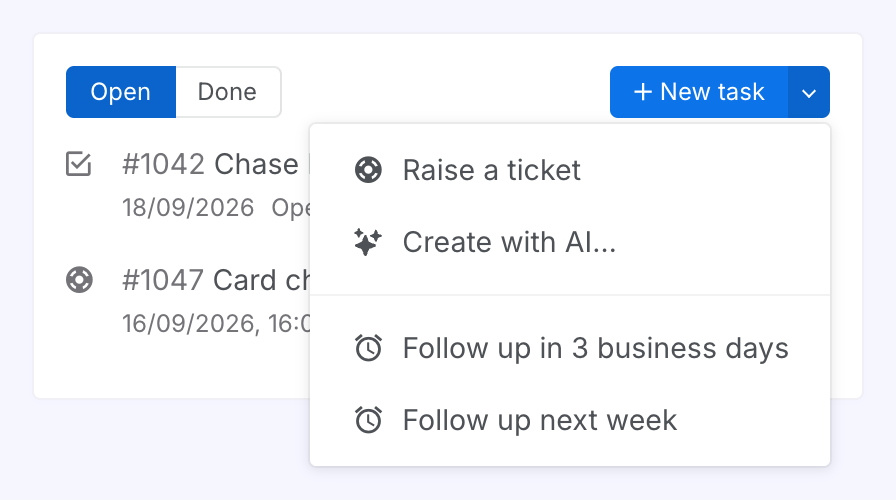
The tasks button on the user's card (the checkbox icon, Tasks and tickets for this user) lists their open tasks and tickets (Done shows the finished ones) and carries the same New task button as the Tasks page, with Create with AI… and two follow-up presets added. Each task shows its status, when it is due, and who has it, as in the Copy to task picker. Everything raised here is linked to the user and, when there is one, the conversation you are looking at.
Raise a Task, Ticket or Follow-up for a User
Five ways in, one button.
Result: The task window opens with the user on its card. Click a task in the list to open it.
| Entry | What opens |
|---|---|
| New task | A task about this user, assigned to you, for you to fill in. |
| Raise a ticket | A ticket about this user, unassigned, in your Business Unit's queue, titled Support: and their name. |
| Create with AI… | The AI Task Assistant, with this conversation as its context. Permission Required |
| Follow up in 3 business days / next week | A follow-up with this user on that day, with a reminder at your morning hour. It is the same task the message menu's Follow up makes, without a quoted message. |
From the Conversation's Menu
The More menu (three dots) at the top of a conversation has a Tasks entry. It is there in Agent Chat, in a supervised chat and in User View, so you can reach it when the user's card is hidden or on another tab. Choose Tasks to see what it offers. Back or Esc takes you back to the menu.
Tasks in the Conversation's Menu
The user's card entries, and two more.
Result: New task, Raise a ticket and the follow-ups open the task window with the user on its card. Nothing is saved until you press Create, so you can change the title first, or give a task to someone else. A ticket goes to its queue. The WhatsApp reminder is set straight away and a toast confirms it.
| Entry | What it does |
|---|---|
| New task, Raise a ticket, Create with AI… | The same as on the user's card. See Raise a Task, Ticket or Follow-up for a User. |
| Follow up in 3 business days / next week | The same as on the user's card. Each one shows when its reminder will come, such as Wed 09:00. |
| Remind me before the WhatsApp window closes | In Agent Chat, on a WhatsApp conversation, while there is still time to act. It works like the message menu's reminder of the same name, and quotes the customer's latest message, which is the one the window runs from. |
| Select messages to copy… | Tick several messages and copy them into one task. See the tips under Copy a Message to a Task. |
The Task in the Conversation
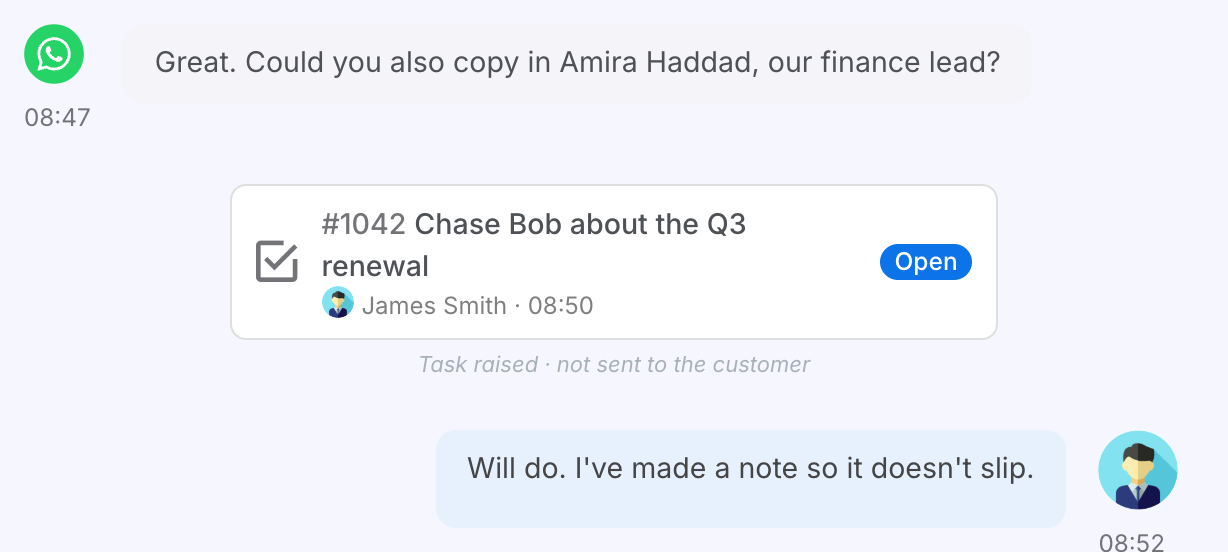
A task raised from a conversation leaves a card in the transcript at the point it was raised: the task's number and name, who raised it and when, and its current status. The card is not sent to the customer and never leaves Convrs. The caption under it says so. Click it to open the task. From the task, Show in conversation comes back here.