AI Task Assistant
Two ways to let the AI do the typing. Draft task on a user's card reads the conversation you are looking at and drafts the tasks it finds in it: a promise you made, a request the customer left open, a check-in the exchange calls for. The Tasks assistant is a chat window: paste meeting notes or an email and ask for the tasks in them, ask what is open for you this week, or tell it to close, reassign or comment on tasks you already have.
Nothing happens without youA draft is a task window filled in for you. It becomes a task only when you click Create. The assistant checks with you before it creates or changes anything, and every change it makes goes through the same commands your own task window sends. It can only do what you could do yourself, and it can only see the tasks you can see.
Permission Required Both need AI Writing Assistant turned on for your organisation, under Organization Settings › Third Party Data Processors (see Organization Profile). It is the same setting that powers the sparkle in AI Writing Assistant. The Tasks assistant is not available in the mobile app.
Both write in the language set under My Profile › General, whatever language the conversation or the notes you paste are in. If it is not set, they write in English.
Draft Tasks with AI
On a user's card, the Information about this user tab (the person icon) has a strip under Chat Tags that offers AI can draft tasks from this chat with a Draft task button. It appears only while a conversation with that user is open. The strip's text is its status: what it can do, Reading the conversation… while it works (the button becomes Cancel), how many drafts it opened, or its reason when it found nothing to capture. A result gives way to the offer again after a few seconds, and at once if you move to another conversation.
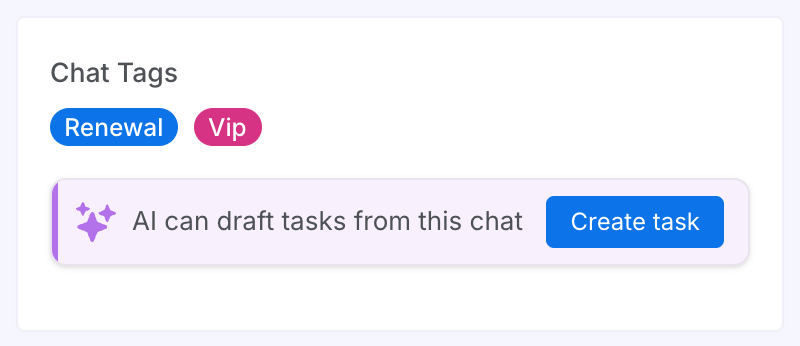
Draft Tasks from a Conversation
One press, one draft window per task the AI finds.
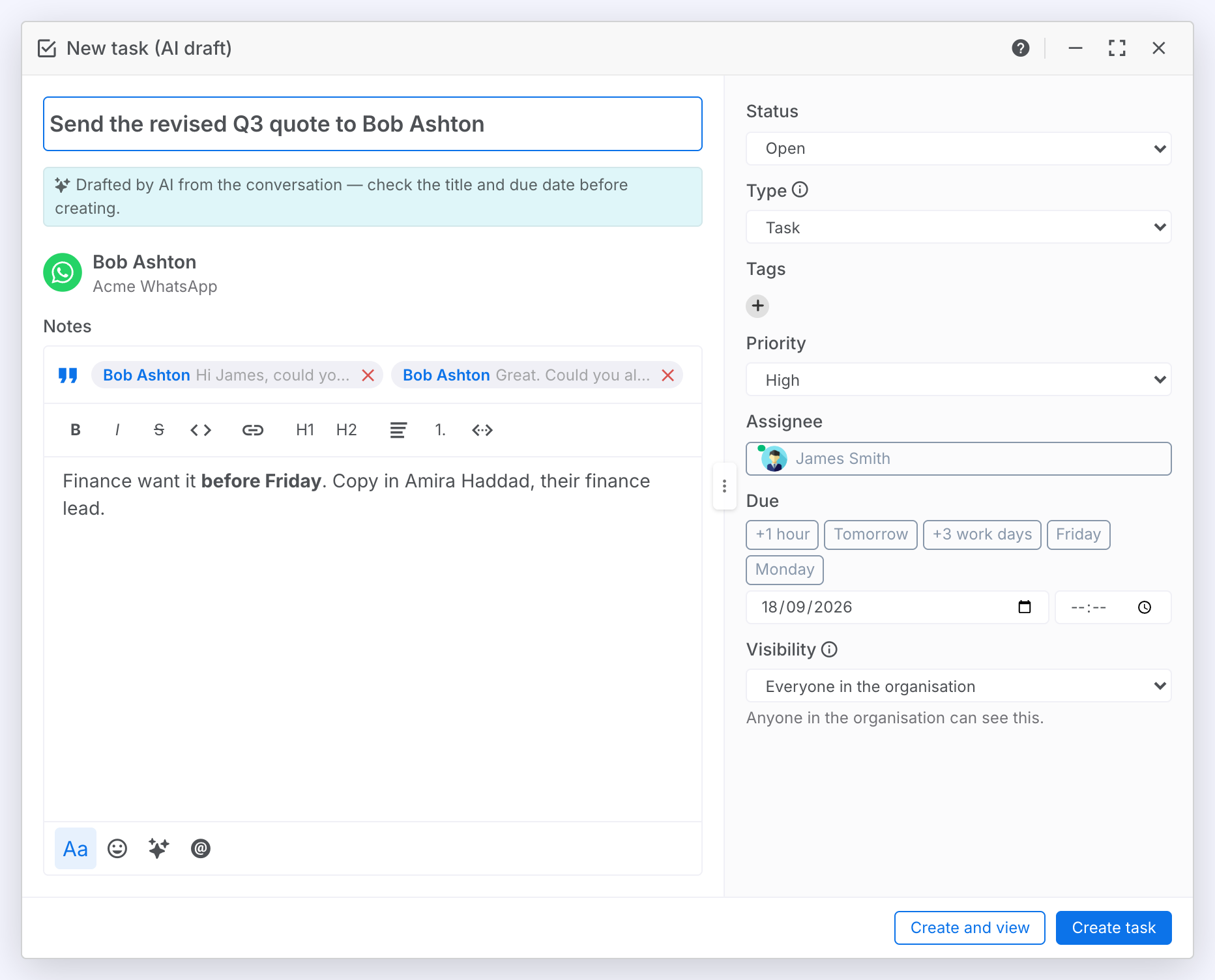
Steps:
- Open a user's conversation and click Draft task on the strip.
- A draft window opens for each task found, the most important on top, marked Drafted by AI from the conversation. Check the title and the due date, which the AI worked out from what was said and when.
- Adjust anything, then click Create, or Create and view to open the task straight away. Close the window to drop the draft.
Result: Each draft is assigned to you, linked to the user and the conversation, and quotes the messages it was drawn from, which become the task's first comment. Where the AI saw a reason to check back with the customer it proposes a follow-up: a whole-day task with a reminder at your morning hour, set to close itself if the customer replies first. A follow-up it could not date is left for you to date. Any draft with a due date has When it's due turned on under Reminders.
The Tasks Assistant
Open the assistant with the Tasks assistant button on the toolbar of the Tasks page, with Create with AI… under the arrow beside New task on a user's card, or with Tasks › Create with AI… in a conversation's ⋯ menu. Opened from a user's card or a conversation it knows that conversation: "draft the tasks from this chat" reads it, and a task it creates is linked to the user. Opened from the Tasks page it works across your tasks without a particular user. There is one window at a time. Opening it again brings it forward.
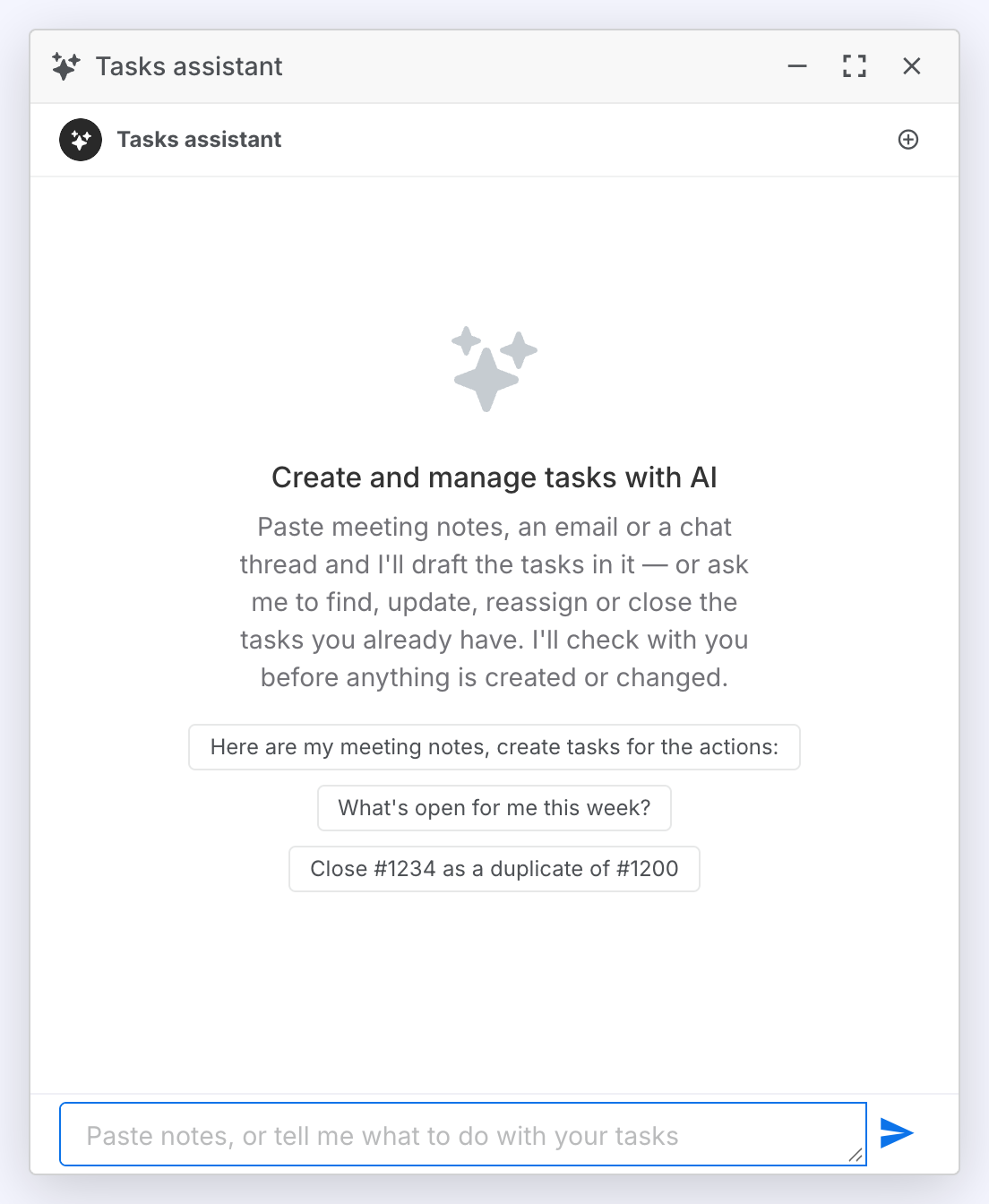
Ask the Assistant
Type what you want in plain words. The three prompts on the intro are examples you can click to start from.
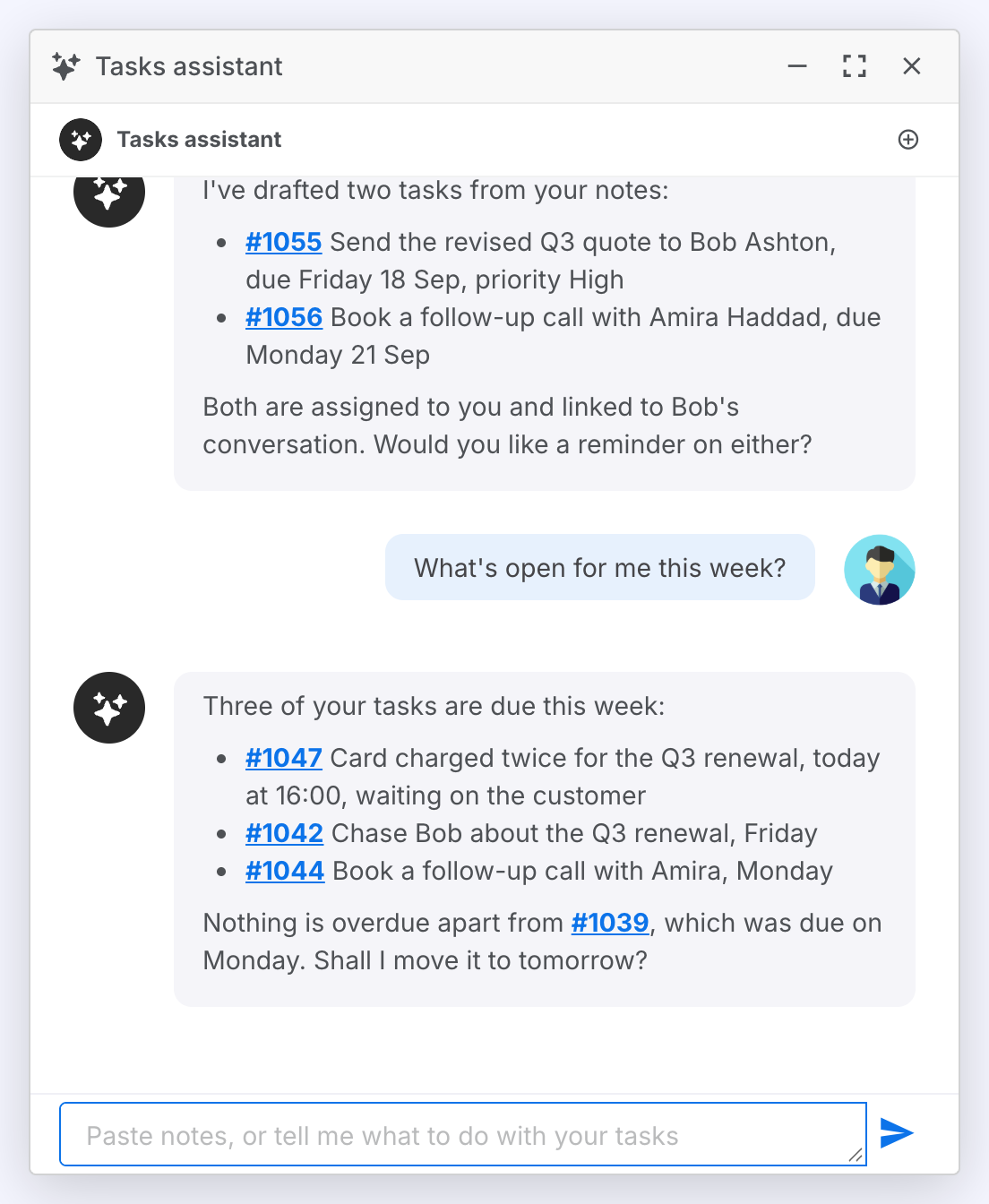
Result: While it works the bubble names each step, such as Looking up agents or Searching tasks. Every task number in a reply is a link that opens the task. If the server refuses a change (a task you may not edit, or a ticket given to someone outside its queue) the assistant tells you in its own words.
| Ask | What it does |
|---|---|
| Paste meeting notes, an email or a chat thread and ask for the tasks in it | Drafts a task for each action it finds, with a due date where one was said, asking you which colleague or which day it meant when that is unclear, then creates them and lists their numbers. A task with an assignee and a due date still to come gets a reminder for when it is due. |
| "What's open for me this week?" | Searches your tasks and answers with the list. |
| "Close #1234 as a duplicate of #1200", "Reassign #1042 to Priya", "Move #1039 to tomorrow" | Changes the task after confirming with you, and reports what it did. |
| "Add a comment to #1047 saying the refund is with Finance" | Posts the comment on the task's thread, as you. |
| "Open #1042" | Opens the task window. |
- Enter sends and Shift+Enter adds a line. The send button becomes Stop while the assistant is working.
- The + in the header starts a new chat. Closing the window ends the conversation. Nothing is kept for next time.