WhatsApp Templates
Send pre-approved WhatsApp template messages to customers.
WhatsApp requires the use of pre-approved template messages when contacting customers outside the 24-hour messaging window. The template picker lets you browse, search, configure and send template messages.
Why Use WhatsApp Templates?
WhatsApp has strict policies about when businesses can message customers to prevent spam and protect users.
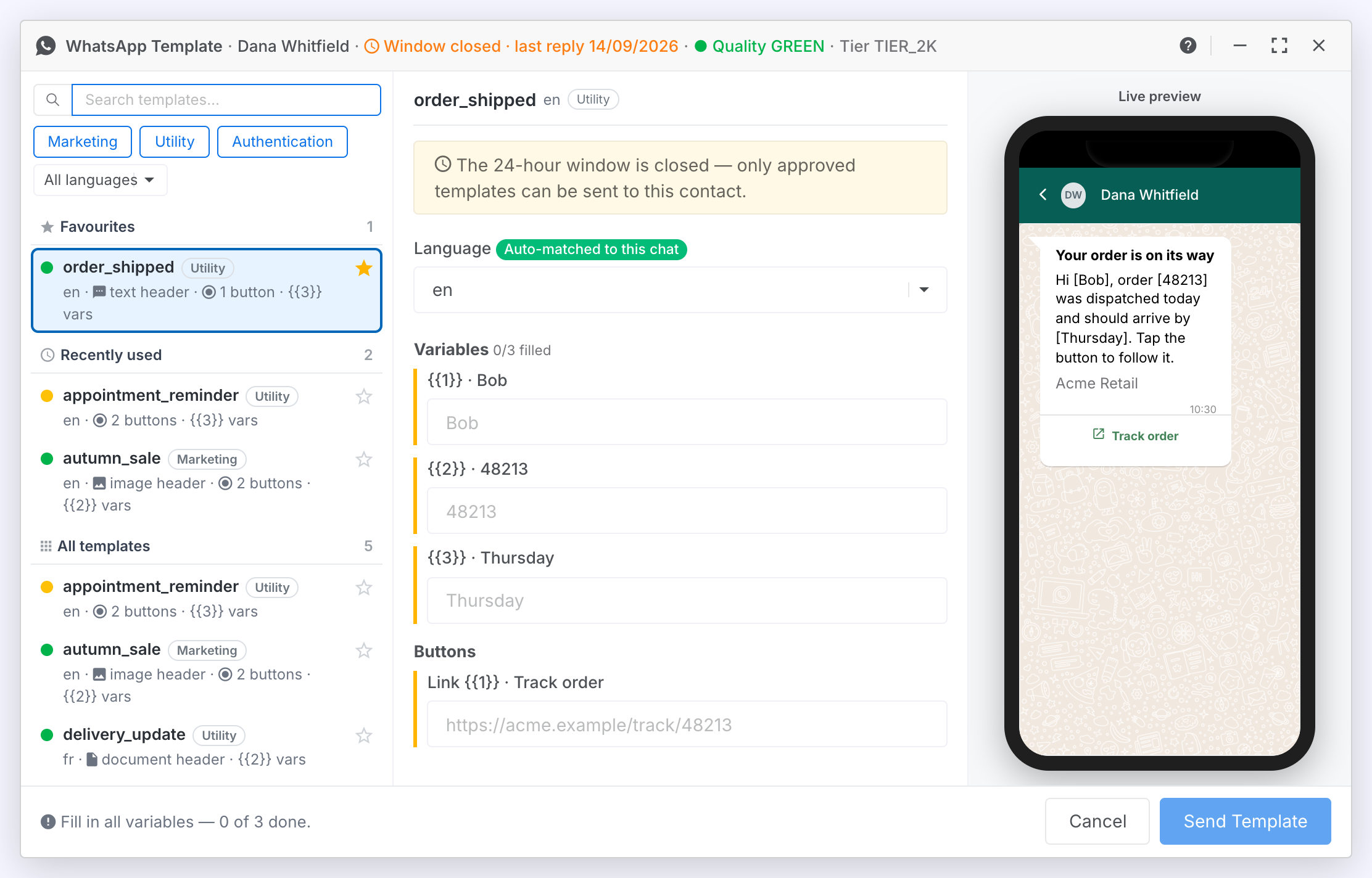
The 24-Hour Messaging Window
When a customer messages you, a 24-hour messaging window opens. During this window, you can send free-form messages (regular text, images, files) without restrictions. Each new message from the customer resets the 24-hour timer.
Once 24 hours pass without a customer message, the window closes. After this point, you can only contact the customer using pre-approved template messages.
Selecting a Template
The picker opens as a window with three areas:
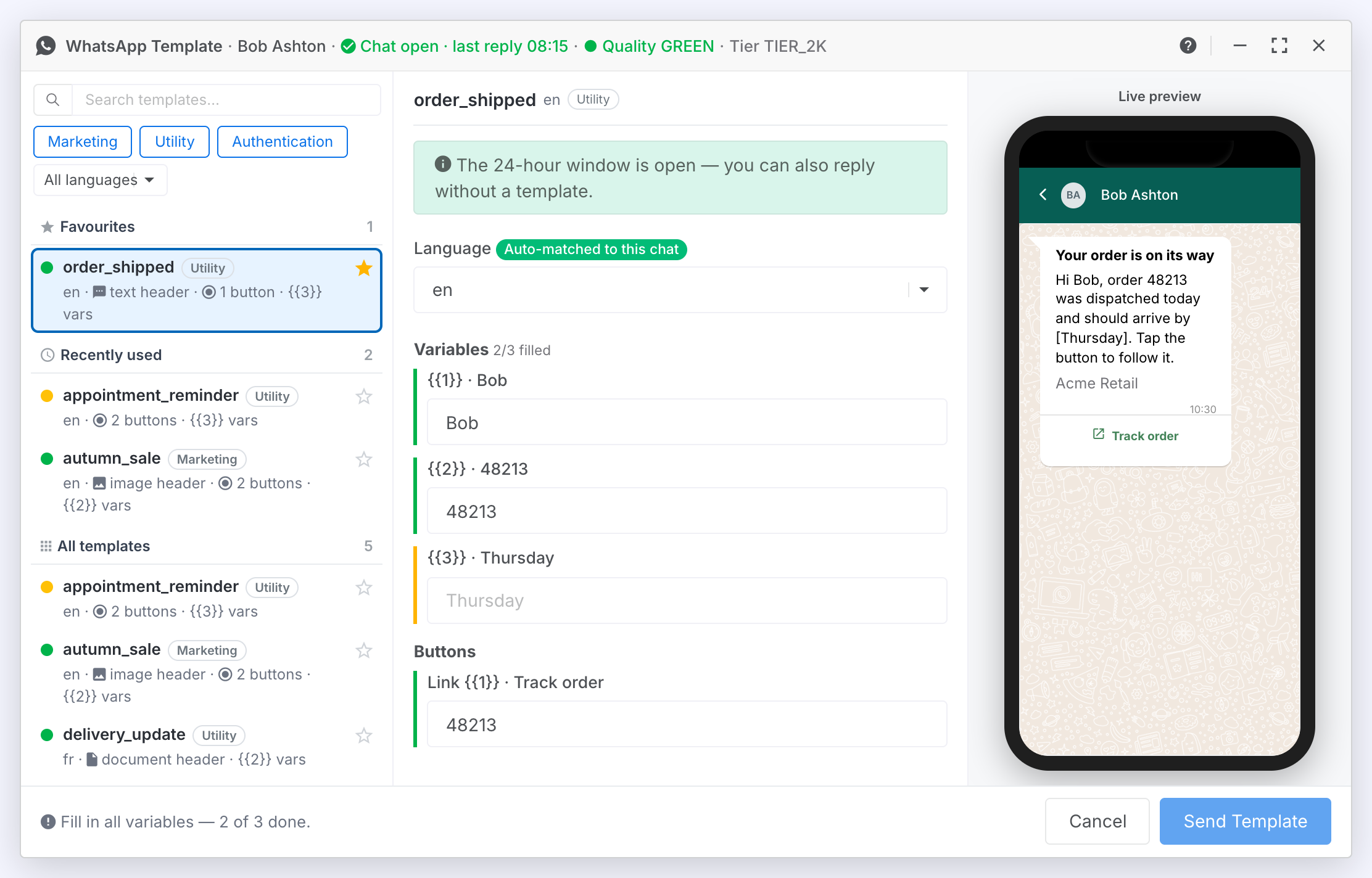
- Template list (left): a searchable list of your approved templates, grouped into Favourites, Recently used and All templates. Each row shows a quality dot, the template name, its category and a summary line.
- Configuration (middle): a language selector and a labelled input for each variable the template uses, plus a media uploader for templates with an image, video or document header.
- Preview (right): a phone mockup showing exactly how the message will appear, updating as you type.
The title bar names the customer and says whether their 24-hour window is open, with the time of their last message. It also shows the WhatsApp number's quality rating and messaging tier. The footer names whatever still needs doing before the message can go, and shows Ready to send when nothing does.
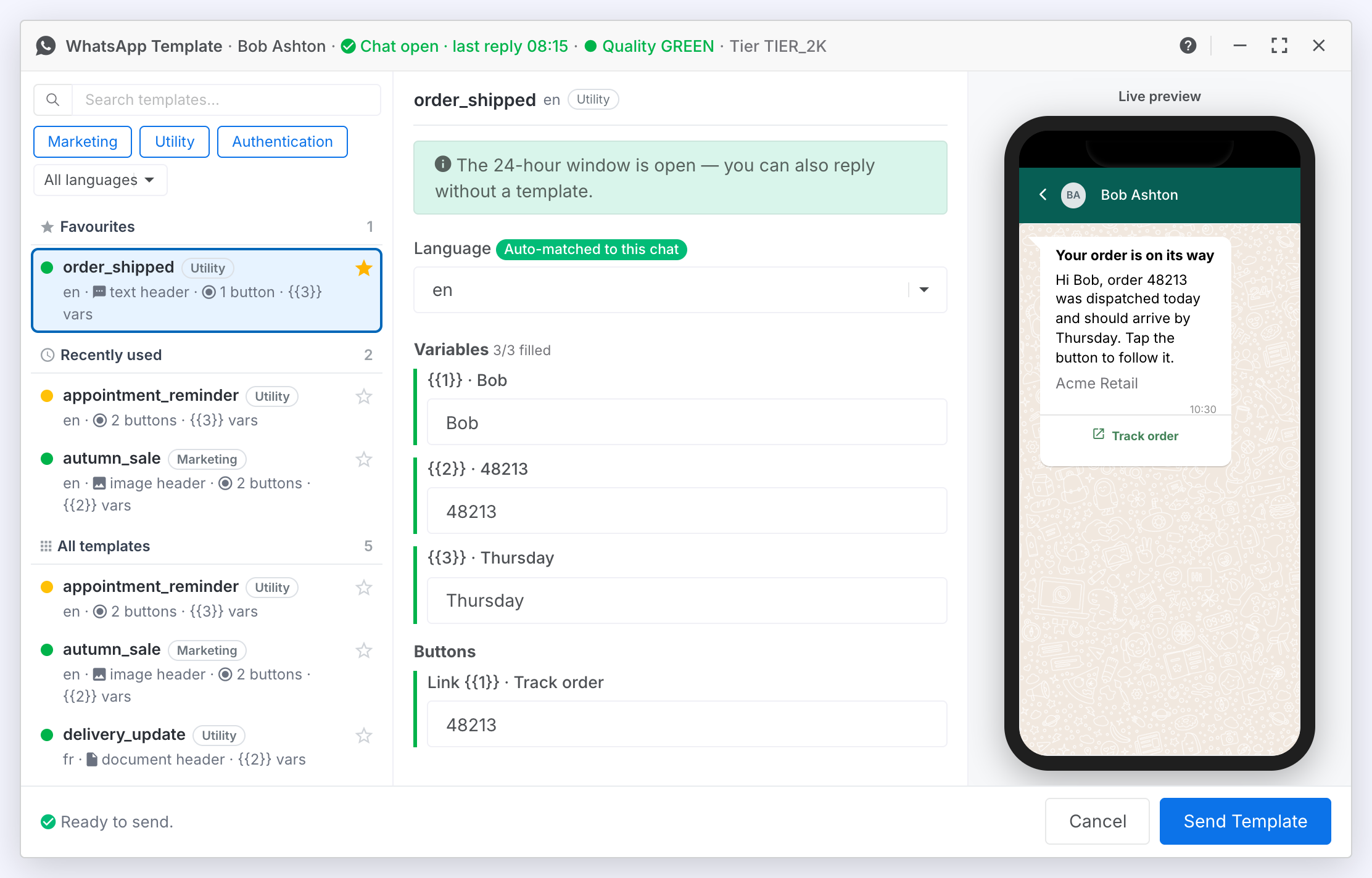
Find and select a template
Browse or search your approved templates.
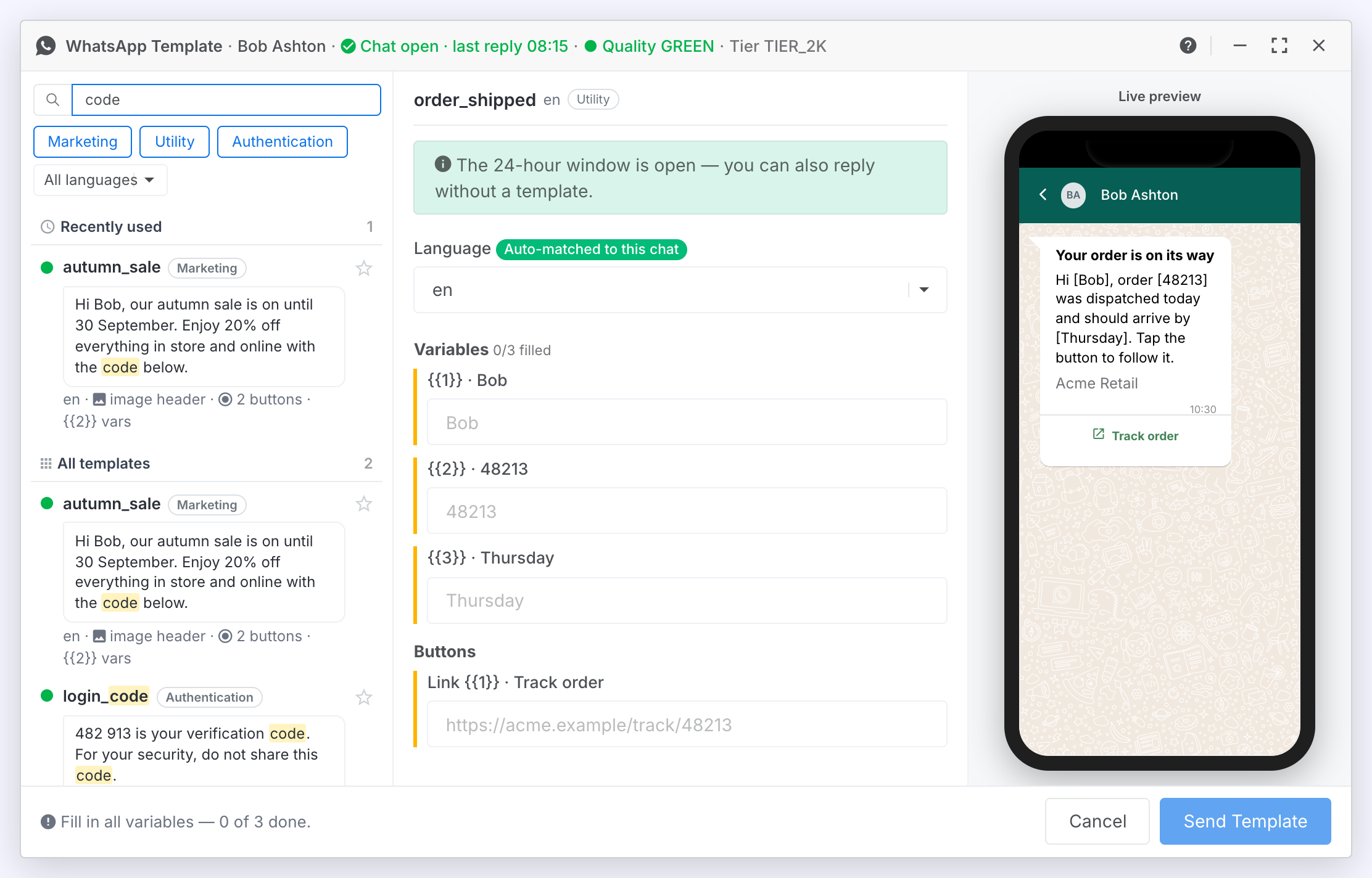
Steps:
- Start typing in the Search box. The list narrows to templates whose name or message text contains what you typed, and each row shows the message with the match highlighted, so you can recognise a template by what it says.
- Optionally click a category chip (Marketing, Utility, Authentication) to narrow the list. When the number has templates in more than one language, a language dropdown appears beside the chips.
- Click a template (or use the Up/Down arrow keys and press Enter) to select it.
Result: The configuration and preview update for the selected template. On a desktop the first template in the list is selected for you as the picker opens.
- Language variants of the same template are shown as a single row; choose the language in the next step.
- Click the star on a row to add it to your Favourites for quick reuse.
- If you answer a WhatsApp Coexistence number from the handset, a Manage Templates button appears at the bottom-left of the picker. It opens Manage Templates for that number, so you can create, edit or delete templates without leaving the chat. A new template appears in the picker once WhatsApp approves it.
Choose the language
Pick which approved language of the template to send.
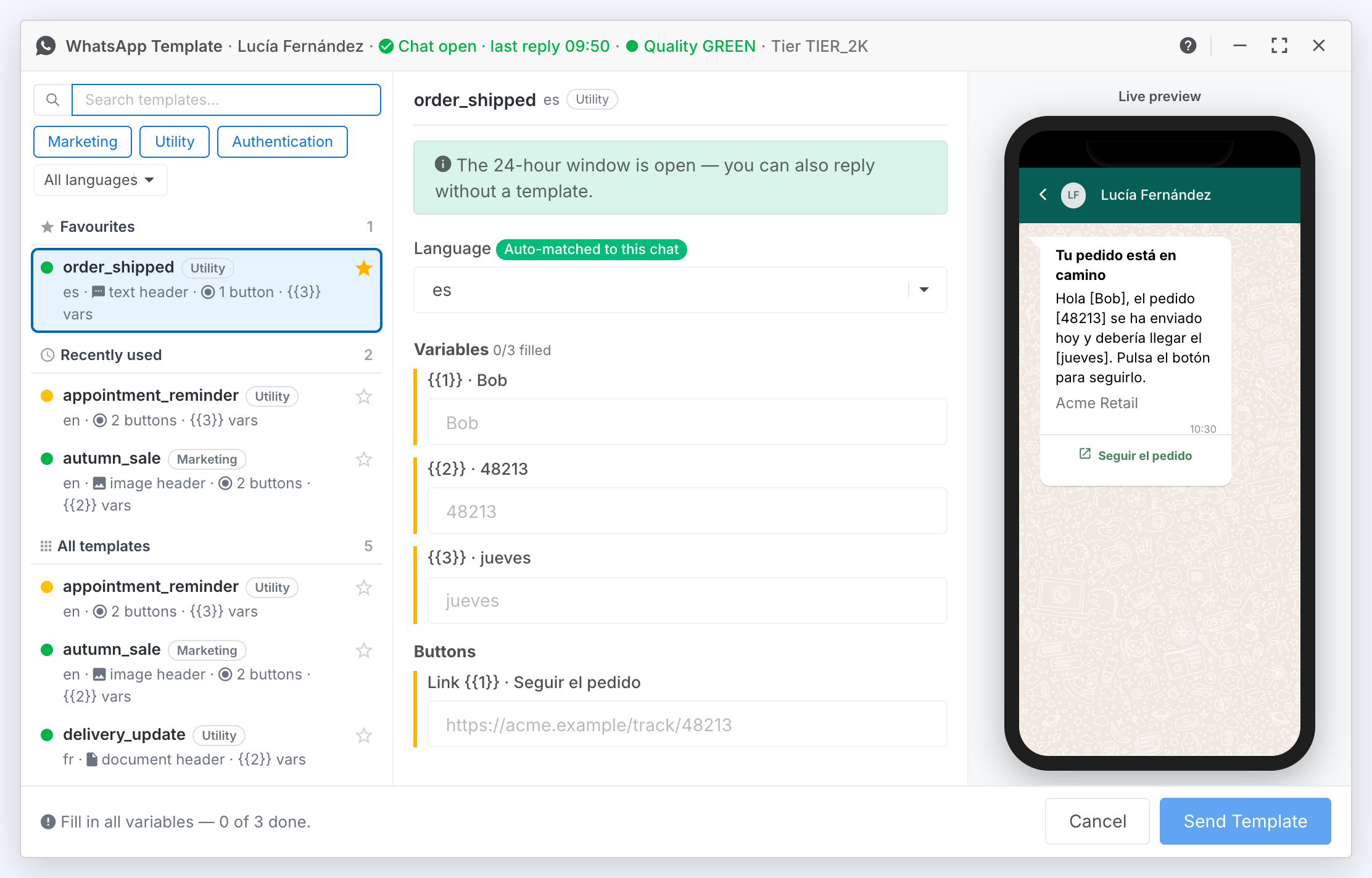
Steps:
- Use the Language dropdown to choose from the languages this template is approved in.
Configuring the Message
Fill in any variables and header media the template needs before sending.
Fill in template variables
Replace each placeholder with customer-specific information.
Steps:
- Each variable has its own labelled input (for example {{1}} · customer name). The label is the sample value the template was approved with.
- Enter a value for every variable. The counter shows how many are filled, and the preview shows an unfilled one in square brackets.
- If the template has a copy-code button or a link that changes per message, a Buttons field appears for each: the coupon code, or the end of the link.
- Watch the preview update as you type.
Add header media
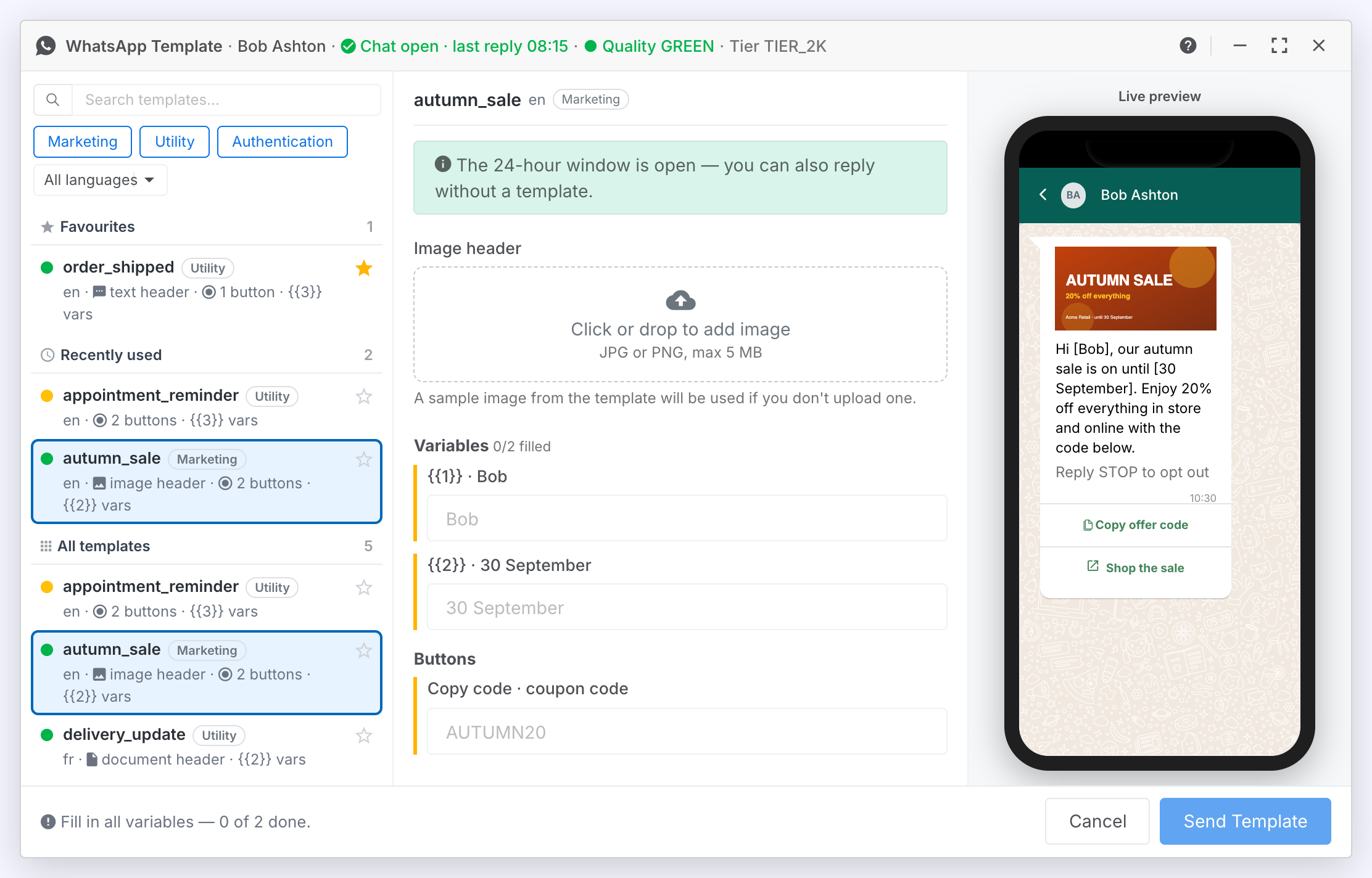
Some templates include an image, video or document header.
Steps:
- If the template has a media header, an upload area appears.
- Click it or drag a file in. The file uploads immediately, ready to send. Click Remove to pick a different one.
- For a document, check the File name field. The customer sees that name on the document.
Template Categories
WhatsApp templates are organised into three categories. Meta charges per template message delivered, at a rate set by the category and the customer's country. The rates are on Meta's Pricing page.
| Category | Description |
|---|---|
| Marketing | Promotional messages, offers, and announcements to customers who have opted in. |
| Utility | Transactional messages such as order updates, appointment reminders, and shipping notifications. |
| Authentication | Secure messages for one-time passwords and verification codes. |
Contacts who have unsubscribed from WhatsApp marketing cannot receive Marketing templates. The picker blocks them. Utility and Authentication templates are still allowed.
Sending the Template
Send the configured template message to the customer.
Send the template
Send the template to the current customer.
Steps:
- Review the preview. The footer reads Ready to send when everything is in.
- Click Send Template.
Result: The template message is sent to the customer, the window closes and the message appears in the chat. Enter never sends a template. Only the button does.
- Press Esc or click Cancel to close without sending.
- If there are no approved templates for the WhatsApp number, the list will say so. Contact your administrator.