Connect with Coexistence
Connect a number that stays on the WhatsApp Business app, so it can be answered from the phone and from Convrs.
Coexistence links a WhatsApp Business app number to Meta's Cloud API without moving it off the phone. Messages typed on the phone appear in Convrs, and replies from Convrs appear on the phone. When you connect, Convrs imports up to six months of past chats.
A Coexistence number is for one-to-one conversations. One agent owns it, and every chat on it goes to them. It doesn't run flows or chatbots, and campaigns can't use it. For automation and campaigns, see Connect with Cloud API or Connect with 360dialog.
Before You Start
- The number is live on the WhatsApp Business app, version 2.24.17 or later.
- Admin access to the Meta business portfolio, or the right to create one during signup.
- The person who holds the phone, available while you connect. They scan a QR code in the middle of signup. If they're somewhere else, stay on a call with them.
- A decision on which agent owns the number. Messages typed on the phone are recorded against them, and chats on the number go to them.
- The BotsCreate permission. See Roles and Permissions.
Connect the Number
You name the chatbot and choose its owner in Convrs, then finish in Meta's window with the phone in hand.
Connect a Number
Link the number to Convrs and import its chat history.
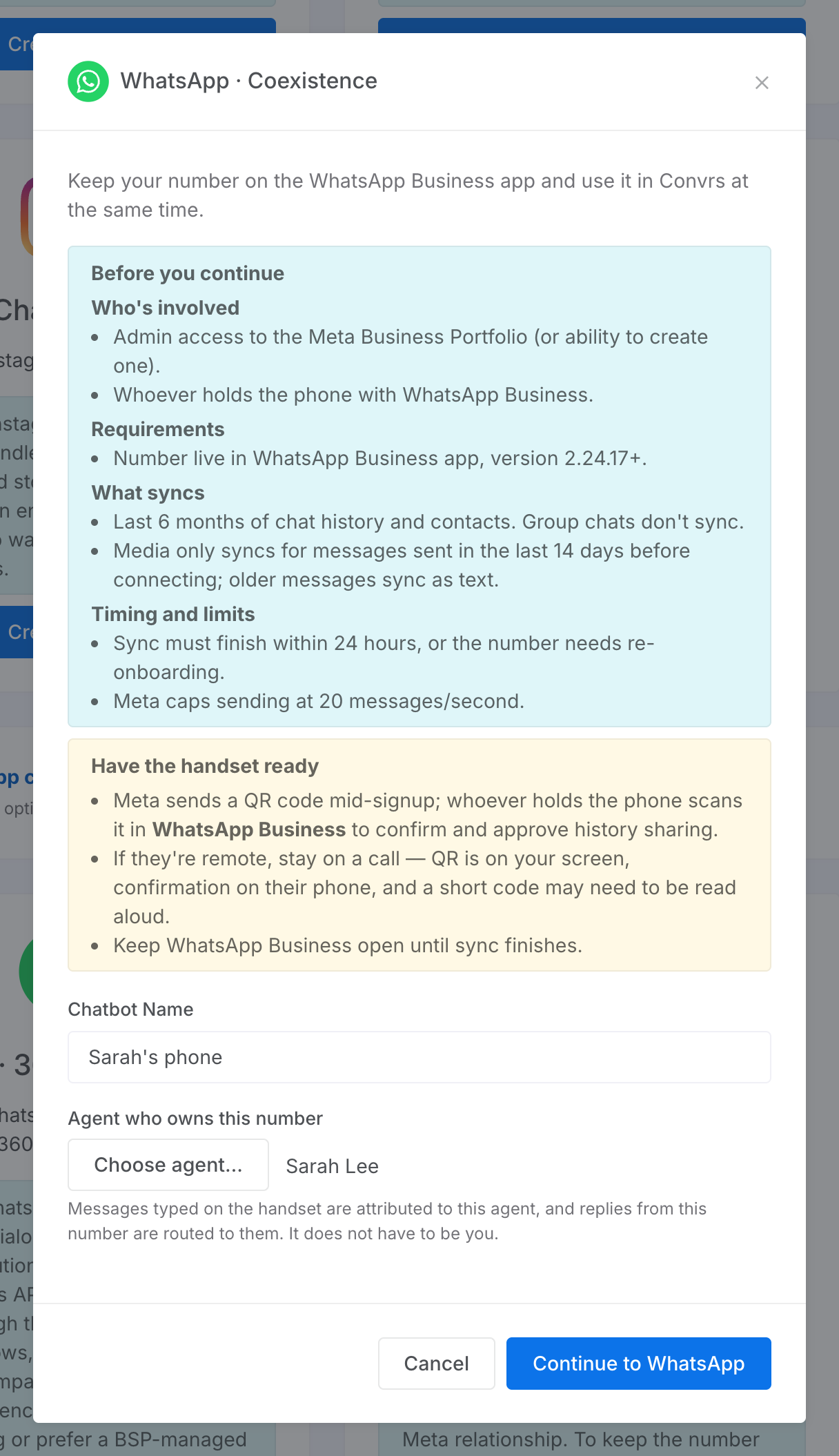
Steps:
- Go to Chatbots > Create new Chatbot.
- Click Create New on the WhatsApp · Coexistence card. A window of the same name opens.
- Enter a Chatbot Name.
- Under Agent who owns this number, click Choose agent… and pick the agent. It doesn't have to be you.
- Click Continue to WhatsApp. Meta's signup window opens.
- Sign in with Facebook and choose or create the business portfolio.
- Enter the number. Meta shows a QR code.
- The person with the phone scans the code in WhatsApp Business. They confirm, and choose whether to share the chat history.
- Finish in Meta's window. Keep WhatsApp Business open on the phone until the import ends.
Result: Convrs says WhatsApp number connected and starts importing the history. When the import ends, the person who connected the number gets a message saying how many conversations were imported and that the number is live.
What Is Imported
What Meta shares with Convrs when you connect, if the person with the phone agrees.
| Item | What arrives |
|---|---|
| Chat history | Up to six months of one-to-one chats. Group chats aren't imported. |
| Media | Pictures, videos and files from the 14 days before you connect. Older messages arrive as text only. |
| Contacts | The contacts saved in WhatsApp Business on the phone. |
| New messages from the phone | Every message typed on the phone after you connect, recorded against the owning agent. |
Using a Coexistence Number
- The owner answers: every chat on the number goes to the owning agent. Only they can start, accept or transfer its chats. Its card in Manage Chatbots says who it's answered by.
- Phone and Convrs together: a reply from either appears in both. Messages typed on the phone show in Convrs as the owner's.
- No flows or campaigns: the number runs no flow, and campaigns can't use it. Meta also limits it to 20 messages a second.
- Templates: the owner can open the number's templates from the template picker. See Manage Templates.
- Keep the app in use: open WhatsApp Business on the phone at least every two weeks. If it isn't opened for about 14 days, Meta disconnects the number, and its card asks you to reconnect.
- On the phone: Meta turns some app features off for a linked number, such as disappearing and view-once messages. Broadcast lists become read-only.
Choose the owning agent carefully, because Convrs can't change it after the number is connected. If the agent you picked can't be found, Convrs links the number to you and says so. Contact Convrs Support if the owner needs to change.
Reconnect a Number
Renew Convrs's access when the number's card says WhatsApp is disconnected.
Steps:
- If the card says the app wasn't opened for about 14 days, open WhatsApp Business on the phone first.
- Go to Chatbots > Show all Chatbots and click Reconnect on the chatbot.
- Finish in Meta's window with the phone to hand, choosing the same number.
Result: Convrs says WhatsApp connection renewed.
Troubleshooting
The messages shared with Cloud API, such as a number that's already connected, are in Connect with Cloud API. These are particular to Coexistence:
| What you see | What it means | What to do |
|---|---|---|
| This number was connected as Cloud API, not Coexistence | The number isn't on the WhatsApp Business app, so Meta connected it as Cloud API. | Give the chatbot a flow with Change flow in Manage Chatbots, or archive it. |
| Please enter a name and choose the agent who owns this number. | The window needs both before it opens Meta's. | Fill in the name and choose the agent. |
| The connected message says the number is linked to you instead. | The agent you chose couldn't be found. | Check the owner on the chatbot's card. Contact Convrs Support to change it. |