Manage WhatsApp Templates
See every WhatsApp message template on a chatbot's number, with its approval status and quality rating, and create, edit, copy or delete templates from one window.
WhatsApp reviews every template before it can be sent. This window lists the templates WhatsApp holds for one chatbot, so you can see what is approved, what is waiting and what was rejected, and act on each one. Sending a template to a customer happens in the chat. See WhatsApp Message Templates for that.
Opening the Window
Open Chatbots from the menu, find the WhatsApp chatbot and click its Manage Templates button. The window is titled WhatsApp Templates followed by the chatbot's name. Each chatbot has its own window, and you can have several open at once.
If you answer a WhatsApp Coexistence number from the handset, the same window opens from the Manage Templates button in the template picker.
The Manage Templates button is on the Chatbots page, which needs the BotsShowAll permission. The button is only shown for WhatsApp Business API chatbots.
The Template List
The window fetches the current list from WhatsApp when it opens. Everything below the title bar then works on that list without another round trip.
- Counts: the cards along the top count the templates by status. The line under them counts them by category.
- Chips: one chip per status in the list, then one per category. Click them to filter.
- Search, language and Add Template: the row under the chips.
- The table: one row per template and language. Under the name is the language, the header type, the number of buttons and the number of variables. A rejected template shows WhatsApp's reason in red under its name.
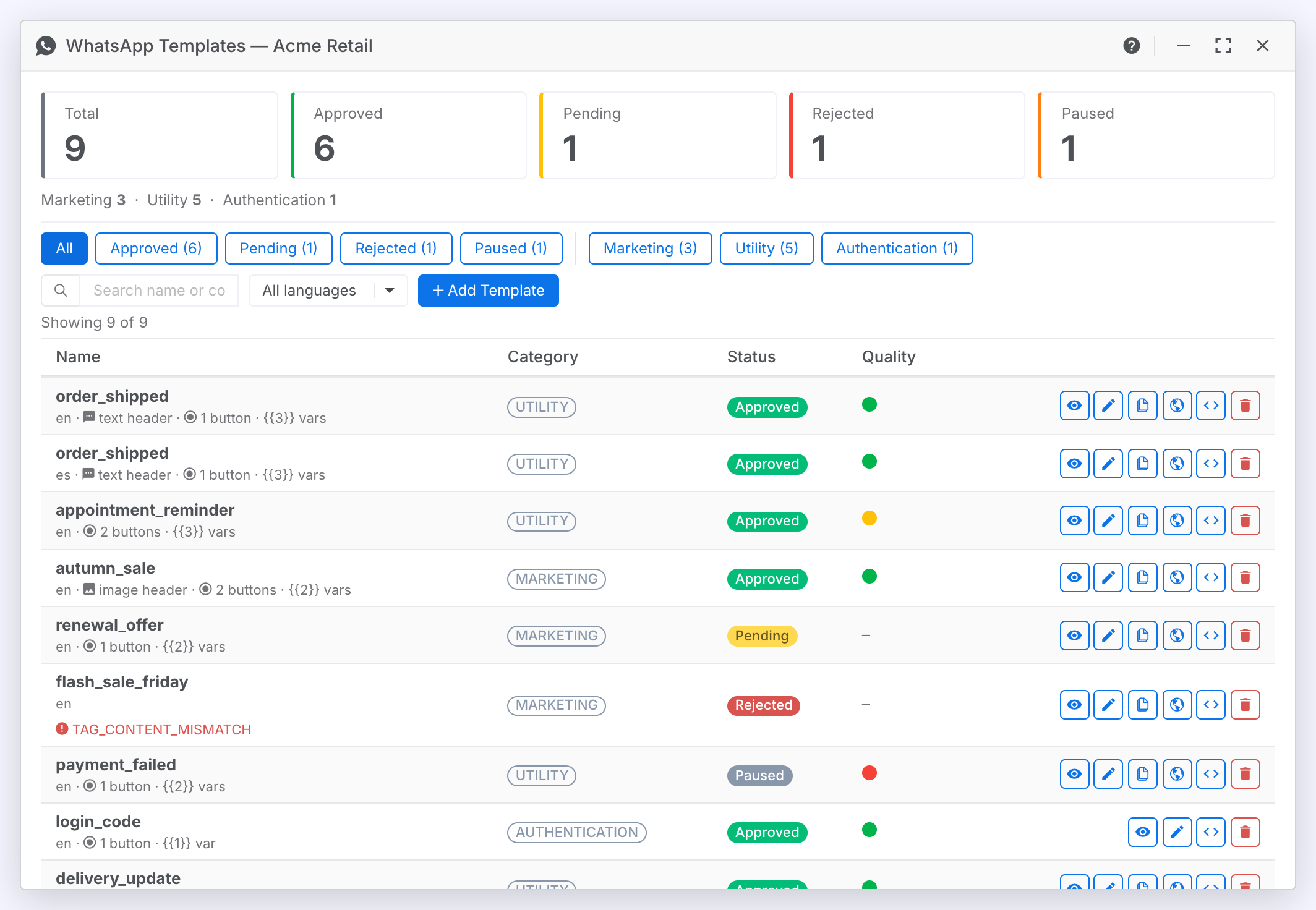
Read a row
What each column of the table tells you.
| Column | Meaning |
|---|---|
| Name | The template name, with its language and a summary of its parts underneath. |
| Category | Marketing, Utility or Authentication. The category decides how WhatsApp prices and reviews the template. |
| Status | Where the template is with WhatsApp. The statuses are listed below. |
| Quality | WhatsApp's quality rating as a coloured dot: green, yellow or red. Hover over the dot for the word. A dash means WhatsApp has not rated the template yet. |
Filter the list
Narrow the table by status, category, language or a word.
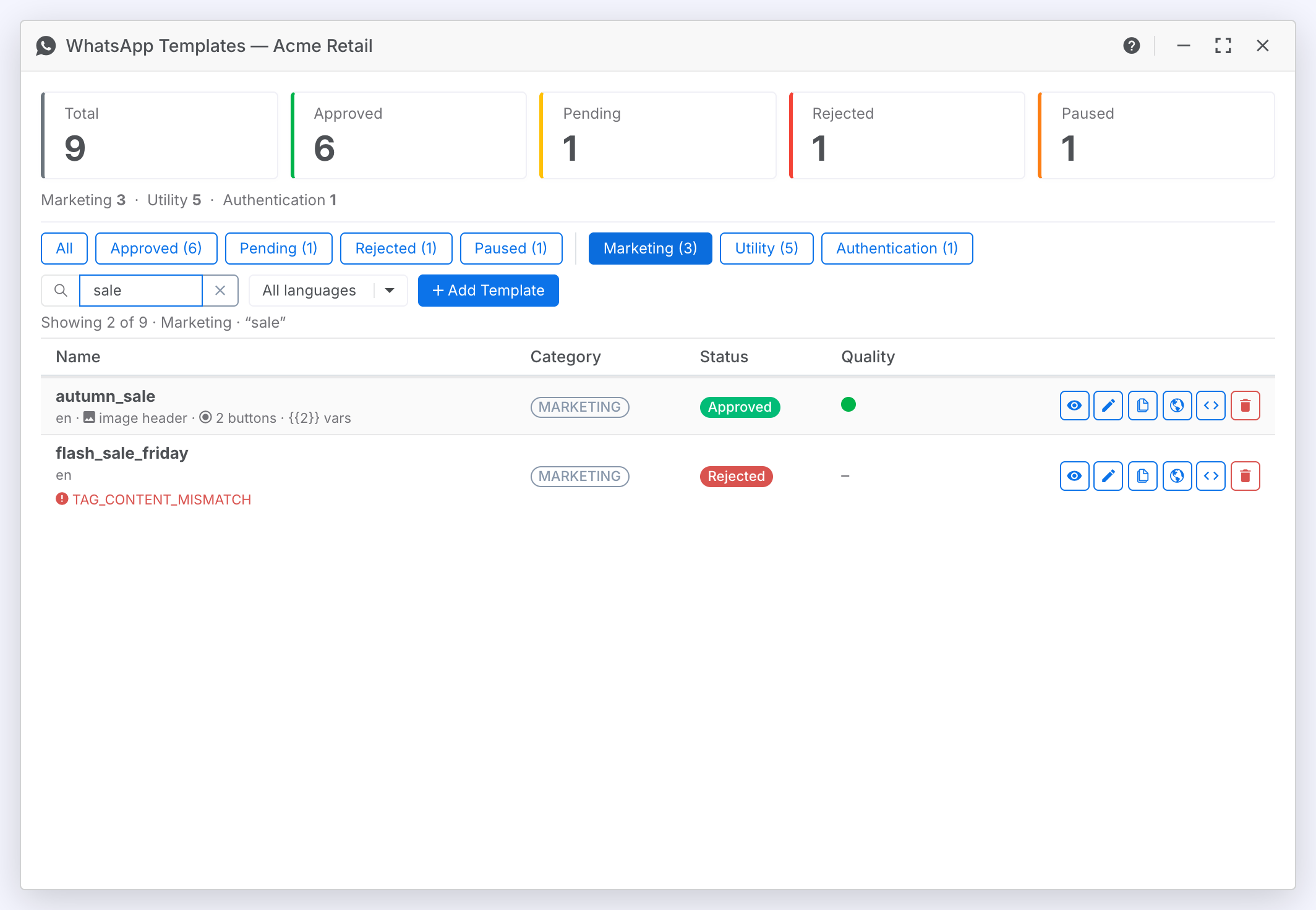
Steps:
- Click a status chip, such as Approved, to show only templates in that status. Click a second status to add it.
- Click a category chip to narrow further. Status and category combine, so Rejected plus Marketing shows the rejected marketing templates.
- Type in the Search field to match a template's name or any of its text, including button labels. Click the × in the field to clear it.
- Pick a language from the All languages dropdown. It only appears when the chatbot has templates in more than one language.
- Click All to clear the chips.
Result: The line above the table says how many templates are shown and which filters are on.
Sort the table
Order the rows by any column.
Steps:
- Click the Name, Category, Status or Quality column heading.
- Click the same heading again to reverse the order. An arrow beside the heading shows the direction.
Template Statuses
| Status | Meaning |
|---|---|
| Approved | WhatsApp has approved the template. Agents and campaigns can send it. |
| Pending | Submitted and waiting for WhatsApp's review. Review can take up to 24 hours. |
| Rejected | WhatsApp turned the template down. The reason is shown under its name. Edit it and submit it again. |
| Paused | WhatsApp stopped the template after poor quality ratings. It cannot be sent while paused. |
| Disabled | WhatsApp has disabled the template after repeated pauses. Create a new one instead. |
| Flagged | WhatsApp has raised a quality concern. Check the template's content and its quality dot. |
Working with a Template
The icons at the right of each row act on that template. Hover over an icon to see its name. All of them except API JSON and Delete open the template in its own editor window, which New Template describes in full.
Preview a template
See a template as the customer will, with its details.
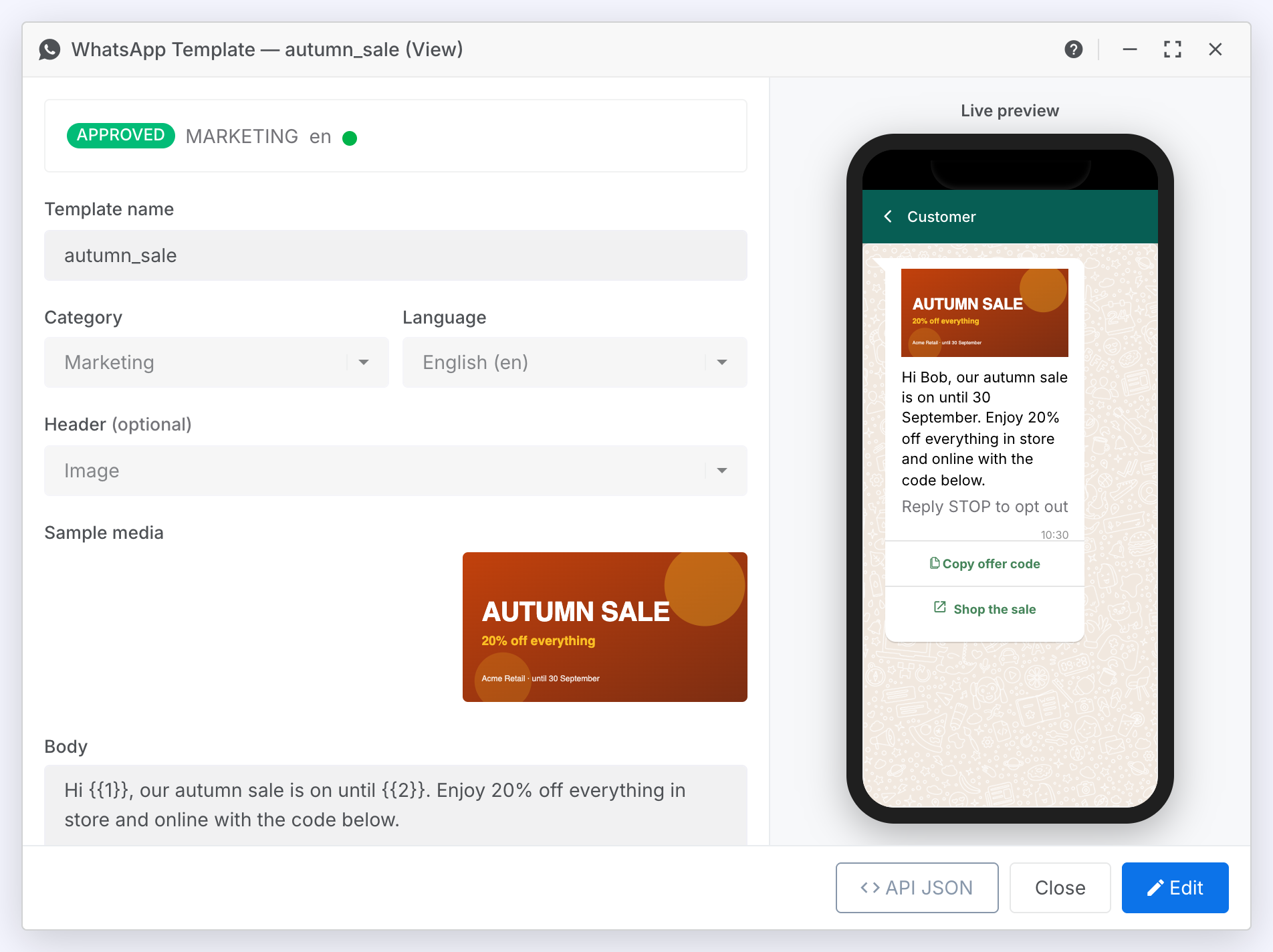
Steps:
- Click anywhere on the row, or click its Preview icon (eye).
Result: The template opens read-only. A banner at the top shows its status, category, language and quality, and the reason if it was rejected. The phone on the right shows the message with its sample values filled in.
- Click Edit in the footer to unlock the fields in place.
- Click API JSON in the footer for the request that sends this template through the Convrs API.
Edit a template
Change a template's content and send the change to WhatsApp.
Steps:
- Click the row's Edit icon (pencil).
- Change the header, body, footer or buttons. The name, category and language are locked, because WhatsApp does not allow them to change.
- Click Submit for approval.
Result: WhatsApp reviews the change. The list reloads, and the template shows as Pending until WhatsApp approves it again.
Duplicate a template
Start a new template from an existing one.
Steps:
- Click the row's Duplicate icon (two pages).
- Give the copy a new name. The window suggests the original name with _copy on the end.
- Change what you need and click Submit for approval.
Copy a template to another language
Add a language version of a template under the same name.
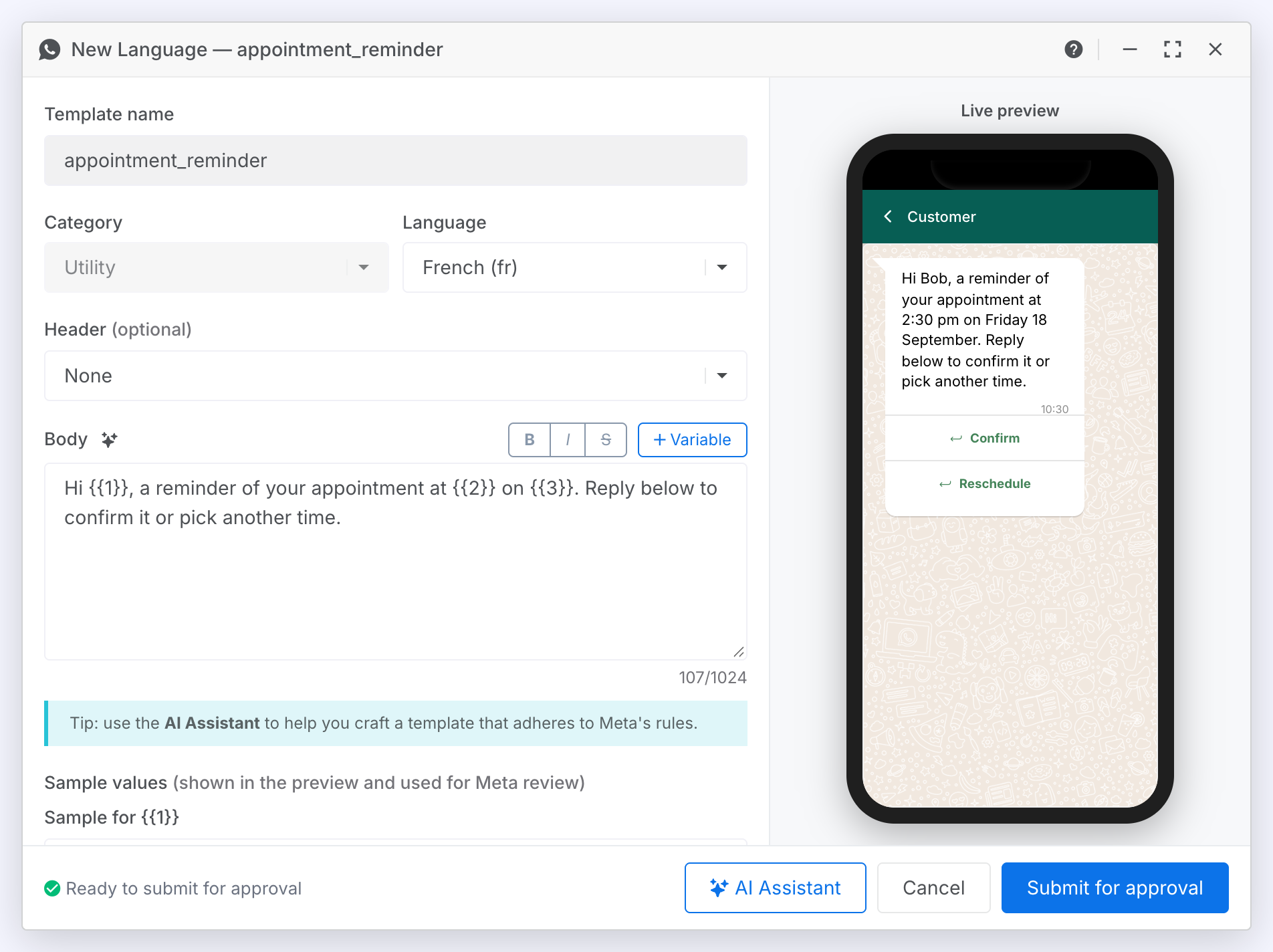
Steps:
- Click the row's Copy to another language icon (globe).
- Pick the new language from the Language dropdown. Languages the template already has are left out.
- Translate the header, body, footer and button text. The name and category are locked to match the original.
- Click Submit for approval.
Result: The new language appears as its own row once WhatsApp approves it. When an agent sends the template, the picker offers the customer's language automatically.
Get the API JSON
Copy the request that sends this template through the Convrs API.
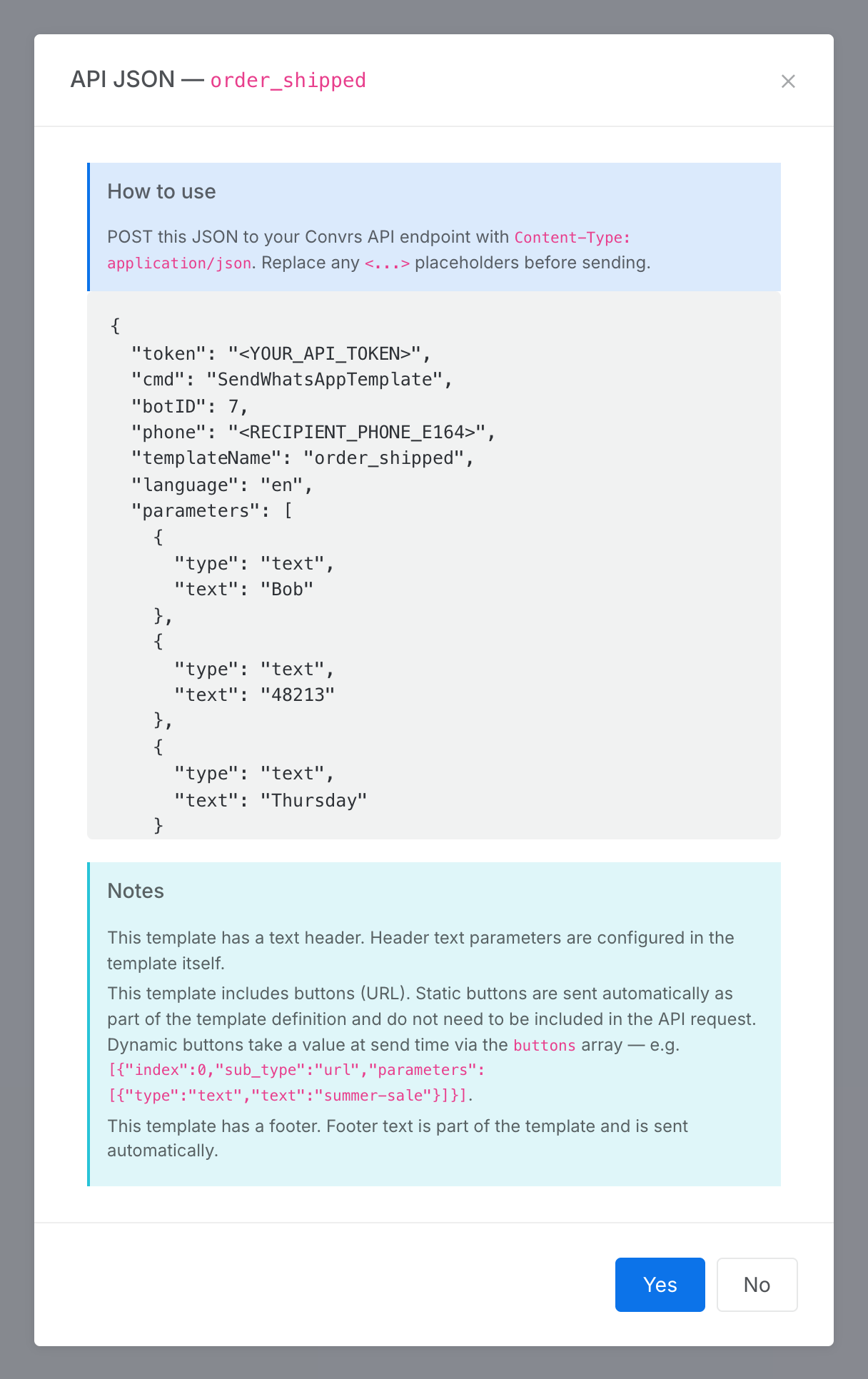
Steps:
- Click the row's API JSON icon (angle brackets).
- Copy the JSON and replace the placeholders in angle brackets: your API token, the recipient's phone number in E.164 format, and any media link.
Result: The JSON already carries the template's name, language and sample values as its parameters. Notes under it explain anything the request must add at send time, such as a document filename or a value for a dynamic button.
Delete a template
Remove a template from WhatsApp.
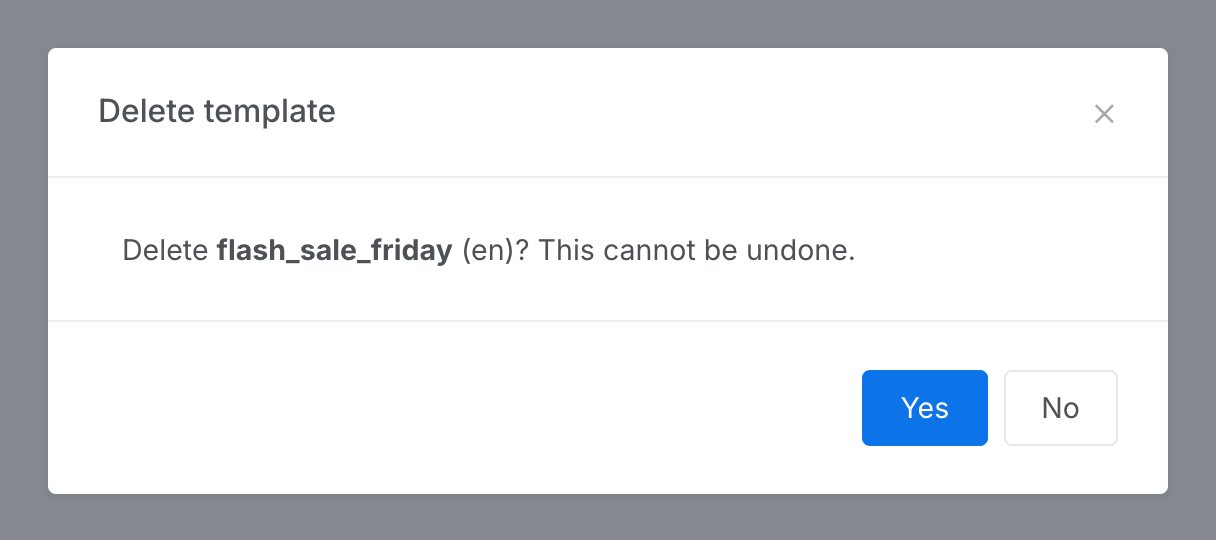
Steps:
- Click the row's Delete icon (bin).
- Click Yes to confirm.
Result: The template is deleted at WhatsApp and the list reloads. Any template picker open on this chatbot drops it too.
Adding a Template
Click Add Template above the table to open a blank editor for this chatbot. Building a template, from the name to the buttons and the AI Assistant, is covered in New Template. A submitted template appears in the list as Pending and becomes Approved once WhatsApp has reviewed it.
Agents' template pickers use a cached list of approved templates. Creating, editing or deleting a template here refreshes that cache. If you approved or changed a template in WhatsApp Business Manager instead, click Clear Template Cache on the Chatbots page.