Single Sign On
Single sign-on (SSO) lets your agents sign in to Convrs with the account they already use at work.
Agents sign in at your identity provider (IdP), such as Google or Okta. Its password rules and multi-factor authentication then apply to Convrs too.
You still add agents and choose their roles in Convrs. SSO changes how they sign in.
Supported Providers
Convrs works with four identity providers. You choose one for your whole organisation. Each provider has its own article with the full set-up steps.
| Provider | How agents sign in | What you set up |
|---|---|---|
| Google SSO | They click Continue with Google on the login page. | Choose Google on the Single Sign-On (SSO) tab. |
| Microsoft SSO | They click Continue with Microsoft on the login page. | Choose Microsoft and enter your Microsoft tenant ID. |
| Okta OIDC | They enter their email and click Continue. Convrs sends them to Okta. | Add the Convrs app in Okta, and send its details to Convrs Support. |
| Generic SAML | They enter their email and click Continue. Convrs sends them to your SAML vendor. | Swap two URLs and a certificate with your SAML vendor. |
Before You Start
Check these before you turn on SSO:
- Your organisation is on the Convrs Enterprise plan.
- You can open Organization Profile in Convrs. This needs the AdminOrganization permission (see Roles and Permissions).
- For Okta and Generic SAML, you have admin access to your identity provider.
- Each agent's email address in Convrs matches their account at the identity provider. Convrs finds the agent by that email.
SSO Settings
SSO is set for the whole organisation on the Single Sign-On (SSO) tab of Organization Profile.
Turn On SSO
Choose your identity provider and turn on SSO for every agent in your organisation.
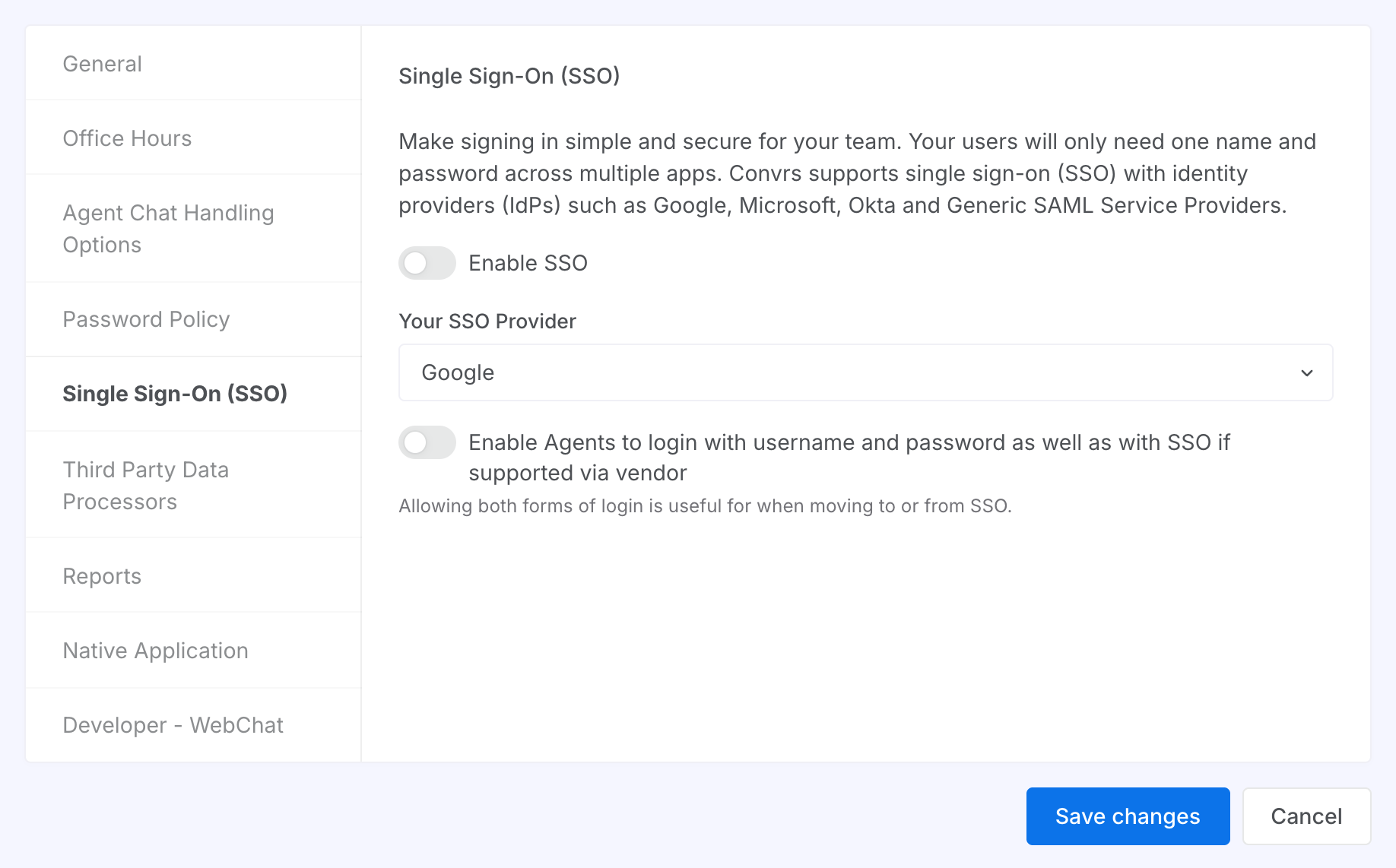
Steps:
- Go to Administration > Organization Profile.
- Click the Single Sign-On (SSO) tab.
- Turn on Enable SSO.
- Select your identity provider from the Your SSO Provider dropdown.
- Fill in any fields your provider needs. Its own article lists them.
- Click Save changes.
Result: Agents now sign in through your identity provider.
Let Agents Use a Password as Well
Choose whether agents can still sign in with their Convrs password while SSO is on.
Steps:
- Go to Administration > Organization Profile.
- Click the Single Sign-On (SSO) tab.
- Turn on Enable Agents to login with username and password as well as with SSO if supported via vendor.
- Click Save changes.
Result: Agents can sign in with SSO or with their Convrs password. With the switch off, an agent who enters a password sees "You must login using your SSO provider".
- Leave it on while you move to SSO. Agents can try SSO, and still sign in with their password if something at the identity provider isn't right yet.
- Turn it off once everyone signs in with SSO. Every sign-in then goes through your identity provider's rules.
Troubleshooting
When SSO sign-in fails, the agent sees a message on the Convrs login page. This table says what each message means and how to fix it.
| Message | What it means | What to do |
|---|---|---|
| Your email address isn't associated with any Convrs account. | The email at the identity provider doesn't match any agent in Convrs. | Check the agent's email in Agent Management. It must match their identity provider account. |
| SSO is not enabled for your organisation. | Enable SSO is off. | Turn on Enable SSO on the Single Sign-On (SSO) tab. |
| This SSO provider is not enabled for your organisation. | The agent used a different provider from the one you chose. For example, they clicked Continue with Google and you chose Microsoft. | Ask the agent to sign in with your organisation's provider. |
| You must login using your SSO provider | The agent entered a password, and password sign-in is off. | Ask the agent to sign in with SSO, or turn on password sign-in. |
| The role that your SAML vendor has provided does not exist. | Generic SAML only. Your vendor sent a role that Convrs doesn't have. | See Generic SAML. |
| Your Microsoft account isn't from a Microsoft tenant allowed for your organisation. | Microsoft only. The account belongs to a Microsoft tenant you haven't listed. | See Microsoft SSO. |