Searching
Search across all conversations and users in your organization from the search bar in the header.
The Global Search opens when you click the search bar in the top navigation or start typing into it. It searches across all message history and user records within the business units you have access to. You will only see results from chatbots and channels assigned to your account.
Smart Language MatchingSearch automatically understands word variations, so you do not need to search for every form of a word separately:
- Plurals: searching for customer also finds customers, and vice versa
- Verb forms: searching for ship also finds shipped, shipping, and ships
- Tenses: searching for running also finds run and ran
This means a search for deliver will match messages containing delivered, delivering, or deliveries.
Business Unit AccessSearch results are limited to the business units (chatbots and channels) you have been granted access to. If you cannot find a conversation you expect to see, check with your administrator that you have the correct business unit permissions.
Searching
Use the search bar in the top navigation to find messages, users and tasks across your organization.
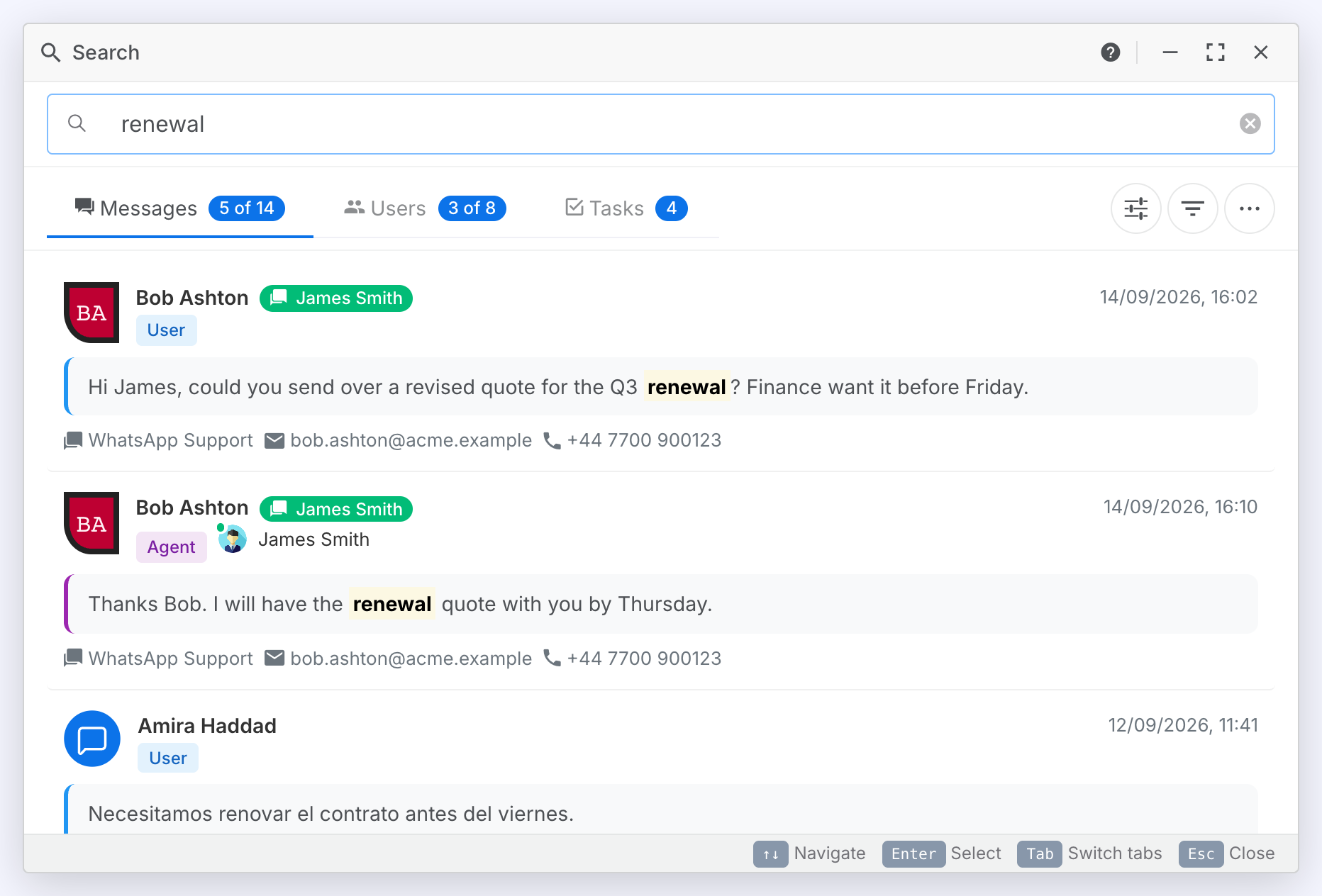
Perform a Search
Find messages, users or tasks by typing a search term.
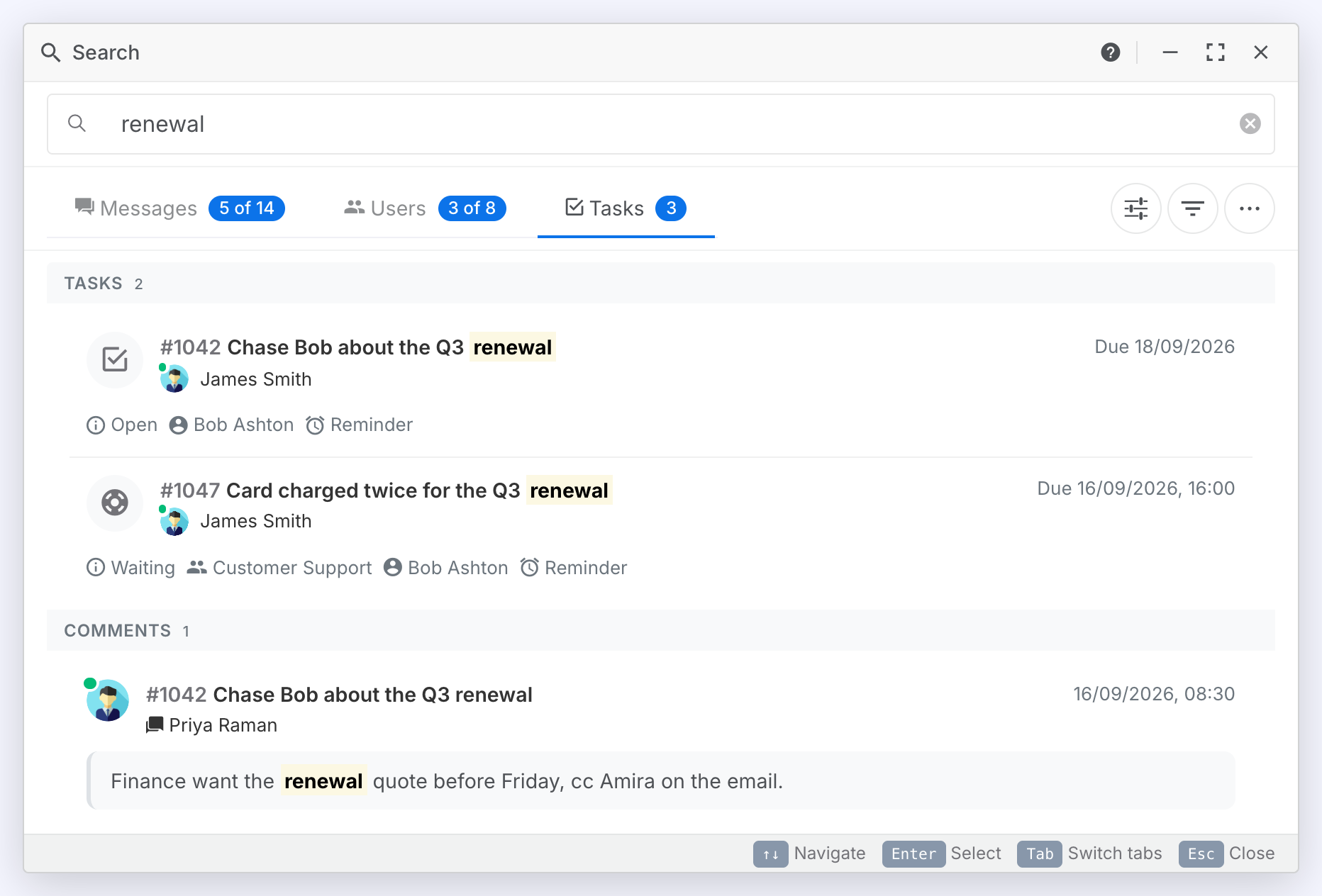
Steps:
- Click the Search bar in the top navigation, or start typing.
- The search modal opens and focus moves to the search input.
- Type at least 3 characters to begin searching.
- Results appear automatically as you type, split into Messages, Users and Tasks tabs.
- Click on a message or user result to open the User View for that customer. If you clicked a message result, the conversation scrolls to the matching message and highlights it for a moment.
- Click on a task result to open that task. A comment result opens the task with the thread scrolled to that comment.
Result: The User View or the task opens on top of the search modal. When you close it, you are returned to your search results.
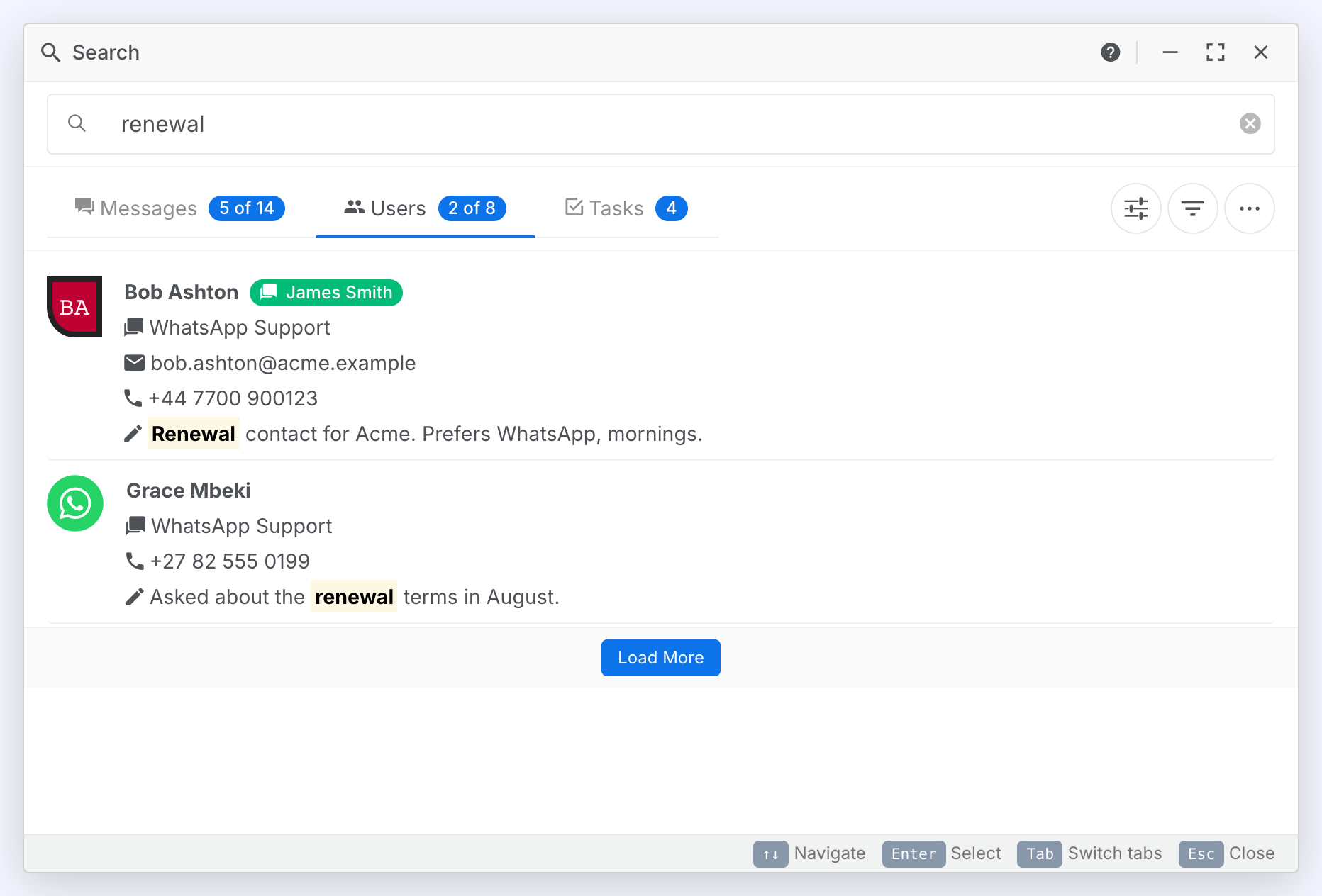
Load More Results
View additional results beyond the first page.
Steps:
- Scroll to the bottom of the results list on the Messages, Users or Tasks tab.
- Click the Load more button if more results are available.
Result: Additional results are appended to the list. Results are loaded 10 at a time.
Sort Options
Control the order in which search results are displayed.
Change Sort Order
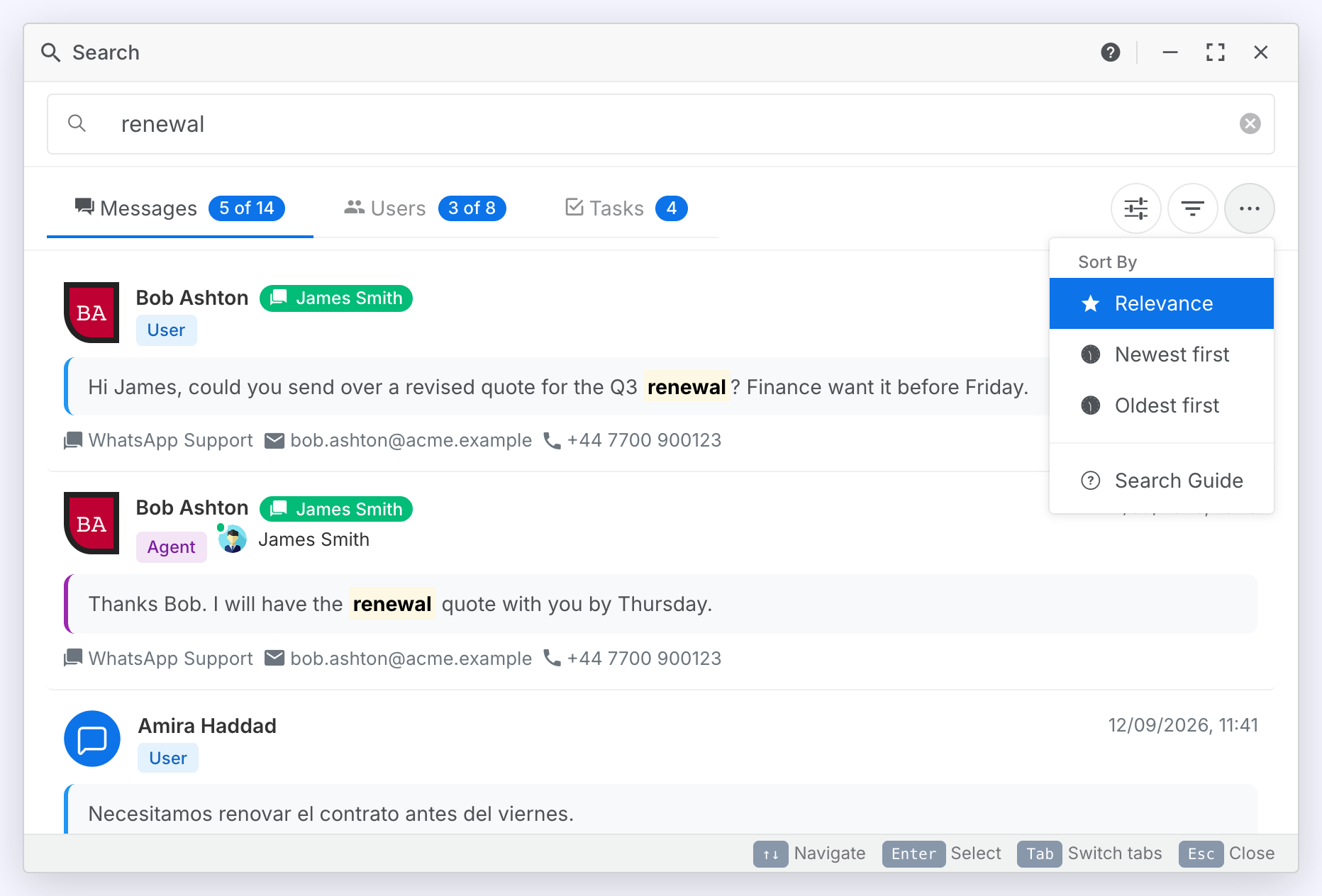
Sort results by relevance or date.
Steps:
- Click the More button (three dots icon) in the toolbar next to the tabs.
- Under Sort By, choose one of the following options:
Result: Results are re-sorted immediately using the selected order. The active sort option is highlighted in the menu.
| Option | Description |
|---|---|
| Relevance | Shows the most relevant results first based on how closely they match your search term. This is the default. |
| Newest first | Shows the most recent results first. On the Tasks tab a task is ordered by the date it was created and a comment by the date it was written. |
| Oldest first | Shows the oldest results first. |
Filters
Narrow down your search results using filters. Click the Filter button (funnel icon) in the toolbar to open the filter panel. A dot indicator appears on the button when filters are active.
Filter Results
Narrow results by who sent the message, which agent handled the chat, or when the message was sent.
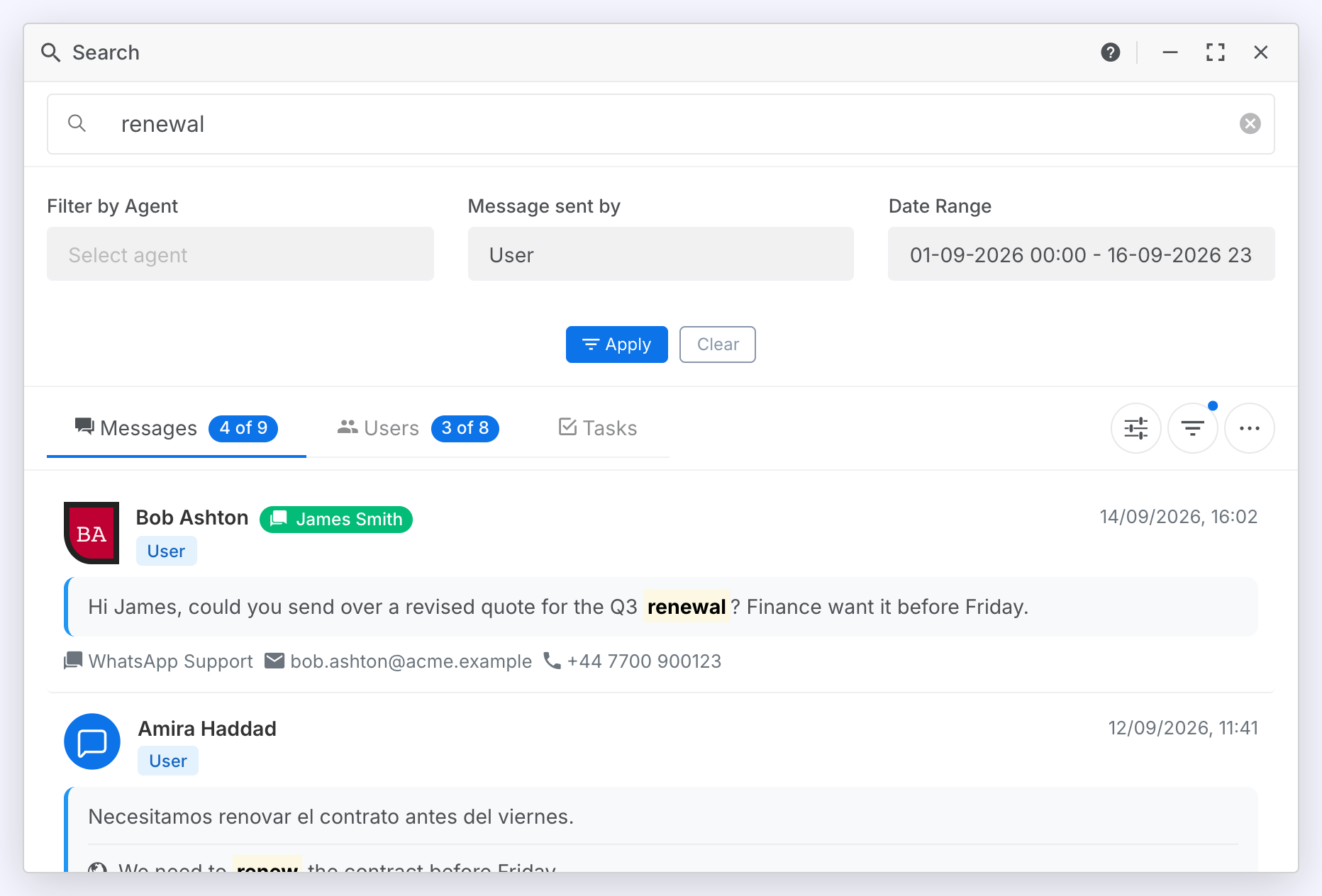
Steps:
- Click the Filter button (funnel icon) in the toolbar to expand the filter panel.
- Set one or more of the available filters.
- Click Apply to run the search with your filters.
Result: The search re-runs with the selected filters applied. A dot indicator appears on the filter button to remind you that filters are active.
| Filter | Description |
|---|---|
| Message sent by | Show only messages sent by Agent, User, or both. For example, select User to see only customer messages. Tasks and comments are always written by agents, so selecting User alone leaves the Tasks tab empty. |
| Filter by Agent | Show only conversations handled by one or more specific agents, and on the Tasks tab only tasks assigned to or raised by them and comments they wrote. You can search for agents by name. This filter is available to supervisors. |
| Date Range | Restrict results to messages sent, tasks created or comments written within a specific date range. Select a start and end date from the date picker. |
- Click Clear in the filter panel to remove all filters and return to unfiltered results.
- Filters and search work together. Set a search term first, then apply filters to refine.
Advanced Search
For more control over how your search terms are matched, click the Advanced button (options icon) in the toolbar to open the advanced search panel. A dot indicator appears on the button when advanced options are active.
Use Advanced Search Options
Fine-tune how your search is performed using exact matching, typo tolerance, word exclusion, and multi-term searches.
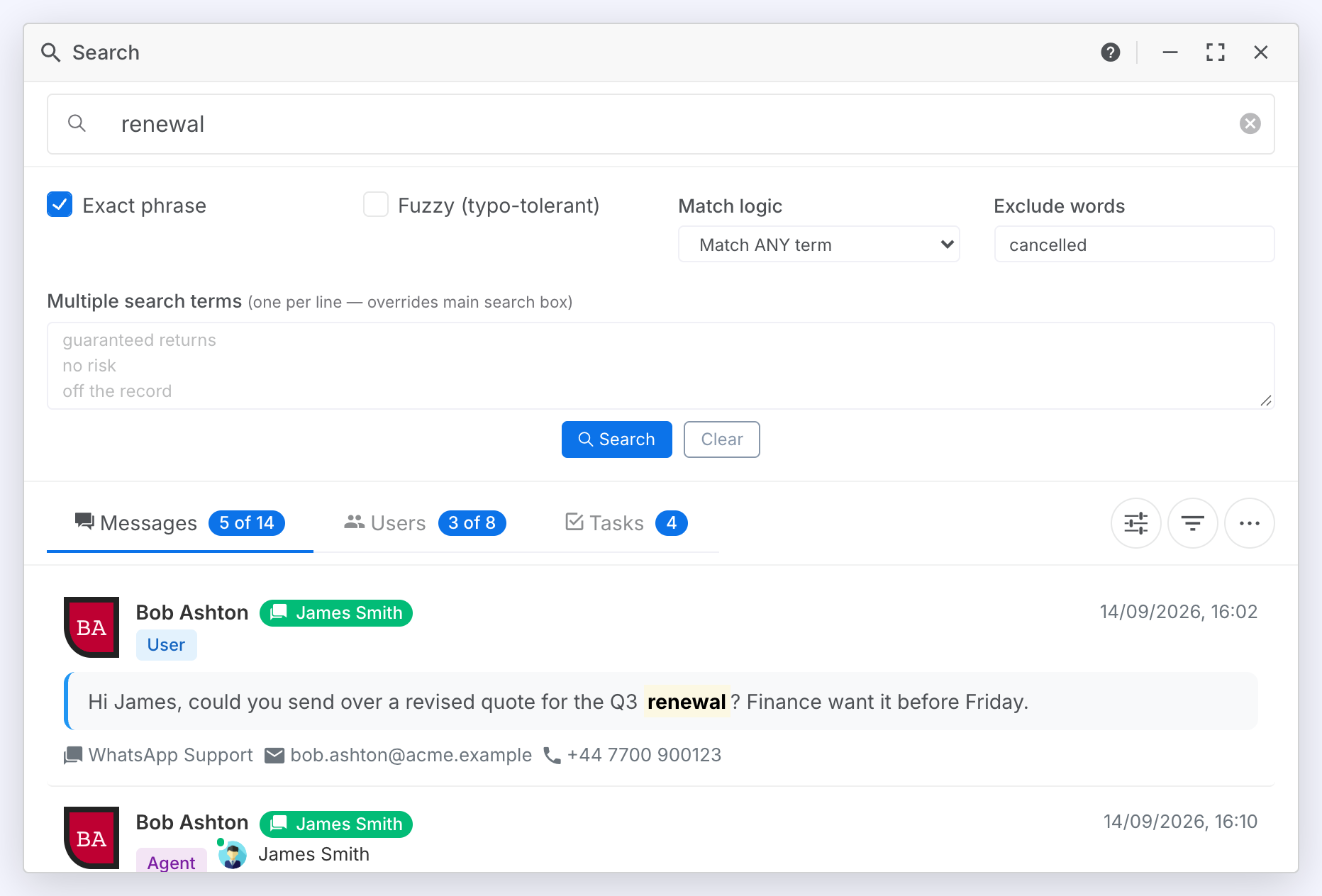
Steps:
- Click the Advanced button (options icon) in the toolbar to expand the advanced panel.
- Configure your options as described below.
- Click Search to run the search with your advanced options.
Result: The search re-runs using your advanced options. A dot indicator appears on the advanced button to remind you that advanced options are active.
| Option | Description |
|---|---|
| Exact phrase | When checked, results must contain your search words in the exact order you typed them, with no extra words in between. For example, searching refund request will match "I have a refund request" but will not match "I requested a refund". Without this option, words can appear near each other in any order. |
| Fuzzy (typo-tolerant) | When checked, the search allows for minor spelling differences and typos. For example, searching recieve will still find messages containing receive, and searching jonh will find john. This is useful when searching for names or when users may have misspelled words. Each word can differ by up to one character (an added, removed, or changed letter). |
| Match logic | Controls how multiple search terms are combined. Match ANY term (default) returns results that contain at least one of your search terms. Match ALL terms returns only results that contain every search term. For example, with three terms (refund, shipping, and delay), "Match ANY" shows messages containing any of those words, while "Match ALL" only shows messages that mention all three. |
| Exclude words | Words entered here are excluded from results. Separate multiple words with spaces. For example, if you search for payment but want to exclude routine messages, enter confirmed successful to filter out messages containing those words. |
| Multiple search terms | Enter multiple search phrases, one per line, to search for several different terms at once. Each line is treated as a separate search term. When you enter terms here, the main search box is disabled because these terms are used instead. Terms must be at least 3 characters long. Use this in combination with the Match logic option to control whether results must match all terms or just any one of them. For example, you could enter compliance-related phrases on separate lines to find conversations matching any of those phrases. |
- Click Clear in the advanced panel to reset all advanced options and return to the default search behavior.
- The default search (without any advanced options) uses a flexible phrase match that allows words to appear near each other in any order. This works well for most searches.
- Use Exact phrase when you need to find a specific phrase like a policy name, product code, or quoted text.
- Use Fuzzy when searching for names or terms that may have been misspelled by the customer.
- Combine Exclude words with a broad search term to filter out common but irrelevant matches.
Keyboard Shortcuts
Navigate the search modal quickly using your keyboard.