Notifications
When a colleague mentions you, assigns you a task, comments on one you are watching, or a reminder comes due, it reaches you in three places: the bell in the top bar for a quick look, the Inbox window for working through them, and your email for the ones that matter most. This article covers all three, and the preferences under My Profile that shape them.
What you are notified aboutToday notifications come from Tasks. The people on a task hear about what happens to it: its creator, its assignee, anyone who commented on it or was mentioned in it, and anyone who chose to watch it. See Watching in The Task Window for who is on a task and how to stop following one.
The Bell
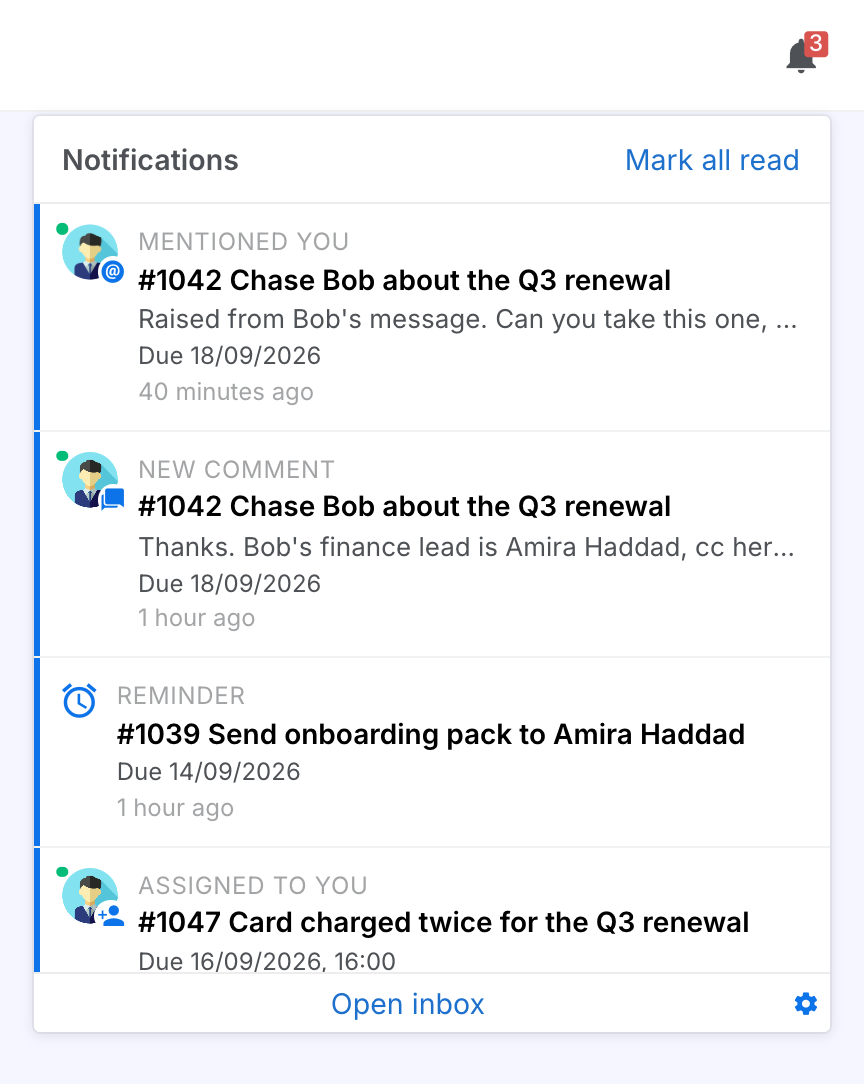
The bell in the top bar is a peek at what is unread, newest first. It shows one row per task. A task with several notifications shows the one that needs you most, with and N more beside its label. The red badge counts the tasks that need you: a mention, an assignment, a reminder, a task that is no longer blocked, or a task you are on that was completed. A comment on a task you are merely watching is in the list without lighting the badge. Hover the bell to see what the number means.
The badge, the Inbox's Unread count and the list itself all count tasks. Open a task and each drops by one, however many notifications it had.
Each row says who did what (the colleague's avatar with the kind of notification in its corner, or an alarm for a reminder), the task's number and name, the first line of the comment, when the task is due, and how long ago the task last had news.
Read a Notification
Clicking a row takes you to the task and marks its notifications read.
Steps:
- Click the bell to open it.
- Click a row. The task opens in its window. A row about a comment lands the thread on that comment.
Result: Every notification about that task is marked read at once: one task, one line of the queue. Mark all read clears the lot. Scrolling to the end of the list fetches earlier ones, as does Load older. Open inbox opens the window described next, and the cog opens your notification preferences.
The Inbox
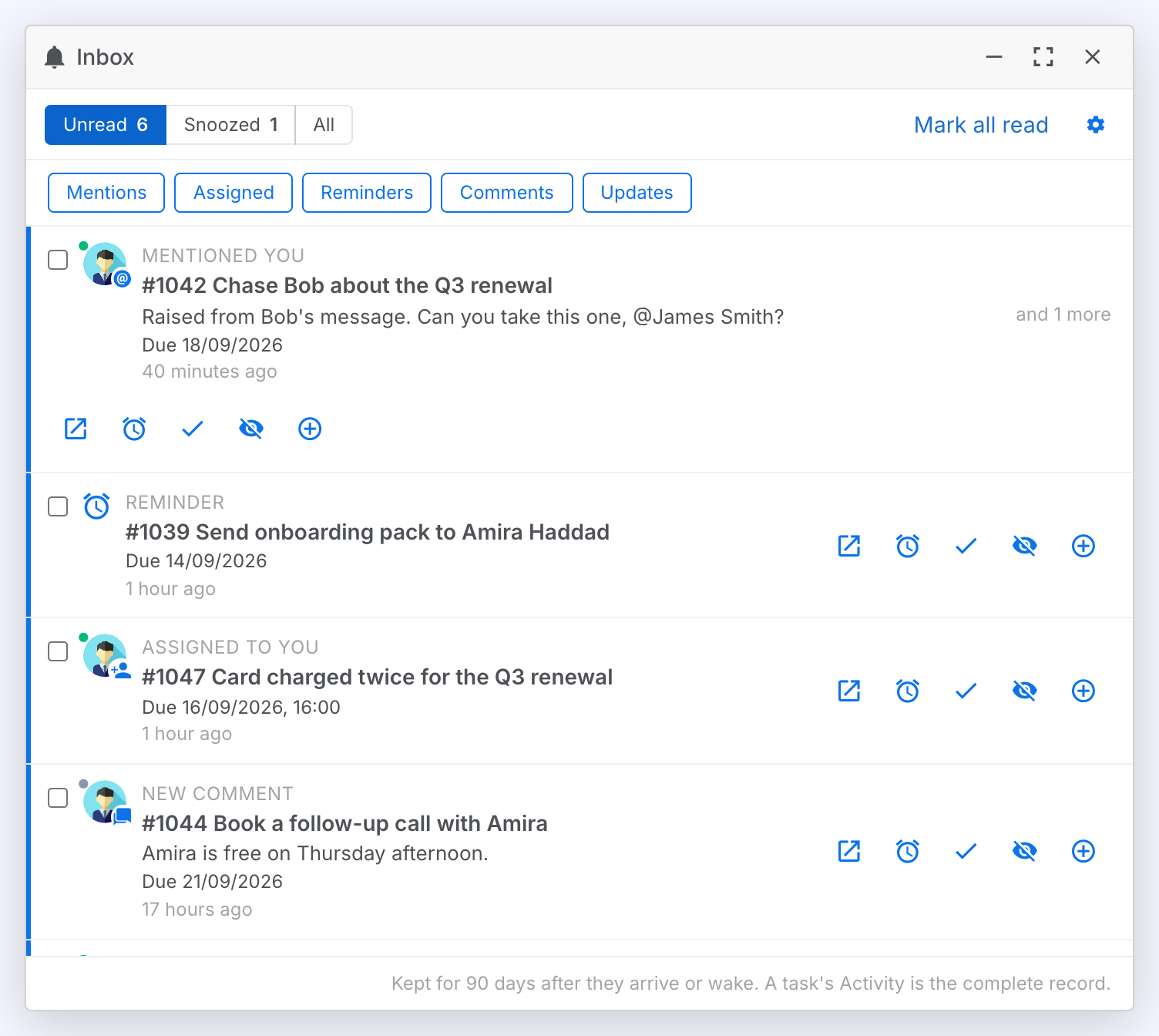
The Inbox is where you work through notifications: a window you can bring to empty. Open it from the bell's Open inbox or the Inbox button on the Tasks page. It has three tabs. Unread and Snoozed show one row per task, each with its count. All is the last 90 days, one row per notification, including what you have read. Under the tabs is a row of type filters that combine. Click Mentions and Reminders to see only those.
On Unread and Snoozed, a task with several notifications is one row that says and N more. With a filter on, N counts only the kinds you chose. An action on the row applies to every notification about the task. Scrolling to the end of any tab loads what came before. Notifications are kept for 90 days after they arrive or wake. The task's own Activity thread is the permanent record.
Kinds of Notification
What each label means, which make a task count toward the bell's badge, and which are also emailed. A task shows under the label that needs you most: a mention followed by three comments is listed as Mentioned you, and 3 more.
| Label | When | Badge | |
|---|---|---|---|
| Mentioned you | Someone wrote @you in a comment or in a task's description. | Yes | Yes, at most one per task every 15 minutes |
| Assigned to you | A task was assigned to you. | Yes | Yes |
| Reminder | A reminder on a task assigned to you came due. | Yes | Yes. Reminders made with Remind me… or the WhatsApp window reminder stay in the app. |
| No longer blocked | The last open task blocking one assigned to you was completed. | Yes | No |
| New comment | A comment on a task you are on or watching. | No | No |
| Completed | A task you follow was completed, resolved or closed. Filtered under Updates. | Yes | No |
| Updated | A task you follow changed its status or due date, or one of its subtasks was added or changed status. A reassignment is sent to the task's creator and its previous assignee. You also get one when someone adds you to a task. Filtered under Updates. | No | No |
| Closed, the customer replied | A follow-up set to close if the user replied did so, instead of reminding you. | No | No |
Act on a Notification
Each row carries up to five actions. A snoozed row has no Mark read. Hover an action for its name. An action on a task's row applies to every notification about that task, including any not yet loaded.
| Action | What it does |
|---|---|
| Open | Opens the task, on the comment where there is one, and marks its notifications read. Clicking anywhere on the row does the same. |
| Snooze / Wake now | Puts the row away until a time you choose (see below), or brings a snoozed one back. |
| Mark read / Mark unread | Clears the row without opening the task, or puts it back in the queue to deal with later. |
| Stop following | Takes you off the task's watchers. You stop hearing about its comments and changes. Mentions still reach you, and so do assignments, reminders and No longer blocked on a task assigned to you. |
| Draft a follow-up | Opens a new task for you, titled after this one and linked to it. It is due on your next working morning, with a reminder an hour before. Nothing is created until you click Create or Create and view. |
Snooze a Notification
Make a notification disappear until you can deal with it.
Steps:
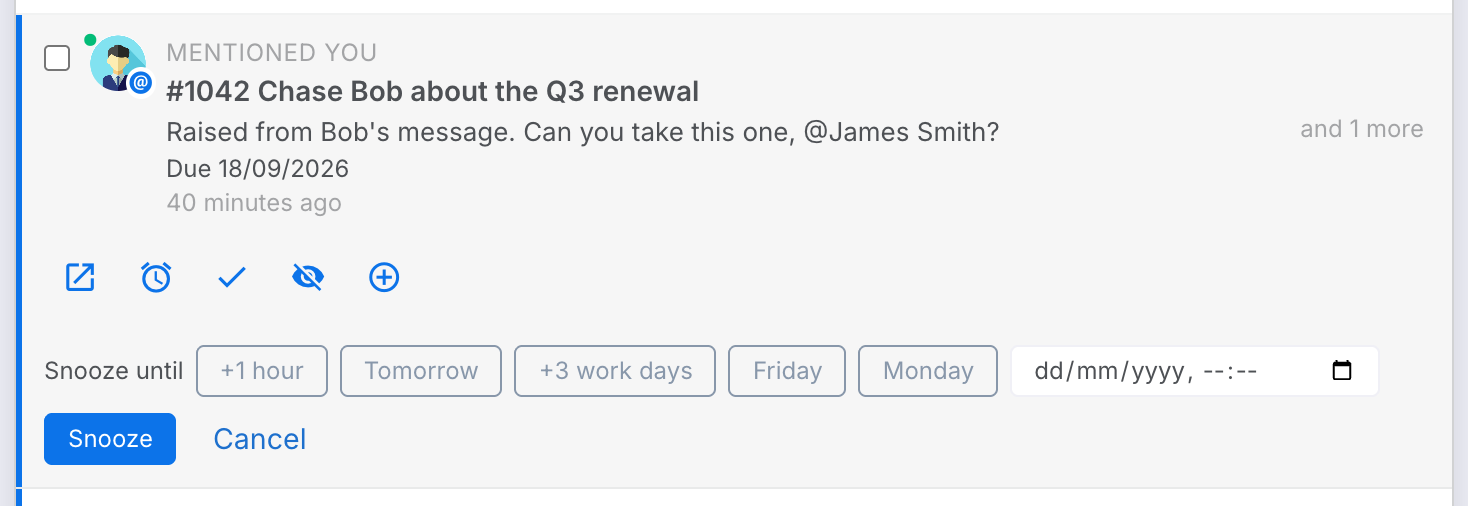
- Click the alarm on a row.
- Pick +1 hour, Tomorrow, +3 work days, Friday or Monday (resolved against your working hours), or enter a date and time and click Snooze. A snooze can be up to 30 days.
Result: The row leaves the bell and the Unread tab and waits on the Snoozed tab, soonest first, where Wake now brings it back early. When its time comes it returns to the top of your queue marked Snoozed until now, and lights the badge again if it did the first time.
Deal with Several at Once
Tick rows to act on them together.
Steps:
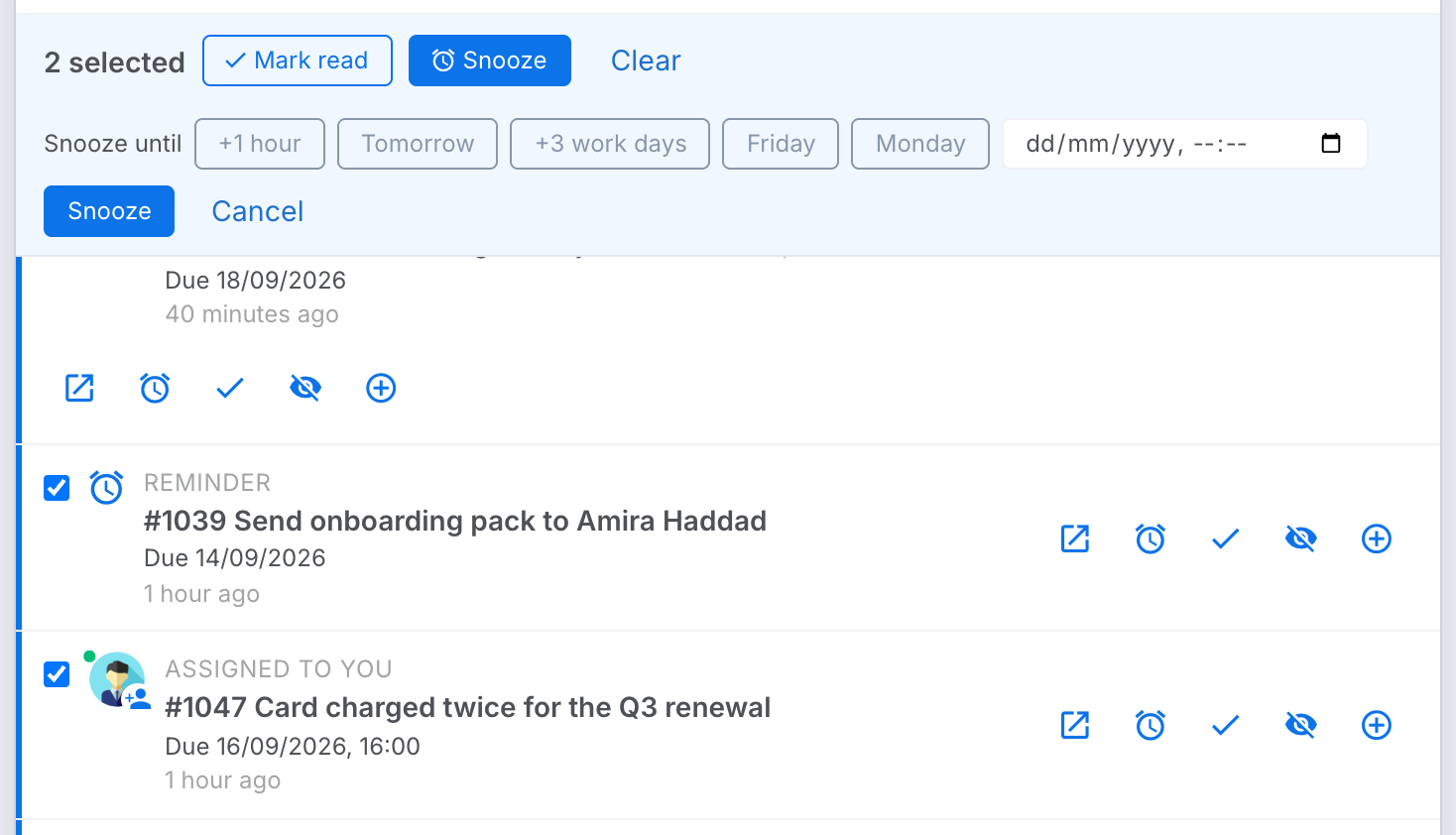
- Tick the box on each row. A bar appears above the list saying how many rows are selected.
- Click Mark read or Snooze to apply to all of them, or Clear to drop the selection. Nothing is ever deleted.
Find an Older Notification
Reach a mention or a comment from weeks ago without scrolling through everything since.
Steps:
- Open the All tab.
- Narrow it with a type filter, such as Mentions.
- Pick a day in Jump to. The list starts on that day and runs back from it. Clear the date to return to the newest.
Result: Scrolling to the end of the list loads what came before it. Notifications older than 90 days are gone from here. The task's Activity thread still has them, and Search in the top bar finds comments by their words. See Searching.
Keyboard Shortcuts
With the Inbox window in front, the keyboard works through the list.
| Key | Does |
|---|---|
| j / k | Move down and up the list. |
| Enter | Open the highlighted row's task. |
| u | Mark it read, or unread again. |
| h | Open its snooze strip. |
| x | Select it for a bulk action. |
| Esc | Close an open snooze strip. |
Notification Preferences
Under My Profile › Notifications, the Tasks section holds four settings. They are saved with the profile's Save changes button. The cog on the bell and in the Inbox is a shortcut to it. Times here are in your profile's time zone. Set that on the General tab.
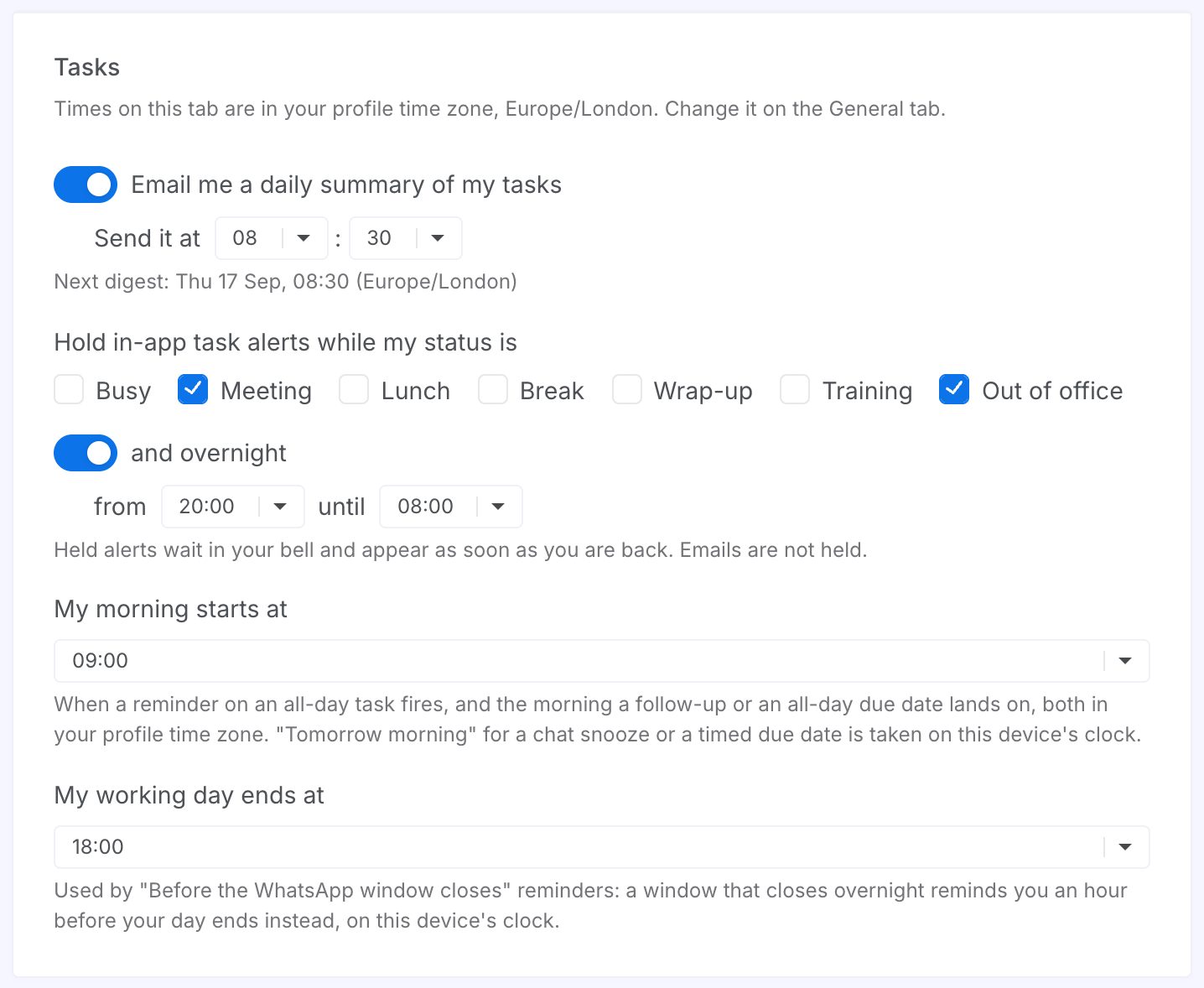
Set Your Preferences
What each setting controls.
| Setting | What it does |
|---|---|
| Email me a daily summary of my tasks | Off unless you turn it on. One email a day at the time you choose. It lists your overdue tasks, the ones due today and the tickets sitting unclaimed in your queues, and each line opens its task. The line beneath says when the next one goes. It needs an email address on your profile. |
| Hold in-app task alerts while my status is… | Tick the statuses (Busy, Meeting, Lunch, Break, Wrap-up, Training, Out of office) during which the bell stays quiet. Turn on and overnight to hold them between two hours as well. Until you change it, alerts are held during Meeting and Out of office and from 20:00 to 08:00. Held alerts are not lost. They are in the bell the next time you open it, or when the next alert reaches you. Emails are never held. |
| My morning starts at | The hour a reminder on a whole-day task fires, and the hour a follow-up or a due date of "tomorrow morning" or "Friday" means. Nine o'clock unless you change it. |
| My working day ends at | Used by the Before the WhatsApp window closes reminder: a window that would close overnight reminds you an hour before your day ends instead. |